iPhone Touch Screen
iPhone Touch Screen Not Working After a Drop? What to Check
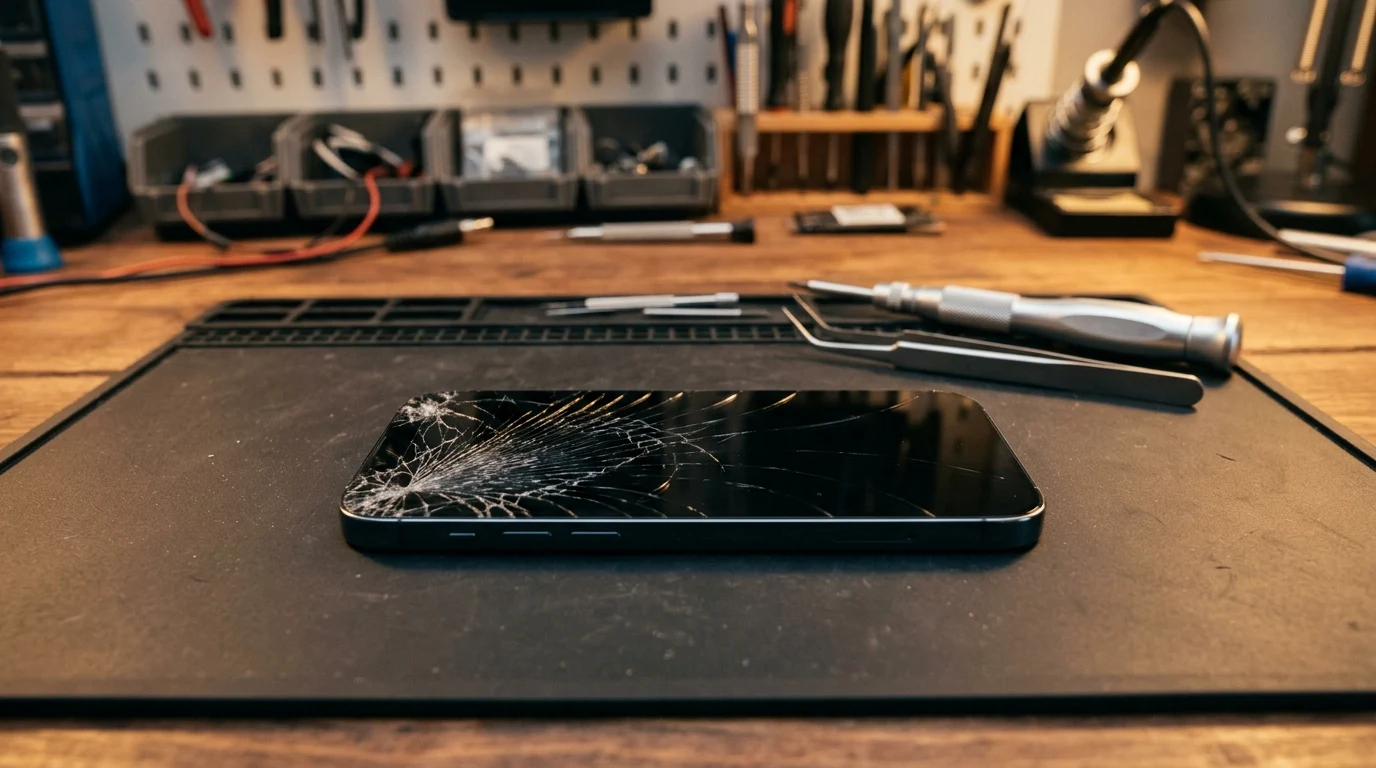
If your iPhone touch screen is completely unresponsive or registering erratic 'ghost touches' after a drop, the impact has likely damaged the digitizer layer, dislodged internal flex cables, or caused micro-fractures in the display assembly—even if the exterior glass looks undamaged. Before seeking repair, perform an immediate safety check, remove any screen protector or case, and perform a model-specific force restart. If touch response does not return, a display assembly replacement or internal connector reseating is required.
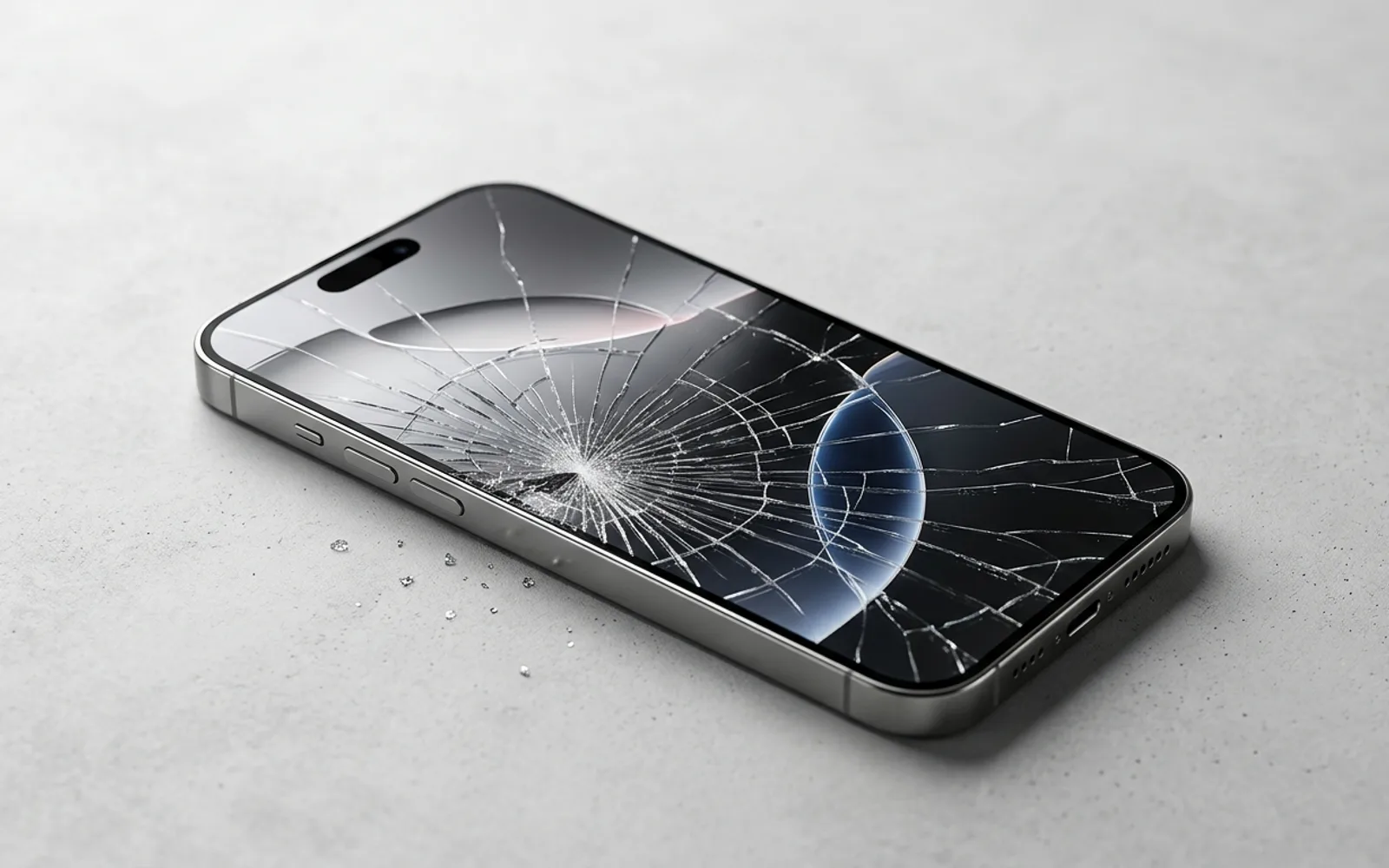
Dropping your iPhone onto concrete or a tile floor is sickening, but discovering that the screen will not respond to your touch is even more frustrating. Sometimes the front glass shatters into a spiderweb of cracks; other times, the glass appears completely pristine, yet tapping, swiping, or typing yields zero reaction.
An unresponsive touch screen after an impact usually stems from hardware disruption: a fractured digitizer sensor grid, a loosened display flex connector inside the chassis, or damaged touch controller circuitry. Before assuming the phone is totaled or panicking about your photos, follow these safe, systematic troubleshooting steps.
Step 1: Perform an Immediate Physical and Safety Inspection
Before you plug the iPhone into a charger or attempt to force buttons, visually examine the device for physical and chemical hazards:
- Check for glass slivers and sharp edges: If the glass is fractured, tiny glass shards can cut your fingers or embed under your skin. Apply a layer of clear packing tape smoothly across the face of the screen to protect your hands and prevent glass loss.
- Check for screen lifting or frame separation: If the display is popping out of the aluminum or titanium frame, the lithium-ion battery inside may have suffered impact damage and begun expanding. If the screen is bulging or smells metallic/sweet, do not charge the phone and keep it in a fire-safe location.
- Inspect the corners of the housing: A severe corner dent can pinch the edge of the OLED display panel, creating constant pressure that shorts the capacitive touch grid.
Step 2: Eliminate Common Surface and Accessory Interference
Sometimes the drop doesn't break the iPhone's internal hardware, but alters external factors that prevent capacitive touch from registering:
Remove thick cases and screen protectors
A drop can crack tempered glass protectors internally or cause them to lift microscopic air pockets off the screen. Even a tiny gap prevents the electrical charge from your fingertips from reaching the digitizer. Peel off any screen protector and remove bulky cases that may be pinching the frame.
Clean and dry the glass surface
Moisture, condensation, oils, or dust from the floor can confuse capacitive touch sensors. Wipe the screen thoroughly with a clean, dry microfiber cloth.
Disconnect all cables and accessories
Cheap, damaged, or non-certified third-party charging cables can introduce electromagnetic interference (EMI) through the charging port that disrupts the touch digitizer. Unplug any Lightning or USB-C cords.
Step 3: Perform a Model-Specific Force Restart
A sudden mechanical impact can cause iOS or the touch subsystem daemon (`backboardd`) to freeze. Because the touch screen is dead, you cannot use the on-screen 'slide to power off' slider. You must use physical hardware buttons to force a hard reboot.
For iPhone 8, iPhone SE (2nd & 3rd gen), and all Face ID models (iPhone X through iPhone 16 Pro Max):
- Press and immediately release the Volume Up button.
- Press and immediately release the Volume Down button.
- Press and hold the Side (Power) button continuously for about 10 to 15 seconds.
- Do not let go of the Side button until the Apple logo appears on the screen, then release.
For iPhone 7 and iPhone 7 Plus:
Press and hold both the Volume Down button and the Sleep/Wake (Side) button simultaneously until you see the Apple logo (around 10 seconds), then release.
For iPhone 6s and earlier:
Press and hold both the Home button and the Top (or Side) button simultaneously until the Apple logo appears.
What Breaks Inside an iPhone Display After a Drop?
If a force restart does not restore touch response, you are dealing with physical hardware damage. Understanding what broke helps you decide on the right repair:
- The Capacitive Digitizer Layer: In modern iPhones, the touch digitizer is a microscopic grid of transparent electrodes embedded directly into the OLED panel (On-Cell Touch architecture). An impact can crack this microscopic layer without breaking the heavy protective glass on top.
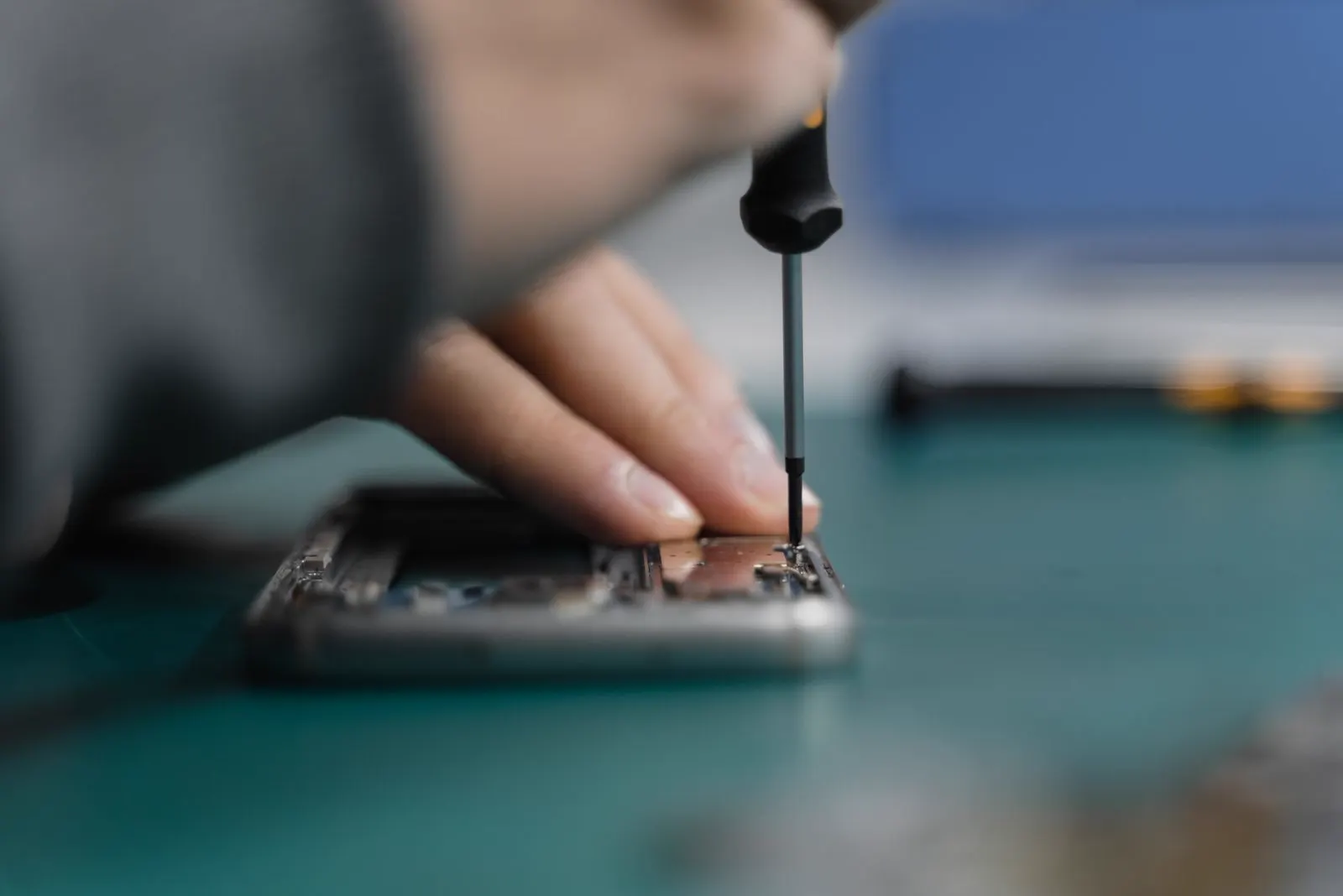
- Dislodged or Torn Display Flex Cables: Display and touch data travel through paper-thin flexible ribbon cables secured to the logic board with miniature connectors and metal bracket shields. A heavy drop can bend the bracket, unseat the connector, or shear the ribbon cable where it folds around the bezel.
- Logic Board Touch IC or Solder Joint Fractures: In older models (like iPhone 6 Plus with 'Touch Disease') and occasionally on modern sandwiched logic boards, the drop can fracture solder ball micro-connections beneath the board's touch management integrated circuit (IC).
Warning: Beware of Ghost Touch and Passcode Lockouts
If you cannot power the device off normally because the slider requires touch, force restart it and hold the Side button to keep the screen off, or bring it directly to a repair shop before the lockout countdown reaches its permanent threshold.
How to Back Up an iPhone with a Dead Touch Screen
If you need to retrieve recent photos or messages before repair, you have a few options:
- Connect to a previously trusted Mac or PC: If you have connected your iPhone to a computer and clicked 'Trust This Computer' in the past, plug it in with a USB cable. Open Finder (on Mac) or iTunes (on Windows) to trigger a full local backup without requiring on-screen verification.
- Use an Apple USB Camera Adapter and a wired mouse: For Lightning iPhones, plug in an official Lightning to USB Camera Adapter with an external wired USB mouse and power connected. On iOS 13+, a mouse pointer will appear on the display, allowing you to click in your passcode and initiate an iCloud backup.
- Ask Siri or VoiceOver: If Siri is enabled on your lock screen, activate Siri and turn on VoiceOver. You may be able to navigate using external keyboard shortcuts if Bluetooth was already paired.
Repair Options: Reseating the Connector vs Replacing the Screen
Customers often hope a technician can simply 'push the loose cable back in.' While internal connector reseating is occasionally possible if the cable merely popped loose from its socket, in the vast majority of physical drop cases where touch is lost, the microscopic digitizer circuit or the ribbon cable itself has torn. The industry standard, reliable repair is replacing the complete display assembly.
| Repair Approach | When It Applies | Typical Turnaround | Expected Result |
|---|---|---|---|
| Internal Connector Inspection & Reseat | Cable popped out of socket with zero tear damage | 15 to 30 minutes | Restores original screen if digitizer is intact |
| Complete Display Assembly Replacement | Cracked digitizer, torn flex, lines, or black spots | 20 to 45 minutes | Brand new OLED/LCD, glass, and fresh digitizer |
| Logic Board Microsoldering | Board trace damage or sandwich board separation | 24 to 48 hours | Repairs trace connections beneath touch ICs |
How CELLTECH Restores Touch Function on Dropped iPhones
At CELLTECH's stores across Dallas–Fort Worth and El Paso, diagnosing dropped iPhones is a core daily specialty:
- In-store bench diagnosis: Technicians inspect internal connectors, check the housing for frame warping, and verify whether the issue is isolated to the display or extends to the board.
- Sensor and calibration transfer: Where supported by the iPhone model and parts configuration, technicians transfer sensor assemblies and programming data to preserve features like True Tone and ambient light adjustment.
- Precision frame straightening: If the metal frame was bent during the drop, we reshape the housing corner so your replacement screen sits flush without pressure hotspots.
- 90 day malfunction warranty: Every screen repair includes warranty coverage against touch defects, dead zones, and display malfunctions.
- Rapid same-day turnaround: Most iPhone screen repairs are completed in 20 to 40 minutes.
Frequently Asked Questions
Modern iPhone screens consist of multiple layers: the top chemically strengthened glass, an ultra-thin capacitive touch digitizer grid, the OLED or LCD visual display, and structural frames. An impact can shatter the brittle touch matrix underneath while leaving the flexible top glass intact.
No. Modern iPhone screens use fused assemblies where the digitizer is bonded to the OLED panel using optically clear adhesive (OCA). Attempting to separate them requires industrial machinery and usually ruins the panel. Replacing the full assembly ensures factory-level responsiveness and longevity.
Yes. Ghost touch is almost always caused by a damaged digitizer sensor grid sending false electrical impulses. Replacing the display assembly installs a brand-new digitizer, resolving ghost touches caused by digitizer faults.
Not unless you trigger too many incorrect passcode attempts. If you suspect ghost touches are typing incorrect passwords, power the device down immediately and bring it to a repair professional before it locks out permanently.
Next Steps: Get Your iPhone Touch Screen Fixed at CELLTECH
Don't let a dropped iPhone lock you out of your communications or risk permanent data loss from ghost touch passcodes. Visit a repair professional who can test the device safely.
Explore our complete range of iPhone repair services and professional screen repair, or read our guide on what to do when an iPhone screen is black but still vibrating.
Visit your nearest CELLTECH store in Dallas–Fort Worth or El Paso using our store locator, or book a repair appointment online to have your iPhone touch screen evaluated.