iPad Repair & Diagnostics
iPad Home Button Not Working? Touch ID, Software or Hardware Problem?
If your iPad Home button is not working, the underlying cause can range from superficial dirt and misaligned cases to temporary iPadOS software freezes or damaged internal flex cables. Because modern Home buttons often integrate biometric Touch ID sensors, diagnosing the issue requires distinguishing mechanical click failures from fingerprint recognition errors. Follow our verified diagnostic sequence to test safe software solutions, enable AssistiveTouch, and determine when hardware repair is necessary.

Pressing the Home button on your iPad only to experience complete silence, a stuck mechanism, or an unresponsive screen brings everyday tablet navigation to an abrupt halt. Whether you are trying to return to the Home screen, switch between active applications, or unlock your device with Touch ID, a failing Home button is intensely disruptive.
When you find your iPad Home button not working, it is essential to determine whether you are dealing with a superficial obstruction, an iPadOS software freeze, or internal hardware damage. Furthermore, on Touch ID-enabled models, the physical button switch and the biometric fingerprint sensor operate through distinct hardware channels. Before scheduling a repair, follow this comprehensive guide to isolate the problem and learn how to safely navigate your iPad.
Why Is My iPad Home Button Not Working?
Unlike modern all-screen iPads that rely entirely on swipe gestures, classic iPad models incorporate a tactile mechanical switch underneath the glass bezel. When this button fails, the cause generally falls into one of four distinct categories:
- External Obstruction & Dirt: Daily use exposes the narrow seam around the circular button to skin oils, food crumbs, dust, and lint. Compacted debris can physically jam the button, preventing it from traveling downward far enough to actuate the micro-switch.
- iPadOS Software Hangs: Background system services or memory deadlocks can freeze the user interface. When iPadOS stops registering touch and hardware inputs, the Home button appears dead even though the physical switch is electrically sound.
- Internal Membrane & Bracket Wear: Beneath the button lies a metal tactile dome and a mounting bracket. Repeated presses over years of heavy use can fatigue the spring metal, causing the button to feel mushy, stick flat, or fail intermittently.
- Flex Cable or Impact Damage: Accidental drops, frame torsion, or liquid exposure can fracture the microscopic copper traces on the Home button flex cable or unseat its connector on the logic board.
Does Your iPad Have a Home Button or a Top-Button Touch ID Sensor?
Before troubleshooting, confirm which button architecture your iPad uses. Apple has transitioned its tablet lineup across three distinct hardware designs:
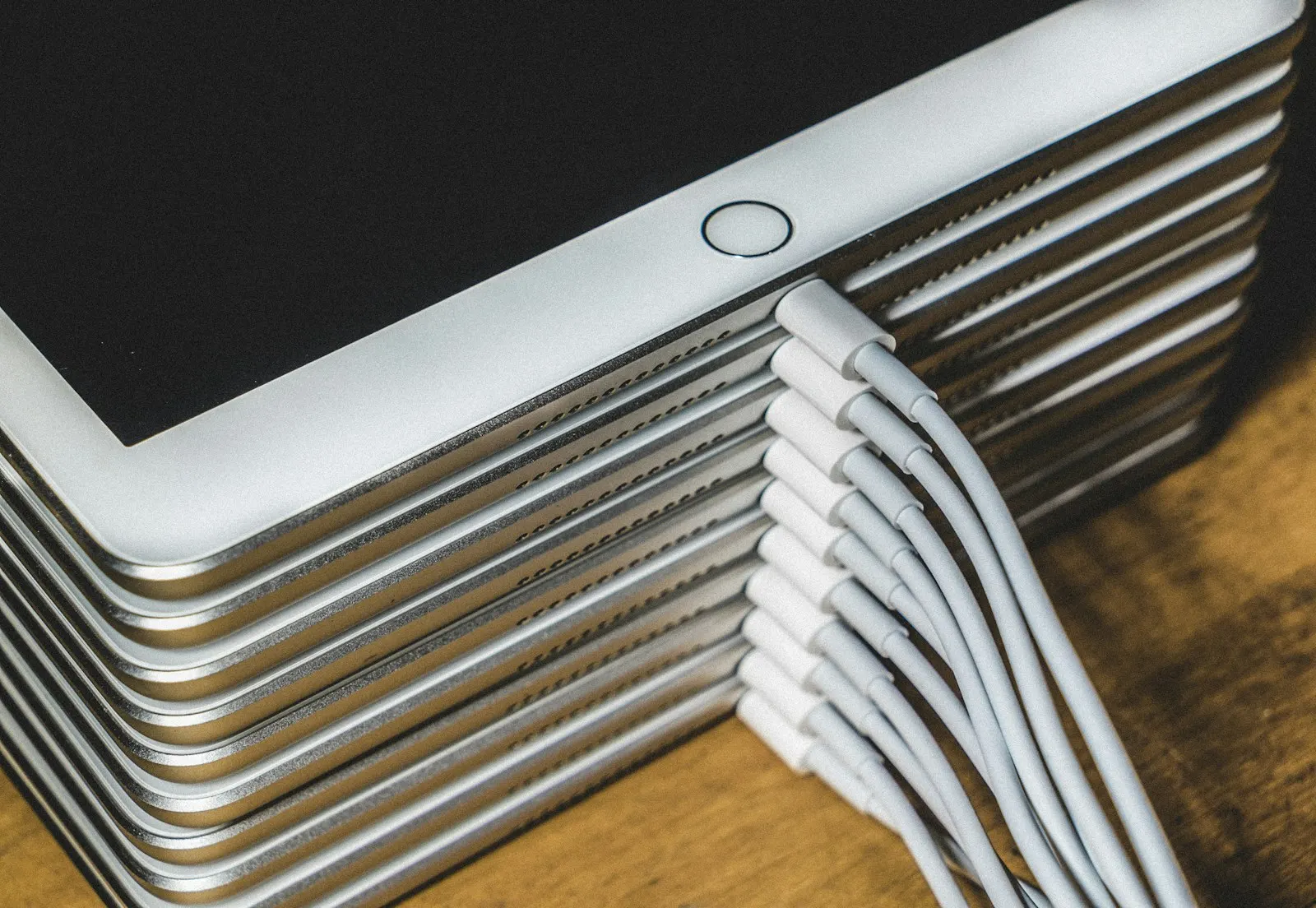
- Classic Home Button Models: Includes standard iPad models (1st through 9th generation), iPad Air (1st through 3rd generation), iPad mini (1st through 5th generation), and early iPad Pro models (9.7-inch, 10.5-inch, and 1st/2nd generation 12.9-inch). These feature a circular physical button centered on the lower bezel.
- Top-Button Touch ID Models: Includes iPad (10th generation), iPad Air (4th generation and newer, including M2), and iPad mini (6th and 7th generation). These devices have eliminated the Home button entirely, integrating Touch ID into the top power button and using on-screen swipe gestures for Home navigation.
- Face ID Models: Includes iPad Pro 11-inch (all generations), iPad Pro 12.9-inch (3rd generation and newer), and iPad Pro 13-inch (M4). These devices feature slim bezels with no physical buttons on the front face, relying on TrueDepth facial recognition.
The troubleshooting steps in this guide apply specifically to iPad models equipped with a physical front-facing circular Home button.
Is It a Home Button Problem, Touch ID Failure, or a Software Issue?
Understanding whether your issue stems from software, mechanical button wear, or biometric authentication helps guide the correct solution. Compare your symptoms against the diagnostic table below:
| Diagnostic Sign | Possible Explanation | Safe Next Step |
|---|---|---|
| Button clicks mechanically, but iPad does not return to Home | iPadOS software freeze or fractured internal flex circuit trace | Perform a restart; test whether AssistiveTouch on-screen Home works |
| Button returns to Home screen, but Touch ID will not recognize finger | Dirty sensor surface, moist fingers, or disabled Touch ID settings | Clean sensor with a dry microfiber cloth and re-enroll fingerprint |
| Touch ID options in Settings are greyed out or fail during setup | Damaged biometric sensor flex cable or uncalibrated replacement part | Inspect device history; seek professional bench diagnostic evaluation |
| Button feels physically recessed, loose, or will not click down | Dislodged internal bracket, broken tactile dome, or sticky debris | Gently clean perimeter with a dry brush; avoid forcing the button down |
| iPad asks for passcode after restarting instead of Touch ID | Standard Apple security requirement following every device reboot | Enter your passcode manually; Touch ID will reactivate automatically |
| Home button stopped working immediately after dropping the iPad | Dislodged internal connector or severed flex cable from impact shock | Enable AssistiveTouch for temporary navigation; arrange hardware inspection |
| Touchscreen responds normally, but Home button produces zero action | Isolated Home button hardware failure rather than a screen defect | Use on-screen gestures or AssistiveTouch while planning hardware repair |
How to Fix an iPad Home Button That Isn't Working
Work through these safe, prioritized troubleshooting steps to resolve responsiveness issues before pursuing hardware service:
1. Remove Obstructing Cases and Screen Protectors
Thick rugged cases or misaligned tempered glass screen protectors can press against the outer ring of the Home button or restrict its physical travel. Take your iPad out of its case and inspect whether a screen protector overhangs the button cutout. If the edge of the glass catches on the button, remove the protector.
2. Inspect and Gently Clean the Button Perimeter
Over months of use, skin oils, dust, and food crumbs accumulate in the micro-crevice between the circular Home button and the surrounding glass panel. Power off the iPad, then use a clean, dry, soft-bristled brush (such as an unused makeup or camera lens brush) to gently sweep around the perimeter. Follow with a clean, dry microfiber cloth. Never spray liquid cleaners, isopropyl alcohol, or compressed air directly into the button opening.

3. Restart Your iPad
A simple software reboot terminates hung system processes and reloads core input drivers. For iPads with a physical Home button, press and hold the top power button until the 'slide to power off' slider appears. Drag the slider, wait 30 seconds for the screen to turn completely black, then press and hold the top button again until the Apple logo appears.
4. Check for an iPadOS Update
Software bugs can occasionally cause the accessibility daemon or SpringBoard navigation to glitch. Connect your iPad to Wi-Fi, open Settings > General > Software Update, and install any available iPadOS updates to ensure your device runs the latest stable firmware.
5. Enable AssistiveTouch for Temporary Navigation
If the physical button remains unresponsive, enable Apple's built-in virtual Home button to regain complete control of your iPad immediately. Navigate to Settings > Accessibility > Touch > AssistiveTouch and toggle the switch on. An on-screen circular button will appear that you can tap to return to the Home screen.
6. Check Touch ID & Passcode Settings
If the button clicks properly but fingerprint recognition fails, verify your configuration. Open Settings > Touch ID & Passcode and enter your passcode. Confirm that 'iPad Unlock' and 'iTunes & App Store' toggles are green. If fingerprints are enrolled, tap each one; if the sensor recognizes your finger, the corresponding entry will highlight briefly.
7. Clean and Re-Enroll Your Fingerprints
Touch ID relies on a capacitive sensor beneath sapphire crystal. Moisture, sweat, lotion, or peeling skin can disrupt fingerprint reading. Wipe the button surface thoroughly with a dry microfiber cloth, dry your fingers completely, and try enrolling an alternate finger in Settings > Touch ID & Passcode > Add a Fingerprint.
8. Compare Touchscreen and Button Behavior
Verify whether your issue is restricted to the Home button or involves wider display unresponsiveness. If the entire screen ignores your touch inputs, consult our guide on what to do when your iPad screen not responding prevents navigation. If the tablet froze during a restart, see how to fix an iPad stuck on Apple logo to resolve system boot loops.
9. Seek Professional Diagnostic Inspection
If cleaning, restarting, and software checks do not restore physical click response or Touch ID function, the internal hardware switch, ceramic ring, or flex ribbon has failed and requires bench testing.
How to Use AssistiveTouch When Your iPad Home Button Is Broken
AssistiveTouch is an official iPadOS accessibility feature that places a customizable floating button directly on your display. While it does not physically repair a broken switch, it serves as an indispensable software workaround that allows you to continue using your iPad seamlessly.
To set up and optimize AssistiveTouch:
- Turn It On: Go to Settings > Accessibility > Touch > AssistiveTouch, and toggle the switch to ON.
- Customize Single-Tap Action: Under 'Custom Actions', tap 'Single-Tap' and select 'Home'. Now, tapping the floating grey circle instantly minimizes your active app and returns you to the Home screen.
- Add Multitasking & Siri: Set 'Double-Tap' to 'App Switcher' and 'Long Press' to 'Siri'. This reproduces 100% of the physical button's navigation gestures directly on your screen.
- Adjust Idle Opacity: Tap 'Idle Opacity' and set it to 20% or 30%. When you are not touching the icon, it fades to near-transparency so it does not obstruct reading or video playback.
Keep in mind that AssistiveTouch provides navigation only. It cannot replicate biometric fingerprint scanning or restore Touch ID authentication for unlocking or Apple Pay.
Why Does Touch ID Not Work Even When the Home Button Still Works?
Many users are puzzled when their Home button clicks down crisply and returns to the Home screen, yet Touch ID completely fails to recognize fingerprints. This occurs because the button mechanism and the biometric sensor are distinct technologies housed within the same assembly:
- Mechanical Switch vs Capacitive Sensor: The physical click is generated by a simple metal dome closing an electrical contact on the logic board. In contrast, Touch ID uses an advanced capacitive sensor grid beneath a sapphire crystal lens that measures sub-epidermal fingerprint ridges.
- Environmental Interference: Even microscopic layers of hand sanitizer, sweat, grease, or condensation on the sensor prevent the capacitive grid from capturing a clear biometric image.
- Security Lockouts: Following five consecutive unsuccessful fingerprint attempts, after 48 hours without unlocking, or immediately after a device restart, iPadOS security protocols deliberately disable Touch ID and require manual passcode entry.
- Damaged Data Traces: Accidental drops or liquid entry can fracture the dedicated high-speed data lines responsible for biometric communication while leaving the basic power and click circuit functional.
Why Is My iPad Home Button Stuck or Not Clicking Properly?
A Home button that feels sunken, rigid, or mushy without a tactile 'click' usually suffers from physical obstruction or mounting bracket failure:
- Sticky Liquid Residue: Sugary beverages, soda, coffee, or sticky substances seep into the tight clearance around the button. As moisture evaporates, the sugar hardens into a tacky adhesive that glues the button to the glass frame.
- Compacted Pocket Lint: Lint and dirt can compress into a dense gasket underneath the lip of the button, preventing downward actuation.
- Dislodged Metal Mounting Bracket: Inside the iPad, the Home button sits against a metal backing bracket adhered to the rear of the digitizer glass. Heavy button mashing or heat exposure can loosen the adhesive, causing the bracket to flex backward rather than depressing the switch.
Why Did My iPad Home Button Stop Working After a Drop?
When an iPad hits a hard floor, shockwaves travel through the aluminum chassis and glass digitizer. Even if the outer glass does not shatter, impact shock can cause localized internal failures:
- Fractured Ceramic/Sapphire Assembly: The Touch ID sensor ring is crafted from ceramic and sapphire. Sharp corner impacts can crack the sensor crystal, severing the microscopic internal wiring.
- Unseated Logic Board Connector: The Home button connects to the logic board via a miniature zero-insertion-force (ZIF) press-fit connector. Severe drops can jar the connector loose from its socket.
- Torn Flex Ribbon: If the glass shifts minutely upon impact, the razor-thin polyimide flex cable running from the button to the logic board can tear, cutting all electrical continuity.
Can an iPad Home Button Stop Working After Screen Replacement?
If your Home button became loose, sticky, or unresponsive shortly after receiving a screen repair, assembly transfer is the primary suspect. On standard iPad models (such as iPad 7th, 8th, and 9th generation), the front glass digitizer and the LCD display are separate components.
When replacing broken front glass, technicians must carefully detach the original Home button assembly, its delicate flex cable, and its metal retention bracket, transferring them onto the replacement glass. If the technician uses insufficient bracket adhesive, misaligns the button in the glass aperture, or strains the flex ribbon during removal, the button can fail to click or lose Touch ID capability. Return to your repair provider so they can inspect internal alignment under warranty.
Can You Replace an iPad Home Button Without Losing Touch ID?
This is one of the most critical security considerations regarding Apple hardware repair. Apple cryptographically pairs each original Touch ID sensor to the unique Secure Enclave coprocessor inside that specific iPad's main logic board during factory assembly.
Because of this hardware-level cryptographic pairing:
- Replacing the Button Restores Click Functionality: If your original Home button is destroyed or torn, a technician can install a replacement physical Home button assembly. This restores 100% of your mechanical click, single-tap Home navigation, double-tap multitasking, and Siri activation.
- Touch ID Fingerprint Recognition Is Disabled: The replacement sensor cannot authenticate against the Secure Enclave without proprietary factory calibration. Consequently, Touch ID biometric scanning will remain unavailable, and you must unlock your iPad and authorize purchases using your passcode.
- Preserving Original Parts Is Essential: Certified independent technicians prioritize repairing damaged flex traces on the original button whenever feasible to retain factory Touch ID functionality.
When Does an iPad Home Button Need Professional Repair?
While AssistiveTouch provides an effective temporary workaround, certain conditions require professional bench repair:
- Permanent Physical Failure: The button produces zero click response across all applications and software reboots.
- Sunken, Rattling, or Missing Button: The button has collapsed into the iPad chassis or fallen out entirely, leaving an open hole exposed to dust and moisture.
- Liquid Exposure: The button failed after moisture contact, causing electrical shorts or corrosion across internal switch contacts.
- Persistent Touch ID Hardware Error: Settings displays 'Unable to activate Touch ID on this iPad' despite complete software updates and resets.
If your tablet recently experienced moisture contact, review our diagnostic insights on whether a water-damaged phone can be repaired to understand corrosion risks and safe emergency handling across mobile electronics.
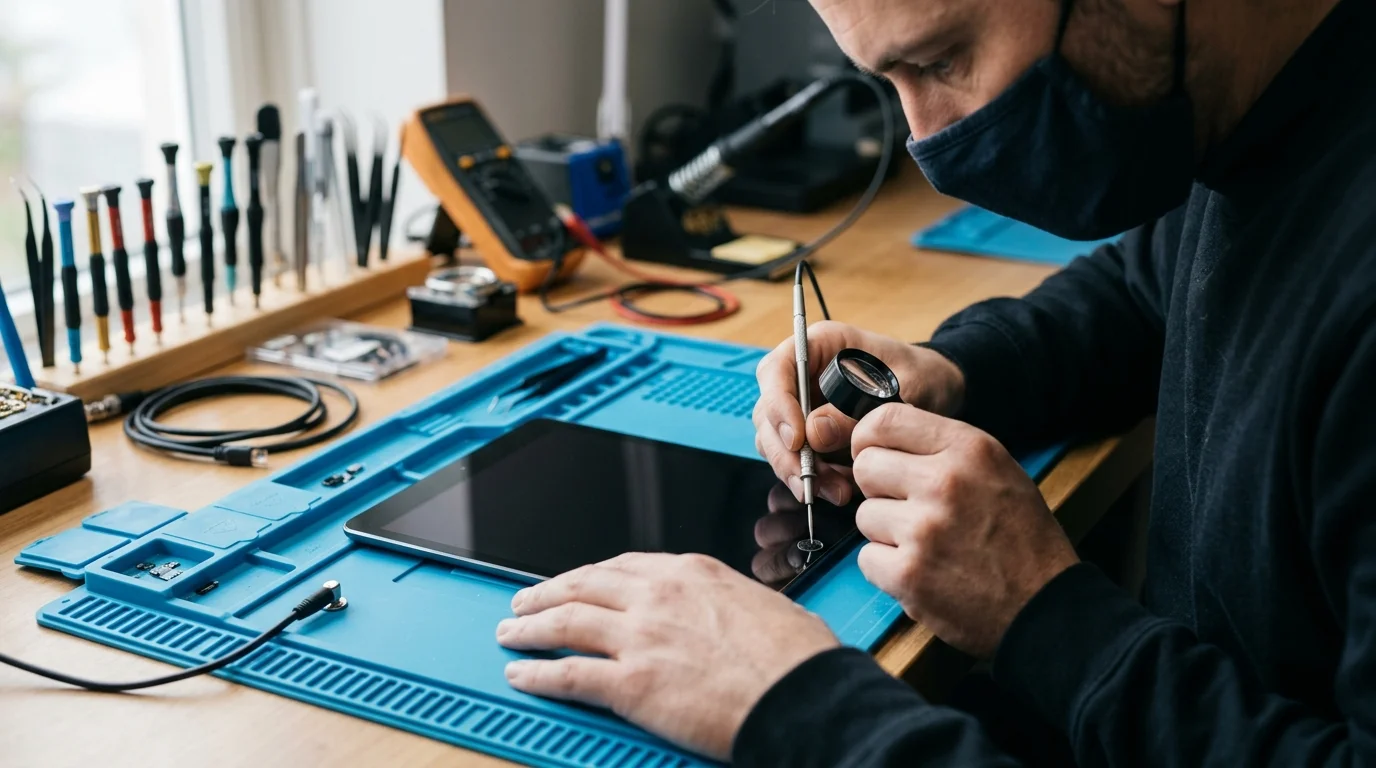
Can CELLTECH Help With an iPad Home Button Problem?
When home troubleshooting cannot restore your iPad Home button, CELLTECH provides professional, model-specific iPad diagnostic testing and repairs across Texas:
- Acoustic & Mechanical Debris Clearing: Precision external cleaning to dissolve sticky residues and free trapped switches without invasive disassembly.
- Internal Bracket Alignment: Reseating and re-adhering loose Home button retention brackets to restore crisp, tactile clicking.
- Button Assembly Replacement: Installing premium replacement Home button modules to restore full on-screen navigation, multitasking, and Siri control.
- Upfront Written Estimates & 90-Day Warranty: Transparent pricing before any service begins, backed by our 90-day parts and labor warranty.
Visit any of CELLTECH's seven verified Texas retail store locations for an in-person diagnostic evaluation:
- Dallas — Galleria Dallas: 13350 Dallas Pkwy, Level 2 · (214) 628-6019
- Grand Prairie: Grand Prairie Premium Outlets, 2950 W Interstate 20, Space 75 · (469) 286-2520
- Arlington — The Parks Mall: The Parks Mall at Arlington, 3811 S Cooper St, Level 2 (Next to GameStop) · (817) 538-9520
- Hurst — North East Mall: 1101 Melbourne Rd, Kiosk 92 · (817) 768-8112
- Mesquite — Town East Mall: 2063 Town East Mall, Level 2, Unit 2208 · (972) 220-8548
- Frisco — Stonebriar Centre: 2601 Preston Rd, Level 2, Suite 2210 · (817) 800-7577
- El Paso — Cielo Vista Mall: 8401 Gateway Blvd W, Level 2, Kiosk K113 · (915) 253-1236
Locate your nearest store with our find a nearby CELLTECH store locator, explore our complete professional iPad repair services, or request an iPad repair quote online.
Frequently Asked Questions
An unresponsive iPad Home button is typically caused by trapped dirt around the button rim, a temporary iPadOS software freeze, a dislodged internal mounting bracket, or a severed flex cable resulting from an accidental drop.
Enable AssistiveTouch in Settings > Accessibility > Touch > AssistiveTouch. This generates an on-screen floating button that replicates Home navigation, app switching, and Siri activation with a simple screen tap.
Yes. Technicians can clean compacted debris, re-adhere loose mounting brackets, or install a replacement Home button module to restore mechanical click and navigation functionality.
The physical click is driven by a simple mechanical switch, while Touch ID relies on a complex capacitive sensor grid. Dirty hands, surface moisture, security lockouts, or damaged biometric data traces can disable Touch ID while mechanical clicking remains functional.
No. Apple cryptographically pairs each Touch ID sensor to the iPad logic board at the factory. Installing a replacement Home button restores physical clicking and navigation, but Touch ID fingerprint scanning will be permanently disabled.
If the unresponsiveness is caused by an iPadOS bug, accessibility conflict, or system freeze, restarting the iPad and updating iPadOS can restore normal button detection.
Turn on AssistiveTouch in Settings for immediate on-screen navigation, avoid pressing or prying the stuck button, and arrange a professional bench inspection to check for internal flex cable or connector damage.
Restore Dependable Navigation to Your iPad
An unresponsive Home button can disrupt your daily workflow, but methodically isolating software glitches from hardware faults quickly reveals the best path forward. By safely clearing surface debris, restarting your tablet, and utilizing AssistiveTouch, you can maintain full usability while planning a repair.
If your Home button remains stuck, loose, or electrically silent, professional bench testing can pinpoint whether a bracket adjustment or module replacement is needed. Visit any of CELLTECH's seven Texas stores or book an iPad repair appointment today for fast, dependable service backed by our 90-day warranty.