iPad Touch
iPad Screen Not Responding? Causes and What to Do
An iPad screen that ignores your finger is usually one of three things: iPadOS has frozen, something on or around the glass is interfering with touch, or the touch layer itself has failed. The first two you can often clear yourself in a few minutes. The third needs a display repair. This guide shows you how to tell them apart and what is safe to try before you bring it in.

The image is there. The clock is ticking. You tap an app and nothing happens, or the keyboard misses half your letters, or the iPad opens things on its own while it sits on the table. The screen is the whole way you talk to an iPad, so when it stops listening there is no obvious way in.
The cause is usually narrow: the software has stopped processing input, something physical is sitting between your finger and the touch sensor, or the sensor itself (the digitizer) has been damaged. Work through this article in order and you will know which one you have, and whether the fix is a restart, a cloth, or a repair counter.
Three Ways an iPad Screen Stops Responding
Before you troubleshoot, notice exactly how the screen is failing. The pattern narrows the cause more than anything else.
| What you see | What it usually means |
|---|---|
| The whole screen ignores touch but the image looks normal | Frozen iPadOS, a charging or accessory fault, or a disconnected digitizer |
| One strip or corner is dead while the rest works | A damaged section of the digitizer, often after a crack or a drop |
| Ghost touches: apps open, text types, or the screen scrolls on its own | Moisture, a noisy cheap charger, a damaged digitizer, or pressure from a case or a swollen battery |
A frozen iPad fails all at once and completely. Hardware faults are more often partial, intermittent, or tied to an event: a drop, a spill, or plugging in a particular charger.
Frozen iPadOS or a Digitizer Fault?
iPadOS can lock up like any operating system. An app hangs or an update stalls, and the display keeps showing the last frame while nothing underneath is moving. From the outside this looks identical to a dead touch layer. The difference is that a frozen iPad ignores the buttons too, and it comes back to life after a forced restart.
The digitizer is a transparent grid bonded to the glass that senses where your finger changes the electrical field. If it is cracked, disconnected or wet, the iPad can be running perfectly well and still not register touch. The clue is that everything else keeps working: the clock updates, notifications arrive, the volume buttons respond, and a paired keyboard or Apple Pencil may still control it.
Why an iPad Screen Stops Responding
A screen protector or case is interfering
Thick or poorly fitted screen protectors, especially glass ones with an air gap or a lifted edge, weaken the signal the digitizer relies on. A case that presses on the edge of the glass can register as a constant touch and block real taps. This is the most common cause of intermittent or edge only problems, and it is free to rule out.
The screen is wet or dirty
Capacitive touch detects the conductivity of your skin. Water droplets, sweat, sunscreen or a greasy film are conductive too, so the iPad may read them as fingers, producing ghost touches or no response at all until the glass is dry.
A charging fault is making touch erratic
Cheap or uncertified chargers feed electrical noise into the iPad, and the digitizer is sensitive to it. The classic sign is a screen that behaves on battery and goes haywire the moment a particular cable is plugged in. A damaged charging port can do the same. If charging itself is unreliable, our guide to iPad charging problems covers that side of the fault.
Cracked glass has broken the digitizer
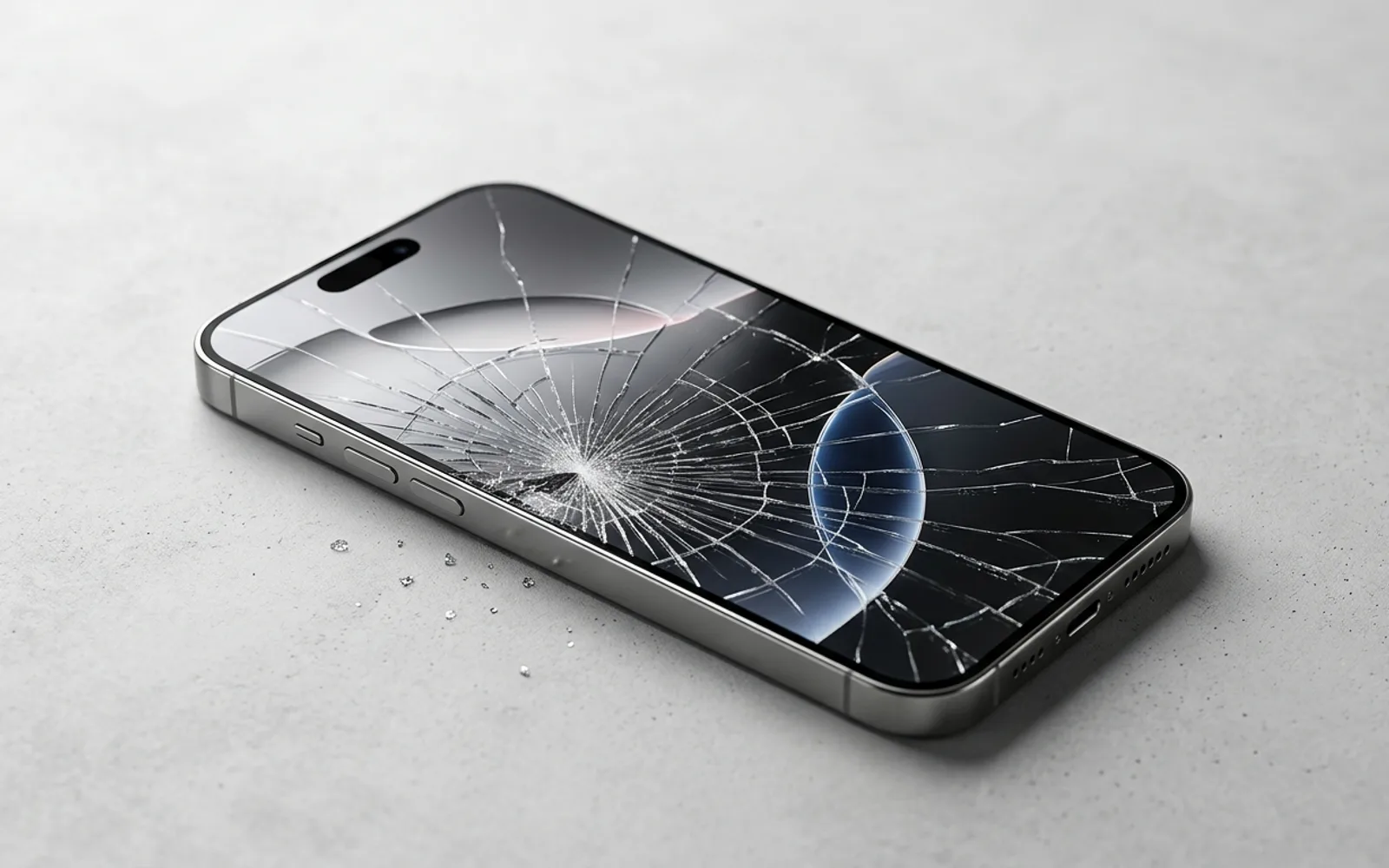
On many iPads the digitizer is bonded directly to the outer glass. A crack that looks cosmetic can sever the fine traces underneath, which is why a dead strip often lines up with a visible crack or an edge chip you barely noticed. Touch may survive the day of the crack and fail weeks later as the glass flexes in use.
A display connector has loosened after a drop
Inside the iPad, the digitizer plugs into the logic board through a small flex cable connector. A hard drop can partly unseat it without cracking anything outside. Touch may then work only when the iPad is held a certain way, or fail entirely while the image stays perfect.
A swollen battery is pushing the screen up
As a lithium ion battery ages or is damaged it can produce gas and expand, and in an iPad the only way out is upward into the display. The pressure can cause ghost touches, a dead area, or a screen visibly lifting at one edge.

Signs the Problem Is Hardware, Not Settings
- Touch fails in the same region every time, whatever the app
- It began right after a drop, a spill, or a crack appearing
- A forced restart brings the image back but not touch
- Ghost touches continue with the iPad clean, dry, unplugged and out of its case
- The screen looks raised or the iPad no longer sits flat
- A paired keyboard, mouse or Apple Pencil works while finger touch does not
If two or more of these fit, the steps below are still worth doing because they are quick and harmless, but expect the answer to be a repair rather than a setting.
What You Can Safely Try
Unplug everything
Disconnect the charger and any accessories. If touch comes back within a few seconds, the charger or cable is the culprit. Try a known good Apple or certified charger before blaming the iPad.
Remove the case and screen protector
Take the iPad fully out of its case and peel off the screen protector, even if it has been fine for months. Protectors lift at the edges and cases warp. Test touch on the bare glass.
Dry and clean the screen
Wipe the glass with a soft, dry, lint free cloth and let any moisture at the edges evaporate. Wash and dry your hands as well; damp or oily fingers cause misreads.
Force restart the iPad
On an iPad with Face ID or without a Home button: press and release volume up, press and release volume down, then hold the top button until the Apple logo appears. On an iPad with a Home button: hold the Home button and the top button together until the logo appears. This clears a frozen iPadOS without touching your data.
Let it cool down
If the iPad is hot, leave it switched off in a cool room for twenty minutes. Overheating can suspend touch as a protective measure, and it returns once the temperature drops.
Update iPadOS from a computer
If touch is too unreliable to navigate Settings, connect the iPad to a Mac or PC and use Finder or iTunes to check for an iPadOS update. Choose Update, not Restore, so your data stays in place.
What Not to Do
- Do not press hard on the glass or tap repeatedly to "wake" a dead spot. Pressure on a cracked digitizer spreads the damage.
- Do not keep using an iPad whose screen is lifting or bulging. That is a battery safety issue.
- Do not dry a wet screen with a hair dryer. Heat damages the adhesive and the battery.
- Do not try to reseat the display connector yourself. The display is glued in on most iPads and the flex cables tear easily.
- Do not erase or restore the iPad to fix a touch problem that began with physical damage. You lose data and the fault remains.
- Do not leave a cracked screen unrepaired for long. Moisture and dust enter through the crack and reach the digitizer and display beneath.
When Professional Repair Is the Right Call
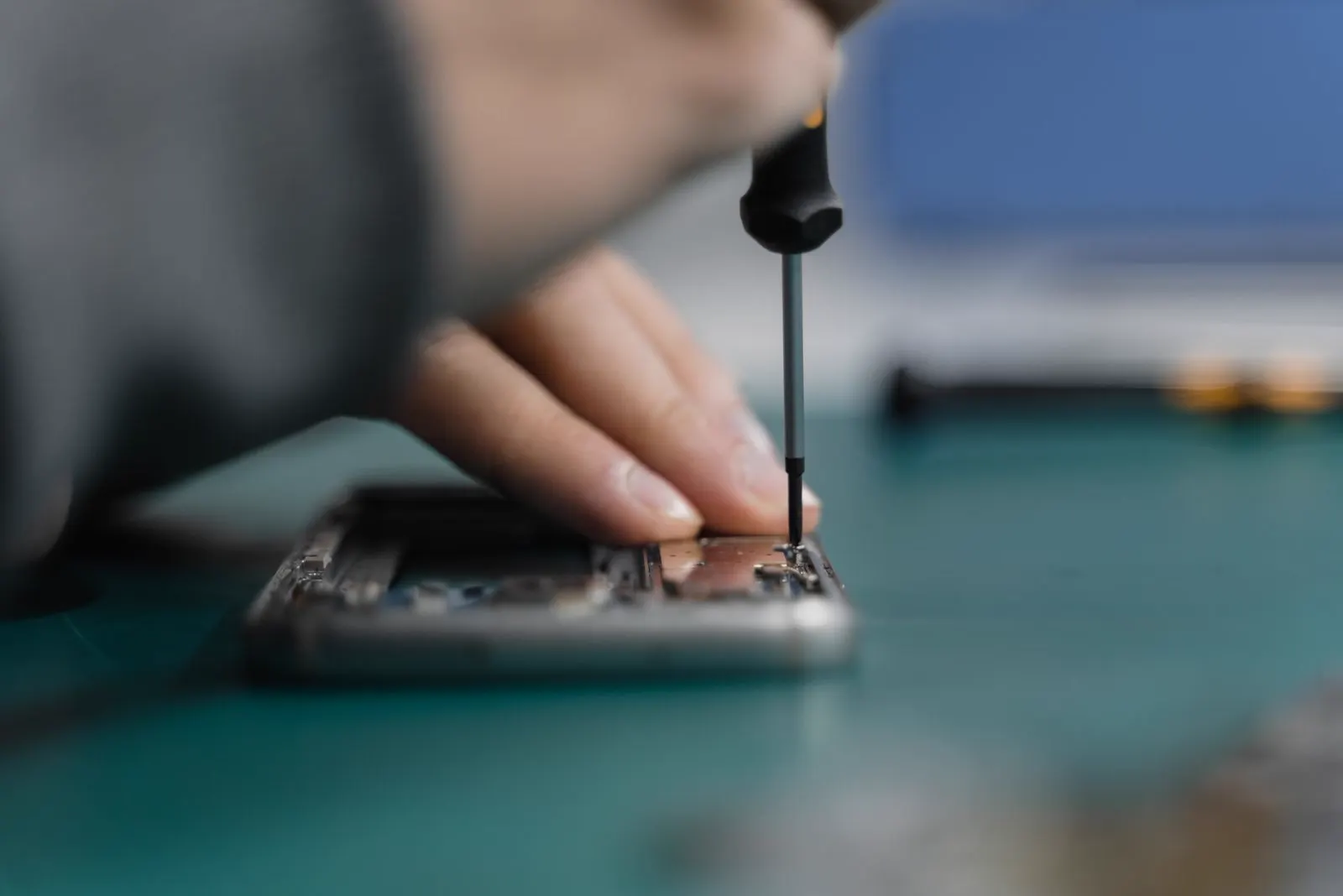
Bring the iPad in when a forced restart does not bring touch back, when the failure is confined to one area, when it followed a drop or a crack, or when the screen shows any sign of lifting. A technician can test the digitizer directly, check the display connector, inspect the battery, and confirm which part has failed before recommending anything.
Come in early if touch is getting worse rather than gone. A digitizer that drops out occasionally usually fails fully in time, and it is easier to back up while the screen still works some of the time.
Can an Unresponsive iPad Screen Be Repaired?
In most cases, yes. Which part gets replaced depends on the model and the cause:
- Digitizer or glass replacement: on iPads where the touch layer and outer glass are separate from the LCD, a cracked or dead digitizer is replaced and the display underneath is kept.
- Full display assembly: on iPad Pro, iPad Air and newer iPads the glass, touch and display are laminated into one unit, so the whole assembly is replaced.
- Connector reseat: a flex connector loosened by a drop can sometimes be reseated with no new parts once the display is safely opened.
- Battery replacement: if a swollen battery is pushing on the screen, the battery is replaced first and the display is then checked for pressure damage.
Replacing the iPad makes more sense only when the touch fault is one of several problems, when the logic board has been damaged by liquid or a drop, or when the model is old enough that a display costs a large share of what the iPad is worth. A quote after inspection lets you weigh that with real numbers.
How CELLTECH Repairs iPad Touch Problems
Walk in and tell us what the iPad is doing. The diagnostic is free and we inspect before we quote, so you are never asked to approve a display repair that turns out to be a charger problem. Our iPad repair service covers touch and display faults across iPad, iPad mini, iPad Air and iPad Pro generations.
If the digitizer or display needs replacing, we quote the price before any work begins and complete most screen replacements the same day when the part is in stock. If a swollen battery is behind the symptom, we handle the iPad battery replacement and then check the screen. Qualifying repairs carry a 90 day malfunction warranty.
Where to Get an iPad Screen Fixed
CELLTECH has seven walk in stores in Texas, including Galleria Dallas, The Parks Mall at Arlington and Cielo Vista Mall in El Paso. Use the store finder to pick the nearest. No appointment is needed, though booking ahead lets us confirm the display for your exact model is on the shelf.
Frequently Asked Questions About an iPad Screen Not Responding
The charger is feeding electrical noise into the iPad, which confuses the touch sensor. This is common with cheap uncertified chargers and damaged cables. Try an Apple or certified charger. If the problem follows every charger, the charging port or the digitizer may be at fault and the iPad should be inspected.
On an iPad with Face ID or without a Home button, press and release volume up, press and release volume down, then hold the top button until the Apple logo appears. On an iPad with a Home button, hold the Home button and the top button together until the logo appears. Nothing is deleted.
Ghost touches, where the iPad taps or types on its own, come from moisture on the glass, a noisy charger, a lifted screen protector, a damaged digitizer, or pressure from a tight case or a swollen battery. Clean and dry the screen, unplug it and remove the case. If ghost touches continue, the digitizer or battery needs inspection.
Treat it as a safety issue. A screen lifting from the frame is usually being pushed up by a swollen battery. Stop charging the iPad, do not press the screen down, keep it away from heat, and bring it in. The battery is replaced first and the display is then checked for damage.
No. A digitizer or display replacement does not touch the storage inside the iPad, so your apps, photos and settings stay as they were. If touch works intermittently, it is still sensible to back up to iCloud or a computer before bringing the iPad in.
Often, yes. Apple Pencil uses a different sensing layer on supported models and a Bluetooth or Smart Connector keyboard bypasses touch entirely. If one is already paired, you may be able to back up or unlock the iPad while you arrange a repair.
Get Your iPad Responding Again
If a restart, a clean screen and a different charger have not brought touch back, the fault is inside the iPad and it will not fix itself. The sooner it is inspected, the less chance a cracked digitizer, a loose connector or a swelling battery has to do further damage.
Bring your iPad to any CELLTECH store for a free diagnostic and a clear quote. Book an appointment or find your nearest store and walk in today.
Related guides: iPad battery draining fast, iPad stuck on the Apple logo and why your phone screen is flickering.