iPhone Battery & Charging
iPhone Charging but Battery Percentage Not Increasing? Causes and Fixes
When an iPhone displays the charging bolt icon but the battery percentage stays frozen or continues dropping, the device is detecting electrical connection but failing to deliver or store power. Common causes include weak charging adapters, compacted pocket lint insulating the port pins, iOS temperature pauses, heavily degraded battery cells, or failing charging logic (such as Tristar/Hydra or Tigris ICs). Safe troubleshooting starts with verifying charging accessories, cleaning the port safely, and checking battery health.
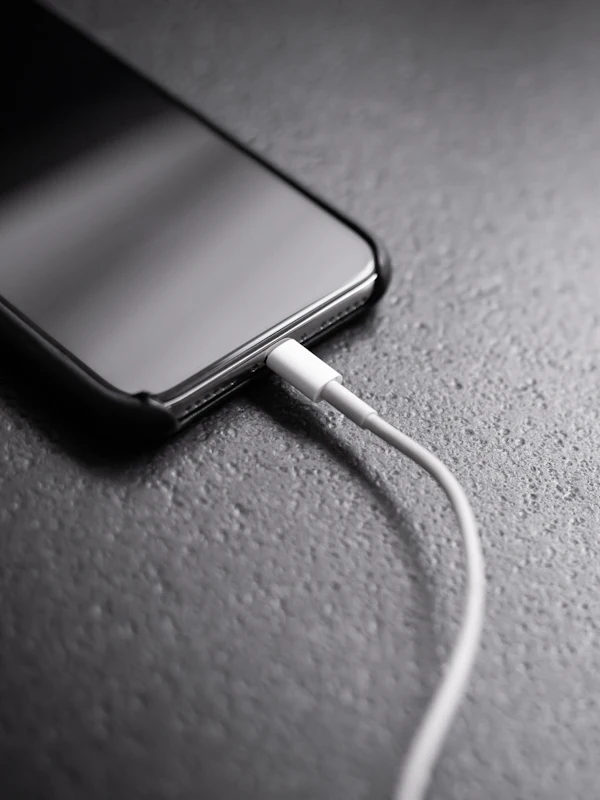
Few tech glitches are more baffling than plugging in your iPhone, seeing the small battery bolt icon appear, hearing the familiar charging chime, and returning an hour later only to find the battery percentage stuck at 3%—or worse, dropping to 1%.
This symptom is known in electronics repair as 'false charging.' It occurs because detecting a charging cable is a completely separate circuit function from delivering sufficient electrical current to chemically charge the lithium-ion battery. When the voltage or amperage drops below what the iPhone consumes, or when battery management communications fail, the percentage will not budge.
Step 1: Check Your Power Adapter, Cable, and Outlet
The single most common reason an iPhone fails to charge past a certain percentage is inadequate or failing external power delivery equipment:
- Avoid low-power computer USB ports: Plugging an iPhone into an older laptop USB-A port or a monitor hub provides only 2.5 watts (5V at 0.5A). If your iPhone is indexing photos, updating background apps, or searching for a weak 5G signal, it consumes more energy than the computer port supplies, keeping the percentage flat.
- Test with a known-good 20W+ power brick: Use an Apple-certified (MFi) or high-quality USB-PD 20W to 30W adapter plugged directly into a wall outlet rather than a loose extension strip.
- Inspect the charging cable pins: On Lightning cables, inspect pin 4 (the VBUS power pin). If it looks blackened, pitted, or burned, the cable can no longer deliver high current and must be replaced. On USB-C cables, check for frayed jackets or bent internal pins.
Step 2: Safely Inspect and Clean the Charging Port
Carrying an iPhone in your pocket constantly compresses clothing lint, denim fibers, and dust deep into the charging cavity. When you insert a cable, the plug packs this debris into a dense felt-like layer at the bottom of the port.
This compacted debris prevents the cable from seating fully. The accessory detection pins (which sit near the mouth of the port) make contact and display the lightning icon, but the main power delivery pins at the back remain insulated.
Illuminate the port with a bright flashlight
Turn off your iPhone. Point a direct, bright flashlight straight into the charging opening. Look for a grey or white layer of fluff compacted against the back metal wall.
Use a non-conductive wooden or plastic pick
Gently probe the edges using a wooden toothpick or a plastic anti-static pick. Never use a metal needle, paperclip, or safety pin—metal can bend delicate connector pins or cause an electrical short circuit that damages the charging subsystem.
Gently scrape sideways to loosen lint
Gently sweep from side to side along the back floor of the cavity and pull upward. You will often extract a surprisingly large plug of compacted lint. Once clean, plug the cable in; it should click into place firmly with zero wiggle.
Step 3: Check iOS Intelligent Charging and Temperature Features
Modern iOS versions include automated battery protection features that intentionally freeze charging to protect battery chemistry:
- 'Charging on Hold' Temperature Protection: If your iPhone becomes warm (from wireless charging, direct sunlight on a car dashboard, or intensive gaming), iOS displays 'Charging on Hold' and pauses charging. The lightning bolt stays visible, but charging will not resume until the device cools down.
- Optimized Battery Charging: In Settings > Battery > Battery Health & Charging, this feature learns your daily routine and pauses charging at 80% overnight, only finishing before you wake up.
- 80% Limit (iPhone 15 and 16 series): If you have enabled the strict 80% charge ceiling, your battery will intentionally stop climbing once it hits 80%.
Step 4: Check Battery Health and Chemical Aging
Navigate to Settings > Battery > Battery Health & Charging. Check the 'Maximum Capacity' percentage:
As lithium-ion batteries undergo hundreds of charge cycles, their internal chemical impedance rises. When a battery degrades below 80% maximum capacity, its internal resistance can become so high that it cannot accept current at normal voltage levels. The battery controller may misreport charge levels or flatline completely at low percentages.
Hardware Causes: Charging ICs, Dock Flex, and Gas Gauges
If changing chargers, cleaning the port, cooling the phone, and soft-resetting fail to resolve the frozen percentage, the failure is inside the iPhone's circuitry:
1. Damaged Battery Gas Gauge (I2C / SWI Data Line Failure)
Smart phone batteries contain an integrated Battery Management System (BMS) circuit board. This board communicates with the iPhone's processor over a dedicated data line (Single Wire Interface / I2C bus) to report state-of-charge, temperature, and current flow. If a drop or previous repair cracks this data line, the iPhone cannot read the true battery percentage and freezes the display at whatever number was last recorded.
2. Faulty Charging Port Assembly (Dock Flex)
The charging port flex cable houses temperature sensors, microphones, and power routing lines. A damaged dock flex can short-circuit the data handshake pins that negotiate fast charging with your wall adapter.
3. Logic Board Power Management IC (Tristar / Hydra / Tigris)
On Lightning-equipped iPhones, a chip known as 'Tristar' (or 'Hydra' on newer generations) regulates USB communication and validates charging cables. On USB-C iPhones, a dedicated USB-PD controller handles negotiation. Using cheap, non-regulated 12V car cigarette-lighter chargers frequently sends voltage spikes that burn out these chips, causing the iPhone to draw zero charging current while falsely displaying the lightning bolt.
| Symptom Observed | Most Likely Cause | Recommended Solution |
|---|---|---|
| Lightning bolt on, cable wiggles, percentage stuck | Compacted pocket lint in port | Safe non-conductive port cleaning |
| Percent stuck at 1%, dies instantly when unplugged | Completely dead or disconnected battery cell | Professional battery replacement |
| Phone hot to touch, 'Charging on Hold' notice | Thermal safety cutoff in iOS | Move phone to cool shade, allow 20 min |
| Shows charging, drains battery while plugged in | Defective cable, weak 5W charger, or faulty IC | Test 20W PD brick; bench diagnosis if persistent |
| Reboots every 3 minutes, percentage never changes | Battery gas gauge / thermal sensor data line open | Professional battery / board repair |
How CELLTECH Diagnoses False Charging
When you bring a charging-impaired iPhone to CELLTECH, we don't guess or sell you unnecessary parts. We follow an engineering-first diagnostic workflow:
- Digital USB Ammeter Draw Test: Technicians connect your phone to calibrated diagnostic power supplies to measure the exact voltage and current (milliamps) entering the device.
- Microscopic Port Inspection: Technicians examine the internal connector pins under magnification to detect corrosion, bent pins, or compacted fibers.
- Battery Diagnostics: We test the battery's internal resistance and charge retention using specialized diagnostic equipment.
- Dock Flex vs Battery vs Board: We determine whether your iPhone needs a professional debris cleaning, a replacement battery, or a charging port flex replacement before any work begins.
Frequently Asked Questions
This is almost certainly an intentional iOS feature rather than a hardware defect. If 'Optimized Battery Charging' or the '80% Limit' setting is active, iOS deliberately halts charging to reduce battery wear. You can adjust this in Settings > Battery > Battery Health & Charging.
Yes! If the problem is a dirty charging port, bent pins, or a failed dock flex, a Qi or MagSafe wireless charger bypasses the physical port entirely. If wireless charging successfully increases the battery percentage, you know with certainty that the battery is healthy and the physical port needs attention.
If the issue is caused by an iOS battery calibration bug, performing a force restart or installing the latest iOS update can recalibrate the on-screen display. However, if the phone fails to draw current on an ammeter, software updates will not fix hardware faults.
If the device is remaining cool, it is generally safe. However, if the phone or the charging brick becomes unusually hot, or if you smell burning electronics, unplug it immediately. This indicates an internal short circuit.
Next Steps: Visit CELLTECH for a Fast Bench Diagnostic
Don't spend days guessing whether your charger, battery, or charging port is to blame. Bring your iPhone into a professional repair shop where technicians can test the current draw in minutes.
Learn more about our professional iPhone battery replacement services and precision charging port repair, or read our guide on why a phone only charges at a certain angle.
Visit your nearest CELLTECH store in Dallas–Fort Worth or El Paso using our store locator, or request an upfront repair quote to have your iPhone charging diagnosed.