iPhone Repair & Diagnostics
iPhone Speaker Not Working During Calls but Speakerphone Works? Here's What to Check
If you cannot hear callers on your iPhone unless you switch to speakerphone, the issue typically involves the top earpiece receiver. Normal calls use the ear receiver, while speakerphone activates the loudspeaker. Potential causes include debris blocking the acoustic mesh, Bluetooth audio routing conflicts, in-call volume settings, or internal hardware damage. Follow our verified troubleshooting sequence to isolate software and blockage issues before considering professional repair.
Answering an incoming call, pressing your iPhone to your ear, and hearing complete silence is deeply frustrating. Tapping the speakerphone button immediately brings the caller's voice through loud and clear, yet switching back to normal handset mode returns to silence.
When you find your iPhone ear speaker not working during normal calls while speakerphone works clearly, it does not necessarily mean the receiver hardware is permanently broken. Because iOS separates private handset audio from hands-free loudspeaker output, this symptom can stem from simple volume adjustments, Bluetooth routing, or a clogged acoustic grille. Before scheduling a repair, follow this systematic guide to isolate the cause.
Why Can't I Hear Calls on My iPhone Unless Speakerphone Is On?
Your iPhone relies on separate acoustic hardware components for different calling and listening modes:
- The Earpiece / Receiver: Situated behind the narrow slot at the top edge of your screen, designed for private listening at normal conversational volume when held to your ear.
- The Loudspeaker: Positioned behind the bottom frame grilles, providing high-output audio for hands-free speakerphone calls, ringtones, and media playback. On stereo-enabled models, the top speaker also assists media playback but uses a distinct amplification profile.
- The Microphones: Dedicated microphone ports at the bottom, front, and rear capture your voice. If you can hear the caller but they cannot hear you, that is an audio input issue rather than a receiver failure.
Because normal calls and speakerphone use separate internal routing channels and hardware components, a fault affecting the top receiver will not stop the loudspeaker from working.
Is My iPhone Ear Speaker Broken or Is It a Settings Problem?
An unresponsive earpiece does not automatically mean hardware failure. Configuration conflicts, Bluetooth routing, and debris frequently mimic a broken speaker. Compare your symptoms below:
| Diagnostic Sign | Possible Cause | Recommended Next Step |
|---|---|---|
| Silent at ear; speakerphone works clearly | Audio routed to Bluetooth, muted call volume, or receiver defect | Check audio source on call screen and press Volume Up during a live call |
| Audio muffled or faint at maximum volume | Acoustic mesh blocked by makeup, lint, earwax, or screen protector | Inspect top opening under bright light; clean gently with a dry, soft-bristled brush |
| Audio cuts out, crackles, or distorts during calls | Cellular signal drop, loose flex connector, or worn speaker coil | Test across multiple callers and Wi-Fi calling; seek inspection if crackling persists |
| Call connects but audio plays through headphones or car | Unintended Bluetooth pairing or Call Audio Routing setting | Turn off Bluetooth and set Settings > Accessibility > Touch > Call Audio Routing to Automatic |
| Ear speaker failed immediately after a drop | Dislodged internal connector, damaged flex cable, or frame stress | Force restart your iPhone; schedule diagnostic inspection if silence persists |
| Receiver works in third-party apps but fails in Phone app | iOS communication conflict or corrupted network preferences | Force restart the iPhone and perform a Reset Network Settings |
How to Fix an iPhone Ear Speaker That Isn't Working
Work through these safe, prioritized troubleshooting steps to resolve call-audio issues:
1. Increase Volume During an Active Call
In iOS, in-call receiver volume is completely independent of your ringer and media volume sliders. Adjusting volume while browsing apps will not change call loudness. Place a call to an automated service or voicemail, hold the phone to your ear, and press the Volume Up button until the on-screen call volume indicator reaches maximum.
2. Verify the In-Call Audio Destination
During an active call, check the Audio button on your screen. If it displays a Bluetooth symbol rather than a plain handset, audio is routed to wireless earbuds, a car system, or a smart speaker. Tap the Audio button and select 'iPhone' to return sound to the earpiece.
3. Temporarily Disconnect Bluetooth Accessories
To rule out background wireless audio hijacking, open Settings > Bluetooth and toggle Bluetooth off. If call audio immediately returns to your earpiece, a connected accessory was holding the audio channel.
4. Check Call Audio Routing Settings
iOS provides an accessibility setting controlling where call audio routes automatically. Navigate to Settings > Accessibility > Touch > Call Audio Routing and ensure it is set to 'Automatic'. If set to 'Bluetooth Headset' or 'Speaker', your device may bypass the handset receiver.
5. Remove Obstructive Cases and Screen Protectors
Cases with thick top bezels and misaligned screen protectors can completely cover the micro-opening of the earpiece. A tempered glass protector placed even one millimeter too high covers the acoustic grille with solid glass. Remove your case and check whether the screen protector overlaps the receiver cutout.
6. Inspect and Gently Clean the Receiver Opening
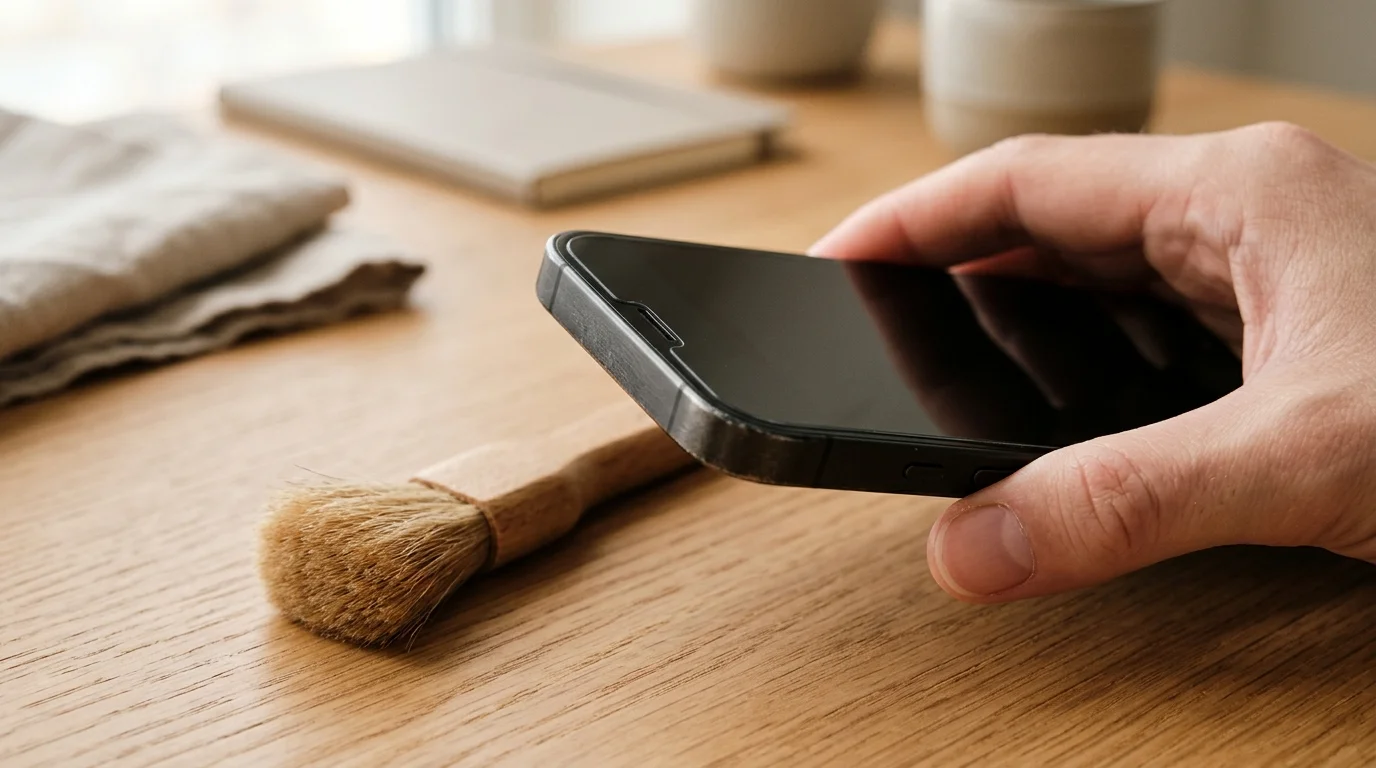
Over months of daily use, facial oils, makeup, sweat, and pocket lint accumulate across the fine metal mesh of the earpiece opening, muffling sound down to an inaudible whisper.
7. Perform a Force Restart
A force restart cuts power to the hardware controllers and reloads iOS audio drivers without altering personal data:
- iPhone 8, SE (2nd/3rd gen), and iPhone X through iPhone 18 series: Press and quickly release Volume Up, press and quickly release Volume Down, then hold the Side Power button until the Apple logo appears.
- iPhone 7 and 7 Plus: Press and hold both the Volume Down and Sleep/Wake buttons until the Apple logo appears.
- iPhone 6s and earlier: Press and hold both the Home and Power buttons until the Apple logo appears.
8. Check for an iOS Software Update
Operating system bugs can occasionally cause core audio services to freeze. Go to Settings > General > Software Update and install any pending iOS updates to ensure your device has the latest audio firmware patches.
9. Compare Calls Across Multiple Apps
Test audio across standard cellular calls, FaceTime Audio, and third-party apps like WhatsApp. If the earpiece works on FaceTime but fails on cellular calls, the issue may involve carrier VoLTE settings or local tower congestion rather than a physical speaker defect.
10. Seek Professional Bench Diagnostics
If your iPhone ear speaker remains completely silent during calls after cleaning and software checks, the issue is likely hardware-related, warranting a professional diagnostic inspection.
How Can I Test My iPhone's Earpiece Speaker?
Playing music or video tests the loudspeaker, not the handset receiver. Use these targeted methods to evaluate earpiece performance:
- Voice Memos Ear-Detect Test: Record a brief voice clip in Voice Memos. Tap play and raise the iPhone to your ear; the proximity sensor should dim the screen and switch audio to the earpiece. Clear audio confirms the receiver works.
- Voicemail Audio Switch: Open Phone > Voicemail, play a message, and toggle the speaker icon to test ear receiver clarity.
- Automated Carrier Line: Call 611 or another automated line. Toggle speakerphone on and off while listening through the earpiece to verify switching.
Why Is My iPhone Ear Speaker Very Quiet or Muffled?
A receiver that produces sound but remains quiet at maximum volume typically suffers from acoustic blockage rather than electrical failure:
- Compacted Debris: Makeup, skin oils, sunscreen, and lint clog the acoustic mesh, blocking sound waves.
- Liquid Residue: Dried water or beverage splashes leave mineral deposits that restrict speaker membrane movement.
- Screen Protector Overhang: Misaligned glass protectors cover the top bezel, muffling audio.
- Worn Speaker Diaphragm: Moisture or age can degrade the miniature diaphragm, producing thin or tinny sound.
If gentle brushing fails to clear a muffled receiver, professional ultrasonic or vacuum cleaning at a repair shop can safely dissolve deep-set debris.
Why Did My iPhone Ear Speaker Stop Working After a Drop?
If call audio failed immediately following an accidental drop, physical impact is the primary suspect. Even when the exterior glass stays intact, shockwaves can affect delicate internal assemblies:
- Dislodged Flex Connector: The receiver connects via press-fit flex cables that can unseat upon impact.
- Broken Voice Coil: Shockwaves can sever the ultra-fine copper voice coil inside the speaker, causing total silence.
- Acoustic Gasket Displacement: Impact can shift the rubber gasket sealing the speaker, leaking sound inside the chassis.
Can Screen Replacement Cause iPhone Earpiece Problems?
If your ear speaker stopped working shortly after a screen repair, the issue often stems from assembly transfer. On most iPhone models, the top speaker and sensor assembly (including proximity and ambient light sensors) is mounted directly to the display.
Technicians must carefully detach and transfer this delicate assembly to the replacement screen. If micro-soldered contacts are strained, alignment pins are misseated, or the grounding bracket is loose, the earpiece may fail. Return to your repair provider so they can inspect internal connections under warranty.
Why Can I Hear People on Speakerphone but They Can't Hear Me?
If callers cannot hear your voice clearly while you hear them fine, you are experiencing a microphone audio input issue rather than a speaker output defect. For targeted troubleshooting, consult our guide to resolving an iPhone microphone not working.
When Does an iPhone Ear Speaker Need Professional Repair?
While software resets and safe cleaning resolve many call-audio problems, certain signs indicate that internal hardware service is necessary:
- Total Silence Across All Calls: The earpiece produces zero sound across cellular calls, FaceTime, and Voice Memos after a force restart and network reset.
- Buzzing or Metallic Distortion: The receiver produces mechanical buzzing or rattling during speech, indicating a physically torn speaker cone.
- Recent Liquid Exposure: The problem developed after moisture contact, suggesting short circuits or internal corrosion.
- Associated Sensor Malfunctions: The screen fails to turn off when brought to your ear during a call, suggesting damage to the broader upper flex cable assembly.
Before scheduling service, review our checklist on what to do before taking your iPhone to a repair shop to safeguard your data. If your device is older and has multiple secondary faults, consult our analysis on whether it is better to repair or replace a damaged phone to evaluate your options.
Can CELLTECH Help Diagnose an iPhone Ear Speaker Problem?
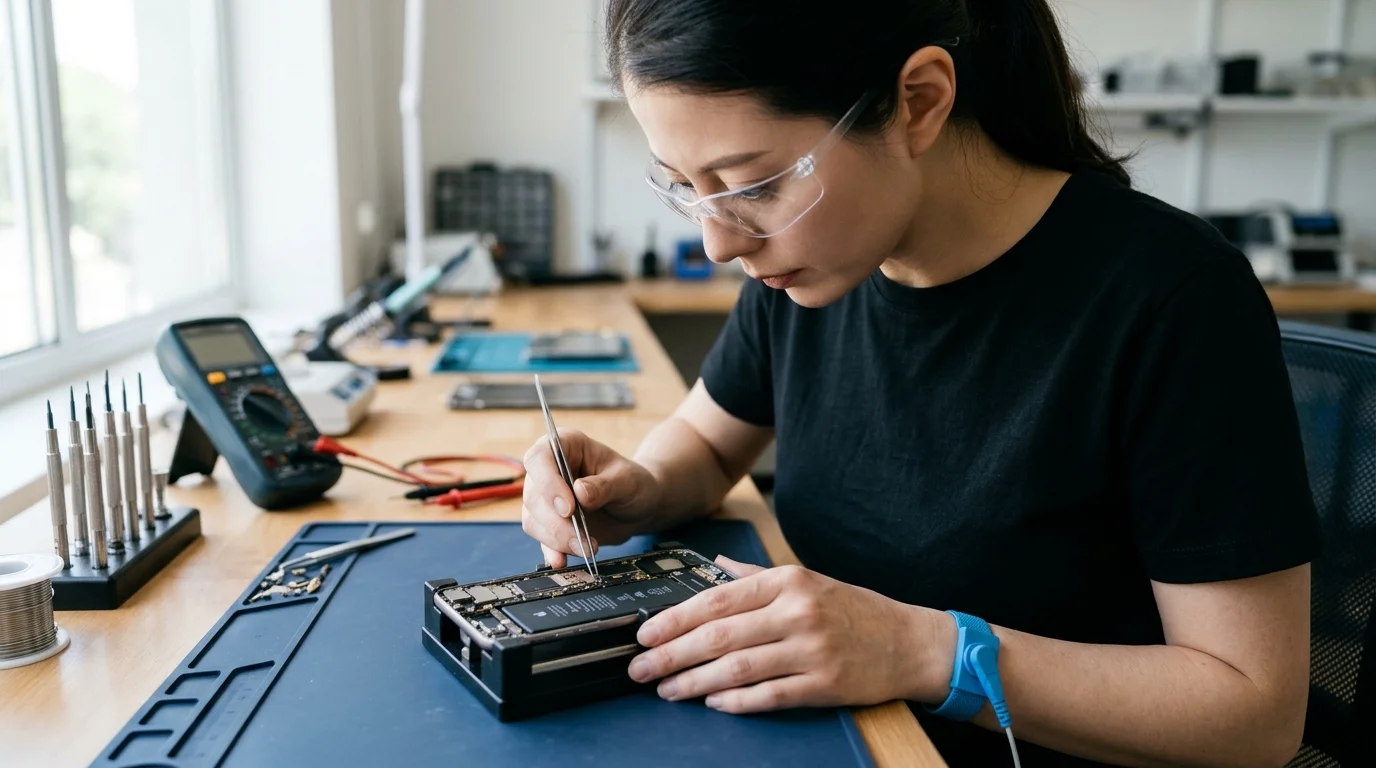
When home troubleshooting cannot restore call audio, CELLTECH provides comprehensive diagnostic inspections to pinpoint the exact failure:
- Microscopic Acoustic Inspection: We examine the receiver mesh under magnification to identify debris or puncture damage.
- Audio Routing & Sensor Audit: We test in-call routing, proximity sensor response, and ambient light sensors.
- Internal Hardware Testing: If cleaning does not resolve the issue, technicians open the device to test speaker impedance and flex cable continuity.
- Upfront Pricing & Warranty: You receive an exact written quote before work begins, backed by our 90-day malfunction warranty.
Visit any of CELLTECH's seven verified Texas retail locations for an in-person diagnostic evaluation:
- Dallas — Galleria Dallas: 13350 Dallas Pkwy, Level 2 · (214) 628-6019
- Grand Prairie: Grand Prairie Premium Outlets, 2950 W Interstate 20, Space 75 · (469) 286-2520
- Arlington — The Parks Mall: The Parks Mall at Arlington, 3811 S Cooper St, Level 2 (Next to GameStop) · (817) 538-9520
- Hurst — North East Mall: 1101 Melbourne Rd, Kiosk 92 · (817) 768-8112
- Mesquite — Town East Mall: 2063 Town East Mall, Level 2, Unit 2208 · (972) 220-8548
- Frisco — Stonebriar Centre: 2601 Preston Rd, Level 2, Suite 2210 · (817) 800-7577
- El Paso — Cielo Vista Mall: 8401 Gateway Blvd W, Level 2, Kiosk K113 · (915) 253-1236
Find your nearest store location through our CELLTECH store locator, explore our complete professional iPhone repair services, or request an iPhone repair quote online.
Frequently Asked Questions
Standard calls output audio through the top earpiece receiver, while speakerphone uses the bottom loudspeaker. When callers are only audible on speakerphone, the issue is typically isolated to the top receiver path—caused by a clogged acoustic mesh, Bluetooth audio routing, muted in-call volume, or a damaged receiver component.
A dirty ear speaker produces faint, muffled sound that worsens gradually as makeup, oils, and lint collect. Physical hardware damage typically causes sudden, complete silence across all calls, mechanical buzzing, or crackling immediately following a drop or liquid exposure.
Low receiver volume is most often caused by compacted pocket lint, makeup, and skin oils blocking the fine acoustic grille, or a screen protector overlapping the opening. Inspect the opening under bright light and gently clean it with a clean, dry, soft-bristled brush.
Yes. Occasionally, an iOS update or corrupted system cache can cause audio routing daemons to deadlock, temporarily disabling the receiver output. Performing a force restart or resetting network settings usually resolves software-related call audio glitches.
Yes. Poorly manufactured tempered glass screen protectors or misaligned installations can overlap the narrow earpiece opening along the top bezel. Because sound waves cannot penetrate solid glass, even a slight misalignment will drastically reduce or completely block call audio.
Yes. In many cases, professional cleaning restores full audio volume. If the receiver module is defective or flex cables are damaged from a drop, certified technicians can install a replacement speaker assembly while preserving nearby display and sensor functionality.
The ear speaker and front sensor assembly must be transferred from the original screen to the replacement display. If the flex cable is strained, misaligned against the acoustic gasket, or the connector is partially loose, the earpiece may fail. Return to your repair shop for a warranty inspection.
Restore Clear Call Audio on Your iPhone
Struggling to hear phone calls without broadcasting your conversations over speakerphone is frustrating, but most cases can be resolved with methodical troubleshooting. By checking in-call volume, verifying Bluetooth routing, and safely clearing receiver debris, you can often restore clear call audio at home.
If your earpiece remains silent after completing these steps, professional bench testing can determine whether a deep acoustic clean, connector reseating, or speaker replacement will solve the problem. Visit any of CELLTECH's seven Texas stores or book an iPhone repair appointment today for fast, dependable service backed by our 90-day warranty.