iPhone Repair & Diagnostics
iPhone Wi-Fi Greyed Out? Software Problems vs Hardware Failure Explained
When your iPhone Wi-Fi toggle is greyed out or dimmed in Settings, the switch cannot be enabled, which can result from software conflicts or an underlying hardware issue. While a grey icon in Control Center simply indicates that your device is disconnected from Wi-Fi networks, a dimmed switch in Settings requires troubleshooting before reaching a diagnosis. Follow our verified diagnostic steps to isolate software causes before considering professional hardware repair.
Few smartphone faults disrupt daily life as quickly as an iPhone Wi-Fi toggle that refuses to turn on. Opening Settings to connect to your home or office network only to find the switch dimmed, frozen, or completely greyed out cuts you off from fast internet, prevents iCloud backups, and forces heavy cellular data usage.
Before assuming your device has suffered permanent hardware damage, it is essential to troubleshoot systematically. A disabled Wi-Fi toggle can stem from an iOS configuration error or physical component damage. In this guide, CELLTECH's diagnostic technicians clarify how Control Center differs from Settings, provide safe troubleshooting steps, and outline your repair options.
Control Center Grey vs. Settings Greyed Out: Know the Difference
Many iPhone users mistakenly believe their Wi-Fi is broken when they see a grey icon in Control Center. Distinguishing normal iOS network behavior from a true system failure prevents unnecessary panic.
Control Center: Temporary Network Disconnection
Tapping the Wi-Fi icon in Control Center turns it white or grey with a slash, indicating that your iPhone has disconnected from nearby networks. As Apple explains in its official documentation, this indicates disconnection rather than a device malfunction. While disconnected, Wi-Fi and Bluetooth remain active for background features like AirDrop, AirPlay, Location Services, and Apple Watch connectivity. Apple notes that Wi-Fi will automatically reconnect when you turn on Wi-Fi in Control Center, connect to a network in Settings, walk or drive to a new location, reach 5:00 AM local time, or restart your device.
Settings App: Disabled or Dimmed Wi-Fi Toggle
A greyed-out toggle occurs when the main switch inside Settings > Wi-Fi is faded, dimmed, and unresponsive to touch. The device may fail to scan for networks, display an ongoing loading indicator, or show 'Wi-Fi: Not Available'. This symptom can be caused by either software conflicts or hardware problems, which is why working through troubleshooting is necessary before reaching a definitive conclusion.
Why Is the Wi-Fi Button Disabled on Your iPhone?
A greyed-out Wi-Fi toggle generally stems from one of two causes: software protocol crashes or physical component failure.
Software Causes
- Network Daemon Deadlocks: Background iOS networking daemons like 'wifid' can crash, preventing the operating system from reading the wireless interface state.
- Corrupted Network Preferences: Damaged preference property lists (.plist) or stale DHCP/DNS routing tables can block driver initialization during boot.
- MDM & Content Restrictions: Corporate Mobile Device Management (MDM) enrollment profiles or Screen Time Content & Privacy Restrictions can enforce policies that disable wireless settings.
- Post-Update Firmware Mismatches: An interrupted or corrupted iOS update can leave wireless driver binaries out of sync with device firmware.
- Critically Low Storage: When device storage reaches 100% capacity with zero free bytes, iOS cannot allocate buffers for networking daemons, causing them to shut down.
Hardware Causes
- Impact Stress on Internal Circuitry: Drops or chassis flex can stress microscopic solder connections joining internal wireless components to the logic board.
- Logic Board Interposer Stress: On iPhones featuring dual-layer stacked logic boards, severe physical drops or bends can strain the interposer connections between board layers.
- Disconnected or Damaged Antenna Cables: High-frequency antenna flex cables running along the frame can become loose or torn following impact, disrupting wireless reception.
- Liquid Exposure & Corrosion: Moisture entering the device can cause short circuits or corrosion on power lines supplying the wireless circuitry.
- Thermal Stress: Prolonged exposure to extreme heat—such as a phone left on a car dashboard in the Texas summer—can degrade solder connections and internal power components.
Software Glitch vs. Hardware Failure: Diagnostic Comparison
Use this diagnostic comparison table to evaluate whether your iPhone's Wi-Fi issue is likely a software glitch or requires hardware repair:
| Diagnostic Check | Likely Software Glitch | Likely Hardware Failure |
|---|---|---|
| Wi-Fi Address in Settings | Displays a valid 12-digit MAC address under Settings > General > About. | Displays 'N/A', 00:00:00:00:00:00, or field is completely blank. |
| Bluetooth Toggle Status | Bluetooth toggles normally and connects to paired accessories. | Bluetooth toggle is also greyed out, spinning, or disabled. |
| Force Restart Response | Toggle recovers normal green operation after rebooting. | Switch remains dimmed and unresponsive across multiple reboots. |
| Symptom Onset | Appeared immediately following an iOS update or profile change. | Appeared immediately following a physical drop, bend, or liquid exposure. |
| Device Temperature | Phone operates at normal room temperature. | Upper chassis runs hot, or device exhibits rapid battery drain. |
| AirDrop & Personal Hotspot | Features function or recover after resetting network settings. | Features remain greyed out, disabled, or return system error alerts. |
Step-by-Step Troubleshooting Sequence to Fix Greyed-Out Wi-Fi
Work through these safe, non-destructive troubleshooting steps in order before seeking hardware repair:
Step 1: Toggle Airplane Mode
Open Control Center or Settings and enable Airplane Mode for 30 seconds. This forces iOS to power cycle all cellular, Wi-Fi, and Bluetooth radios. Turn Airplane Mode off and check if the Wi-Fi switch responds.
Step 2: Perform a Force Restart
A force restart cuts power to the hardware controllers and reloads kernel drivers without affecting personal photos or messages:
- iPhone 8, SE (2nd/3rd Gen), and iPhone X through iPhone 18 series: Press and quickly release Volume Up, press and quickly release Volume Down, then hold the Side Power button until the Apple logo appears.
- iPhone 7 and 7 Plus: Press and hold both the Volume Down and Sleep/Wake buttons until the Apple logo appears.
- iPhone 6s and earlier: Press and hold both the Home and Power buttons until the Apple logo appears.
Step 3: Check Screen Time and MDM Profiles
Check Settings > Screen Time > Content & Privacy Restrictions to ensure Wi-Fi changes are permitted. Next, verify Settings > General > VPN & Device Management to confirm no third-party or corporate profile is disabling network adapters.
Step 4: Check Device Storage
Navigate to Settings > General > iPhone Storage. If your device has less than 2 GB of free space, offload unused apps or media to give networking background daemons sufficient memory to operate.
Step 5: Reset Network Settings
Resetting network settings clears corrupt DHCP leases, flushes DNS caches, and reinitializes network configurations. Open Settings > General > Transfer or Reset iPhone > Reset > Reset Network Settings and enter your passcode.
Step 6: Update iOS via Computer
Because a phone with disabled Wi-Fi cannot download wireless updates, connect your iPhone to a Mac (Finder) or Windows PC (Apple Devices app or iTunes) using a USB cable. Select your device and click Check for Update. Installing an update over a wired connection writes fresh driver packages that can resolve corrupted wireless firmware.
Why Wi-Fi and Bluetooth Often Fail at the Same Time
If both your Wi-Fi and Bluetooth toggles become disabled simultaneously, the two symptoms are frequently linked:
- Integrated Wireless Circuitry: On many iPhone models, Wi-Fi and Bluetooth functions are handled by closely integrated wireless chips on the logic board.
- Shared Power & Clock Lines: Both wireless features rely on common power regulation lines and reference timing signals from internal board circuitry.
- Shared Board Pathways: Data lines connecting wireless circuitry to the main processor pass through shared motherboard pathways, meaning physical drop trauma or liquid damage can sometimes affect both systems at once.
- Software Stack Overlap: Certain iOS network configuration errors or crashed system services can disable wireless controls simultaneously across both menus.
If an impact also affected cellular reception, read our guide on what to check when your iPhone shows SOS Only or No Service after a drop.
Can an iPhone Wi-Fi Chip Be Repaired or Replaced?
If basic troubleshooting and a network reset fail to restore the Wi-Fi toggle, or if the Wi-Fi Address under Settings > General > About displays 'N/A', the problem may point toward hardware. Understanding repair realities helps you make an informed decision:
Internal Motherboard Complexity
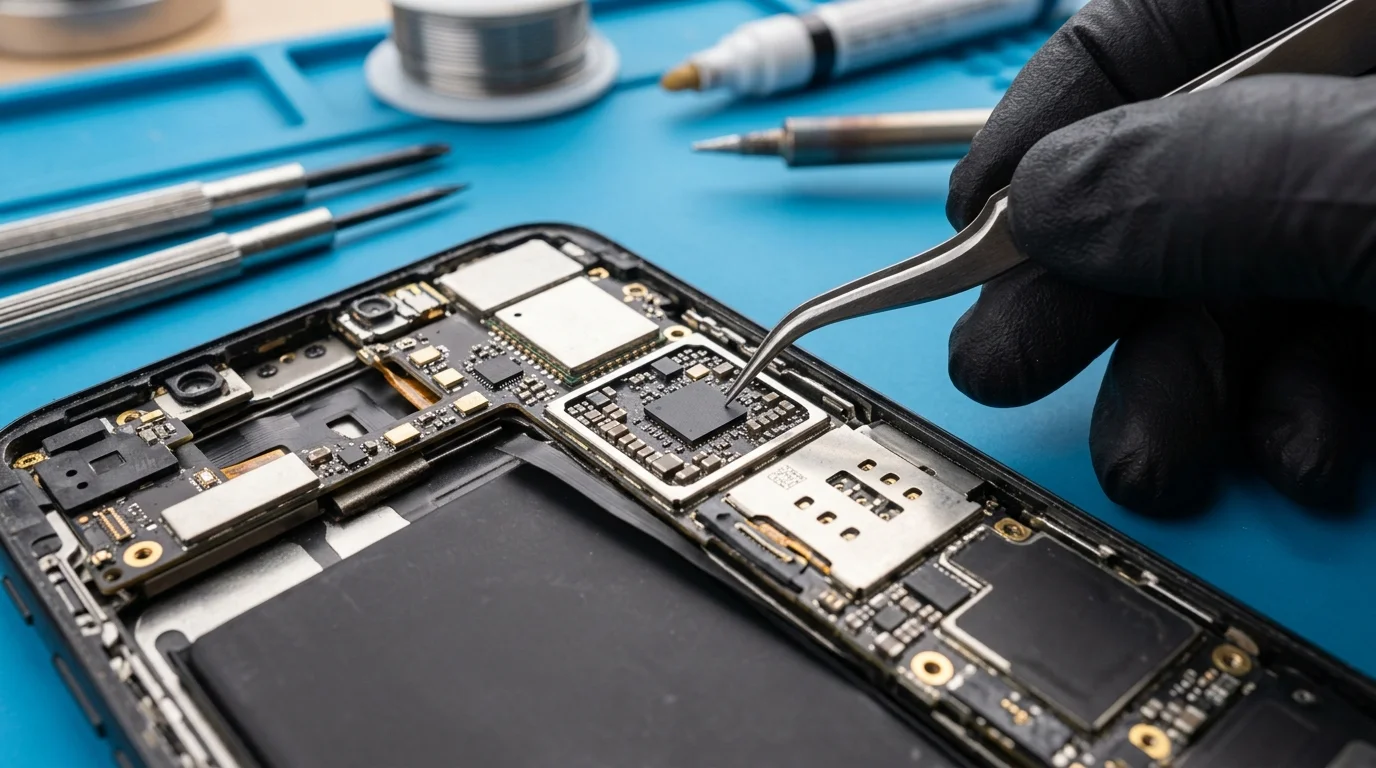
Unlike an exterior screen or battery, wireless components are integrated directly onto the iPhone's main logic board. Board-level repairs require specialized diagnostic equipment and precision micro-soldering tools. A technician must first inspect the device to determine whether the issue involves a straightforward modular fix, such as a loose antenna cable, or a more complex board connection.
Board Inspection and Diagnostic Testing
Following a physical drop, internal solder connections can fracture or board layers can experience micro-separation. Skilled technicians inspect the board under magnification, test power rails with multimeters, and determine whether reconnecting modular cables or micro-soldering board layers is appropriate.
Before bringing your device in for service, review our checklist on what to do before taking your iPhone to a repair shop to safeguard your data.
Repair vs. Replacement Decision
Depending on device age and cosmetic condition, advanced board repair may or may not be economical compared to the device's market value. To evaluate whether to repair your existing phone or invest in a newer model, explore our guide on whether it is better to repair or replace a damaged phone.
Professional Wi-Fi Diagnostics at CELLTECH
When home troubleshooting cannot restore wireless connectivity, CELLTECH provides comprehensive bench diagnostics to pinpoint the exact failure:
- Microscopic Inspection: We inspect frame alignment and board interposers for micro-fractures, liquid residue, or component detachment.
- Antenna & RF Line Verification: Technicians test modular antenna flex cables and micro-coaxial jumper connections to rule out simple disconnections.
- Diagnostic Auditing: We analyze MAC address initialization and kernel panic logs to confirm whether the fault is board-level or modular.
- Upfront Pricing & Written Warranty: You receive an exact written quote before work begins, backed by CELLTECH's 90-day malfunction warranty covering parts and labor.
Visit any of CELLTECH's seven verified Texas retail locations for an in-person diagnostic evaluation:
- Dallas — Galleria Dallas: 13350 Dallas Pkwy, Level 2 · (214) 628-6019
- Grand Prairie: Grand Prairie Premium Outlets, 2950 W Interstate 20, Space 75 · (469) 286-2520
- Arlington — Parks Mall: The Parks Mall at Arlington, 3811 S Cooper St, Level 2 (Next to GameStop) · (817) 538-9520
- Hurst — North East Mall: 1101 Melbourne Rd, Kiosk 92 · (817) 768-8112
- Mesquite — Town East Mall: 2063 Town East Mall, Level 2, Unit 2208 · (972) 220-8548
- Frisco — Stonebriar Centre: 2601 Preston Rd, Level 2, Suite 2210 · (817) 800-7577
- El Paso — Cielo Vista Mall: 8401 Gateway Blvd W, Level 2, Kiosk K113 · (915) 253-1236
Locate your nearest store with our CELLTECH store locator, explore our complete professional iPhone repair services, or request an iPhone repair quote online.
Frequently Asked Questions
A greyed-out Wi-Fi toggle in Settings means the switch is dimmed and cannot be turned on. This symptom can result from either software issues—such as network configuration glitches or crashed system processes—or hardware damage, such as loose antenna connections or board stress following a drop. Working through standard troubleshooting steps like a force restart and network settings reset helps determine the cause before seeking professional service.
A grey Wi-Fi icon in Control Center simply indicates that your iPhone has disconnected from Wi-Fi networks, not that the device is malfunctioning. Per Apple's official documentation, your device automatically reconnects when you turn on Wi-Fi in Control Center, connect in Settings, walk or drive to a new location, reach 5:00 AM local time, or restart your phone. If the toggle switch in Settings > Wi-Fi is dimmed and cannot be tapped, the switch is disabled and requires troubleshooting to determine whether software or hardware is responsible.
No. Resetting network settings does not touch personal photos, text messages, contacts, or downloaded apps. It only clears saved Wi-Fi networks and passwords, Bluetooth pairings, and custom VPN or APN configurations.
On many iPhone models, Wi-Fi and Bluetooth are handled by closely integrated wireless components on the logic board. Because they share internal power and signal lines, severe physical shock from a drop or liquid damage can sometimes impact both features at once. However, software glitches can also affect wireless connectivity, so performing a force restart and resetting network settings is always the first recommended step.
Yes, a hard drop can potentially cause internal hardware issues, such as dislodging an internal antenna connector or stressing delicate solder connections on the logic board. If your Wi-Fi toggle became greyed out immediately after an accidental drop and remains disabled after a restart, having the internal hardware professionally inspected is recommended.
No. While thermal shock may temporarily shift cracked solder joints to make momentary contact, it causes severe collateral damage by warping the motherboard, melting internal camera adhesives, and destroying lithium-ion battery cells. Once temperature normalizes, the issue recurs, often leaving the phone unrepairable.
Yes. Occasionally, an interrupted or corrupted iOS update can leave wireless driver binaries improperly configured. Connecting the iPhone to a computer via USB to perform a fresh update or recovery install can resolve driver corruption if the physical hardware is undamaged.
Restore Your iPhone's Wireless Connectivity
A greyed-out Wi-Fi toggle is frustrating, but systematically ruling out software issues before seeking hardware service prevents wasted time and money. If your phone's wireless switch remains dimmed after force restarting and resetting network settings, professional bench diagnostics can identify whether an antenna replacement or logic board reballing will restore complete connectivity.
Ready to get your iPhone diagnosed by experienced technicians? Visit any of CELLTECH's seven Texas stores or book an iPhone repair appointment today for fast, dependable service backed by our 90-day warranty.