iPhone Troubleshooting
iPhone Says SOS Only or No Service After a Drop? Here's What It Means
If your iPhone displays 'SOS Only' or 'No Service' after a drop, physical shock may have jarred your SIM card, loosened an internal antenna cable, or affected internal circuitry. Under Apple's official guidelines, 'SOS Only' means the device isn't connected to your normal cellular carrier, though emergency calls may still be routed through another network. 'No Service' means the phone is not connected to any cellular network at all. Neither alert alone proves permanent hardware damage—carrier outages, software freezes, and displaced SIM cards cause identical symptoms. Before scheduling a repair, try safe checks like toggling Airplane Mode for 15 seconds, force restarting, and reseating your SIM card. If Settings shows 'Cellular Issue Detected' or the Modem Firmware line is blank, professional bench diagnosis is required.
Dropping your iPhone is an immediate shock. Even when the glass survives without a scratch, you may notice an unexpected problem in the status bar: your cellular signal bars have vanished. In their place, your status bar displays 'SOS Only', 'No Service', or cycles continuously through 'Searching...'
Losing cellular connectivity prevents phone calls, SMS texting, and mobile data usage. While it is natural to worry that the drop broke your phone, cellular status indicators describe network availability rather than diagnosing internal hardware. Signal loss can stem from an external carrier disruption, a transient software lock, or physical drop trauma. Knowing how to systematically test your iPhone helps you identify the cause and decide whether professional diagnosis is necessary.
What Does SOS Only or No Service Mean on an iPhone?
Apple's iOS status bar provides real-time information regarding cellular network connection. In its official support guidance, Apple outlines what each cellular status alert signifies:
- SOS or SOS Only: In the United States, Canada, and Australia, this indicator means your iPhone is not connected to your carrier's cellular network, but emergency calls can still be placed through another carrier's network if one is available. It does not indicate an active emergency broadcast or that an emergency call was placed; it simply signals that only emergency dialing is currently supported.
- No Service: This message confirms that your iPhone is currently not connected to any cellular network. When active, you cannot place regular calls, use cellular data, or make emergency calls through cellular towers.
- Searching...: This alert indicates that your iPhone is actively looking for a cellular signal but has not yet registered with a network.
Why Can Dropping an iPhone Cause Signal Loss?
Smartphones are engineered for daily durability, but impact deceleration transfers mechanical shock throughout the chassis. When signal loss coincides with a fall, technicians examine several potential hardware disruptions:
- Physical SIM Card Displacement: On models with a physical tray, impact can shift the nano-SIM off its contact pins, interrupting the connection needed to authenticate your cellular subscription.
- eSIM Hardware Independence: On eSIM-only devices (such as US iPhone 14 and newer), subscriber data is stored on an embedded chip soldered to the board. An eSIM cannot dislodge during a drop. Signal loss points to software locks, antenna faults, or board circuitry issues.
- Antenna Cable and Grounding Disconnects: Miniature coaxial cables and flexible circuits connect frame antennas to the logic board. An abrupt jolt can unseat a connector or pinch a flex lead, interrupting radio reception.
- Motherboard Solder Stress: Modern iPhone logic boards use compact multi-layer designs joined by microscopic solder joints. In hard falls, chassis flex can crack solder joints under the modem or power management chips, causing persistent 'No Service' or a blank Modem Firmware entry.
Can Dropping an iPhone Damage Its Cellular Antenna?
Yes, although antenna damage typically involves structural deformation rather than a severed internal wire. In modern iPhones, sections of the outer metal perimeter frame function directly as cellular antennas, separated by small plastic insulator bands.
If your iPhone lands on an edge or corner, impact force can dent the metal band or loosen internal grounding clips that connect the frame to the logic board. If you notice a visible bend or gap in the casing, review our guide on the structural risks of a bent phone frame to understand how frame stress affects internal components.
What to Check Before Taking Your iPhone for Repair
Before visiting a repair shop, work through Apple's recommended troubleshooting sequence to rule out network and software issues without risking stored data:
1. Toggle Airplane Mode for 15 Seconds
Swipe down to open Control Center, turn on Airplane Mode, wait 15 seconds, and turn it off. This forces the device to refresh its cellular connection and re-query nearby towers.
2. Perform a Force Restart
A force restart clears temporary cache and reboots hardware controllers without altering personal data. On modern iPhones, press and quickly release Volume Up, press and quickly release Volume Down, then hold the Side Power button until the Apple logo appears.
3. Check Carrier Coverage and Local Outages
Confirm with your carrier that your account is active. Check whether others on the same network nearby have signal, or verify carrier outage maps via Wi-Fi.
4. Check for Carrier Settings and iOS Updates
Connect to Wi-Fi and check Settings > General > About for a carrier update prompt, then check Settings > General > Software Update for iOS updates.
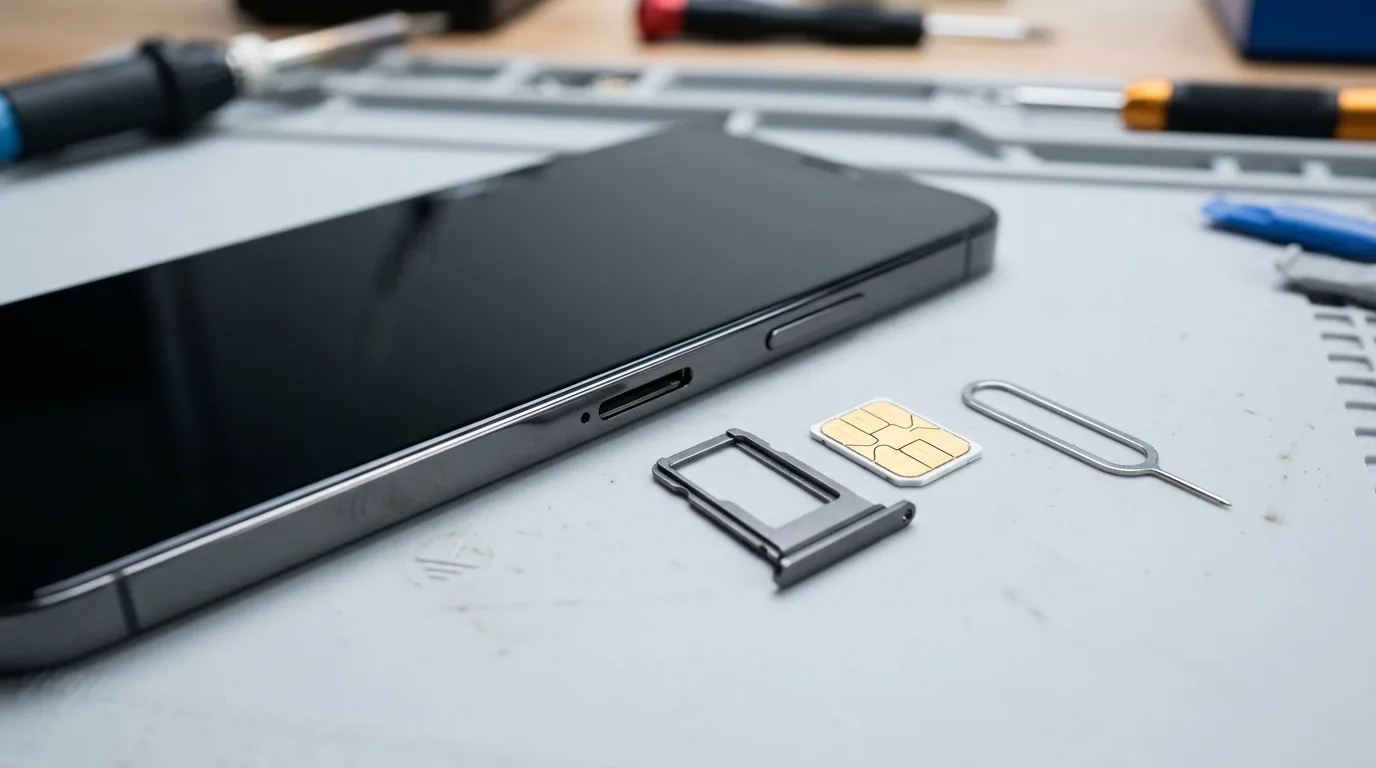
5. Inspect and Reseat Your SIM Card
For physical SIM models, power off, eject the tray, wipe the gold contact pad with a microfiber cloth, and reseat firmly. For eSIM models, go to Settings > Cellular to confirm your cellular line is on.
6. Check the Modem Firmware Line in Settings
Open Settings > General > About and scroll down to 'Modem Firmware'. If version numbers are listed, the cellular modem is responding to iOS. If the field is completely blank, or if dialing *#06# in the Phone app produces no IMEI number, the hardware has stopped communicating.
7. Reset Network Settings
Navigate to Settings > General > Transfer or Reset iPhone > Reset > Reset Network Settings. This restores cellular configurations to defaults (note: clears saved Wi-Fi passwords).
Carrier Outage vs. Hardware Drop Damage: How to Tell
Because external network outages and hardware faults produce identical status bar alerts, compare these diagnostic signs to evaluate your situation:
| Diagnostic Check | Likely Carrier / Network Issue | Likely Hardware Drop Damage |
|---|---|---|
| Status Bar Indicator | No Service or fluctuating signal across your local area. | SOS Only, Searching..., or No Service starting immediately after a fall. |
| Modem Firmware in Settings | Firmware numbers populate normally under Settings > General > About. | Modem Firmware line is blank, greyed out, or missing. |
| Keypad IMEI Check (*#06#) | Typing *#06# immediately displays the device IMEI and barcode numbers. | Typing *#06# yields a blank screen, freeze, or missing IMEI data. |
| Nearby Phones on Same Carrier | Other devices on your carrier nearby also lack reception. | Other devices on your carrier in the same room have full 5G/LTE signal. |
| iOS System Notifications | No diagnostic alert banners appear in iOS Settings. | Settings shows a 'Cellular Issue Detected' banner. |
| Physical Device State | Phone operates at normal temperature with an undamaged chassis. | Dented frame corner, device runs hot near motherboard, or fast battery drain. |
Why Does My iPhone Show SOS Only Even Though Wi-Fi Works?
It is common for an iPhone with no cellular service to browse websites, send iMessages, and stream videos over Wi-Fi without issue. This occurs because Wi-Fi and cellular functions operate through entirely separate hardware subsystems:
- Wi-Fi and Bluetooth Architecture: Managed by a dedicated wireless networking chip connected to distinct high-frequency antennas near the top of the device.
- Cellular Subsystem: Controlled by an independent baseband modem, RF transceivers, power amplifiers, and multi-band perimeter frame antennas.
- Independent Power and Signal Paths: A drop that loosens a cellular antenna cable or baseband connection does not disrupt the Wi-Fi module's independent power rails or antennas.
If the impact also affected your display or touch sensitivity, read our guide on what to check when an iPhone touch screen stops working after a drop, or review our troubleshooting steps when an iPhone screen is black but still on.
When to Seek Professional Hardware Inspection
If safe troubleshooting steps fail to restore signal, hands-on diagnostic inspection by a qualified technician is recommended. Key indicators of hardware damage include:
- A persistent 'Cellular Issue Detected' notification in Settings.
- A blank Modem Firmware field in Settings > General > About.
- Failure of *#06# to display an IMEI number on the keypad.
- Unusual heating near the center of the phone accompanied by rapid battery drain.
- A deformed or dented metal frame near an antenna band.
How Technicians Diagnose and Repair Cellular Issues
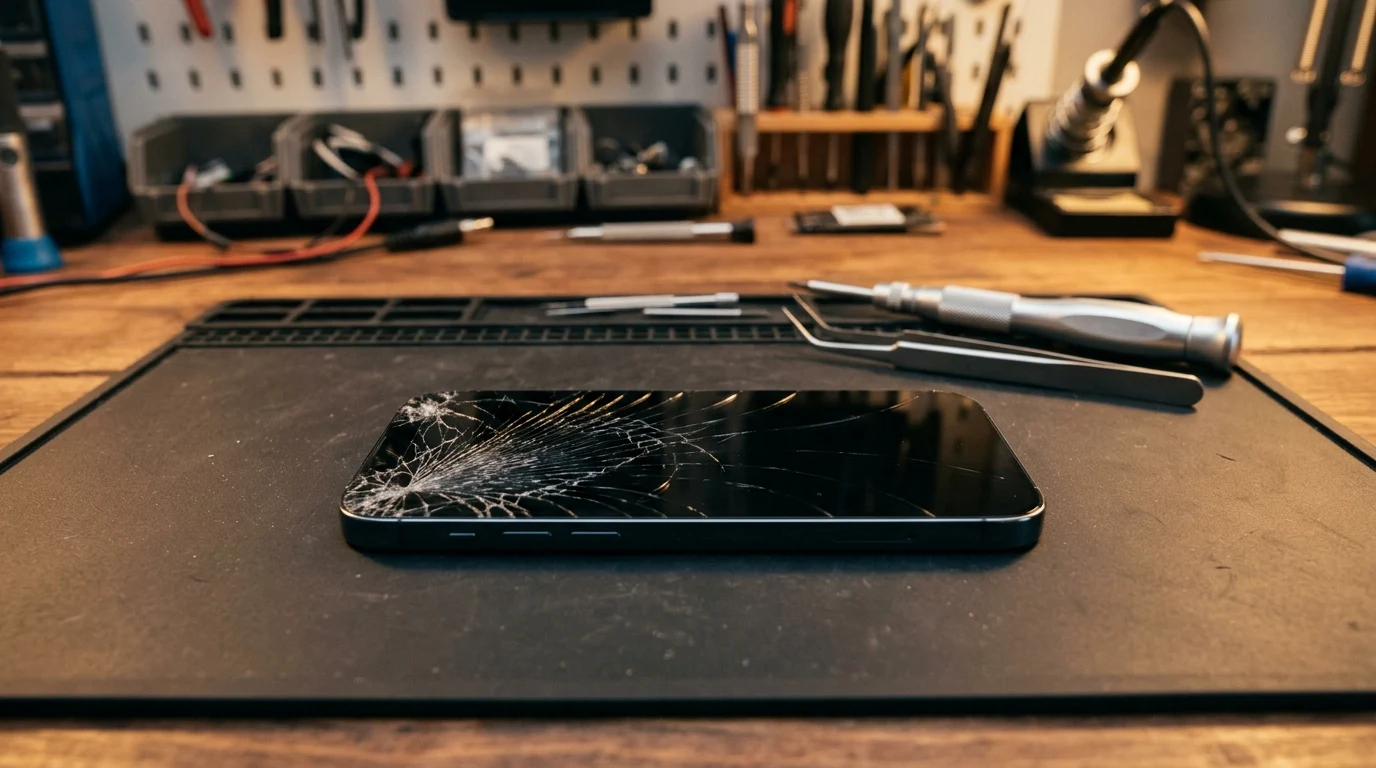
Professional repair centers diagnose cellular drop issues through structured bench testing:
- Non-Invasive Diagnostic Testing: Technicians test the device with diagnostic software and known-good SIMs, inspecting the SIM slot and telemetry to verify modem response.
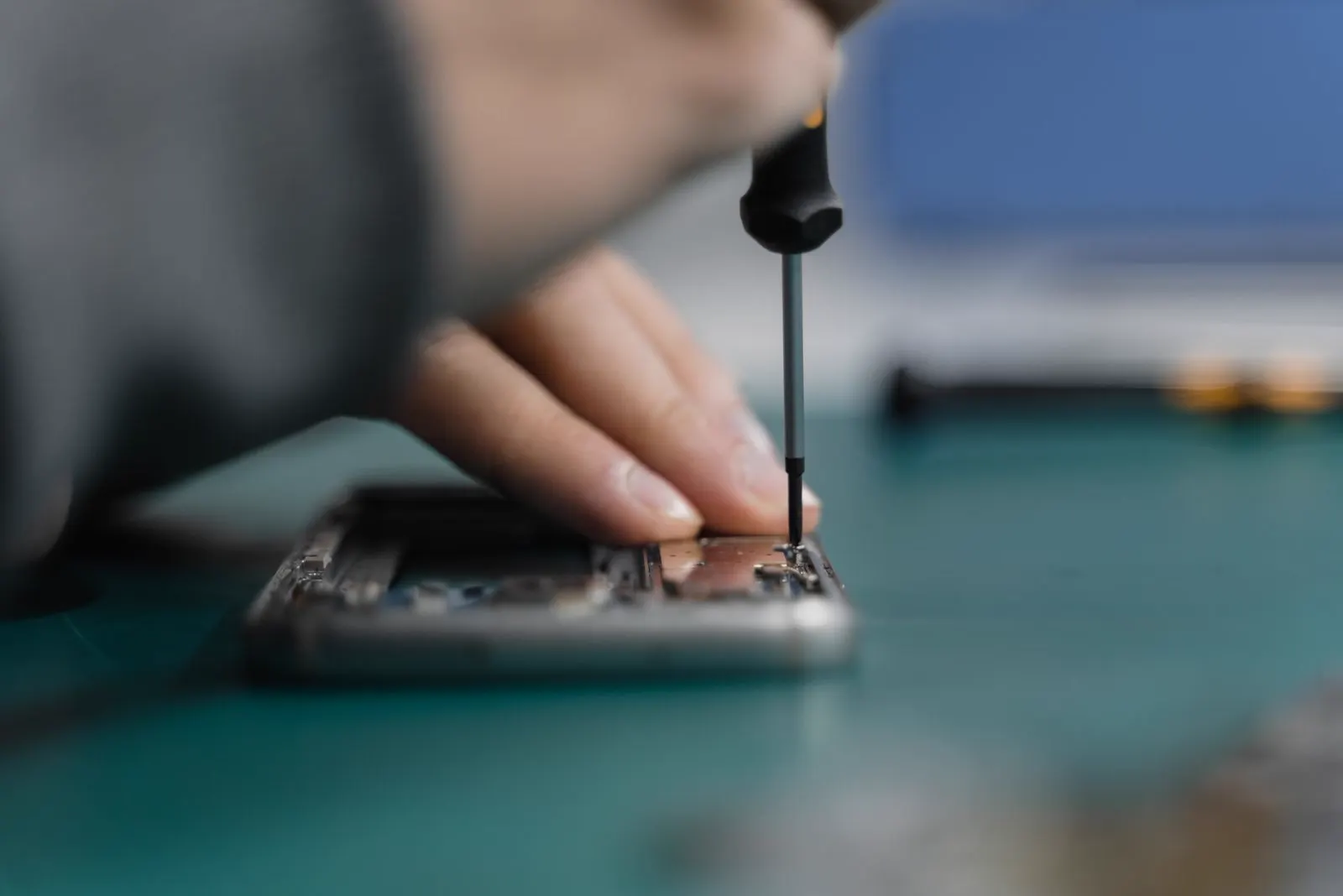
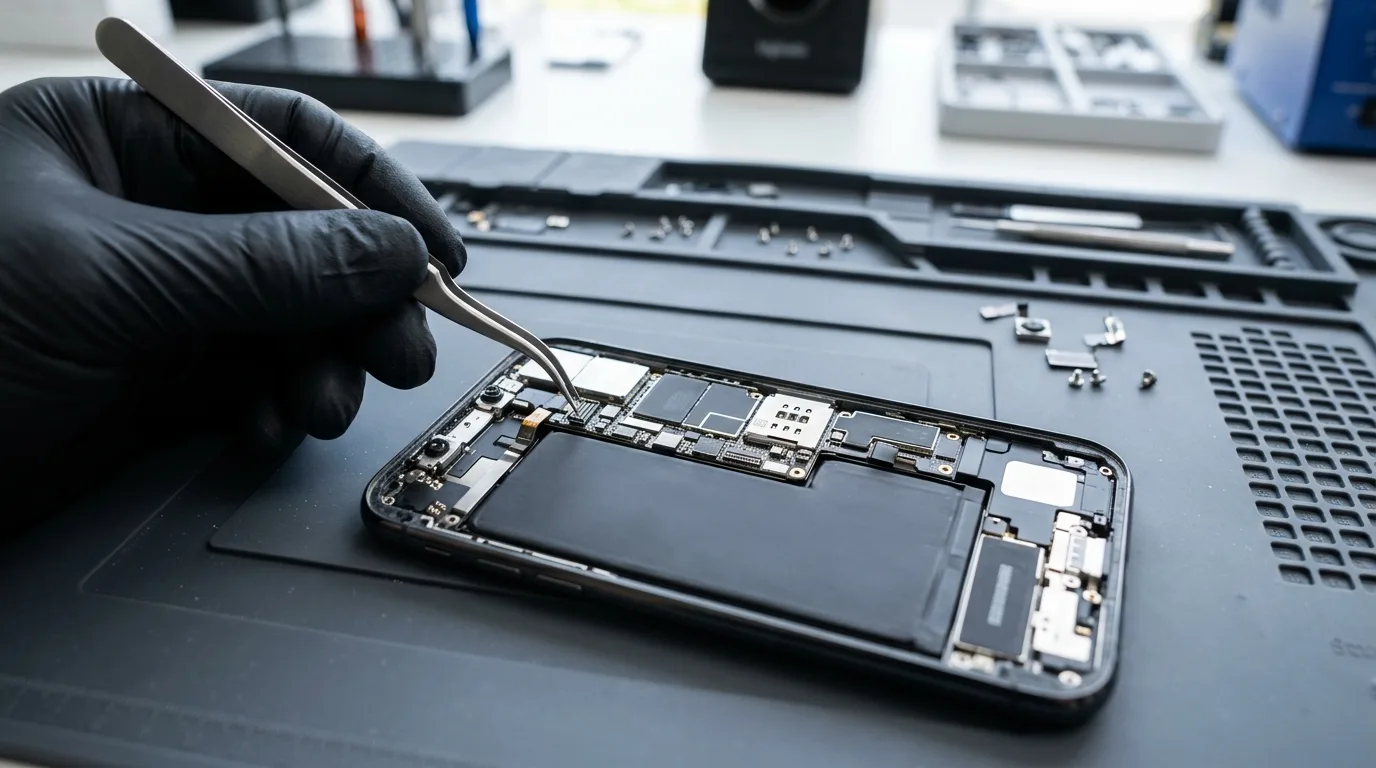
- Internal Interconnect Inspection: Technicians open the chassis under ESD protection to inspect antenna leads, grounding brackets, and modular flex ribbons for disconnection or tears.
- Modular and Board Repair Options: If an antenna cable or SIM reader is unseated or damaged, replacing the modular assembly restores signal quickly. For motherboard solder fractures, technicians evaluate whether board-level repair is practical for your device.
Where to Get Your iPhone Checked in Texas
If basic troubleshooting hasn't resolved your cellular issue, CELLTECH provides in-person diagnostic inspections across our seven verified Texas retail locations:
- Dallas — Galleria Dallas: 13350 Dallas Pkwy, Level 2 · (214) 628-6019
- Grand Prairie: Grand Prairie Premium Outlets, 2950 W Interstate 20, Space 75 · (469) 286-2520
- Arlington — Parks Mall: The Parks Mall at Arlington, 3811 S Cooper St, Level 2 (Next to GameStop) · (817) 538-9520
- Hurst — North East Mall: 1101 Melbourne Rd, Kiosk 92 · (817) 768-8112
- Mesquite — Town East Mall: 2063 Town East Mall, Level 2, Unit 2208 · (972) 220-8548
- Frisco — Stonebriar Centre: 2601 Preston Rd, Level 2, Suite 2210 · (817) 800-7577
- El Paso — Cielo Vista Mall: 8401 Gateway Blvd W, Level 2, Kiosk K113 · (915) 253-1236
At every CELLTECH store, technicians conduct a free counter diagnosis, test your antenna hardware, and provide an upfront quote before work starts. Repairs include our 90-day malfunction warranty covering parts and labor. You can find your nearest CELLTECH repair location, browse our professional iPhone repair services, or request an iPhone repair quote online.
Frequently Asked Questions
'SOS Only' means your iPhone cannot connect to your carrier's network, though emergency calls can route through another carrier. Following a drop, this often results from a dislodged physical SIM, an unseated antenna cable, or impact stress on internal circuits.
No. Neither message alone proves hardware failure. These alerts reflect network availability and can occur during carrier tower outages or transient software locks. Physical testing is needed to confirm hardware damage.
Yes. iPhones incorporate their outer metal frame as part of the antenna system. An impact can dent the frame, disrupt internal grounding, or disconnect the miniature coaxial cables that bridge frame antennas to the logic board.
Wi-Fi and cellular operate via separate chips, independent frequencies, and dedicated antennas. A physical fall that damages a cellular antenna lead or baseband connection does not interfere with the independent Wi-Fi subsystem.
An eSIM is soldered directly to the logic board and cannot physically loosen like a plastic SIM. However, if impact damages antenna lines or modem power circuits, the eSIM cannot establish network communication.
Generally no. If signal loss started right after a fall, the cause is usually hardware. Restoring an iPhone with an unresponsive modem can cause Apple activation to fail, stranding the device on the 'Unable to Activate' screen.
This warning indicates iOS confirmed a hardware communication issue with the modem. Do not restore the phone. Back up data over Wi-Fi and take the device to a repair technician for evaluation.
Restoring Your iPhone's Cellular Connection
Losing cellular service after a drop is frustrating, but working through structured troubleshooting protects your device and data. Start with non-destructive steps like toggling Airplane Mode, restarting, and inspecting the SIM card. If Modem Firmware remains blank or an iOS hardware warning appears, avoid factory restores and seek professional diagnosis.
At CELLTECH, our technicians offer free diagnostic evaluations across our seven Texas stores. Stop by today or book an iPhone inspection appointment today to get your phone accurately tested and reconnected.