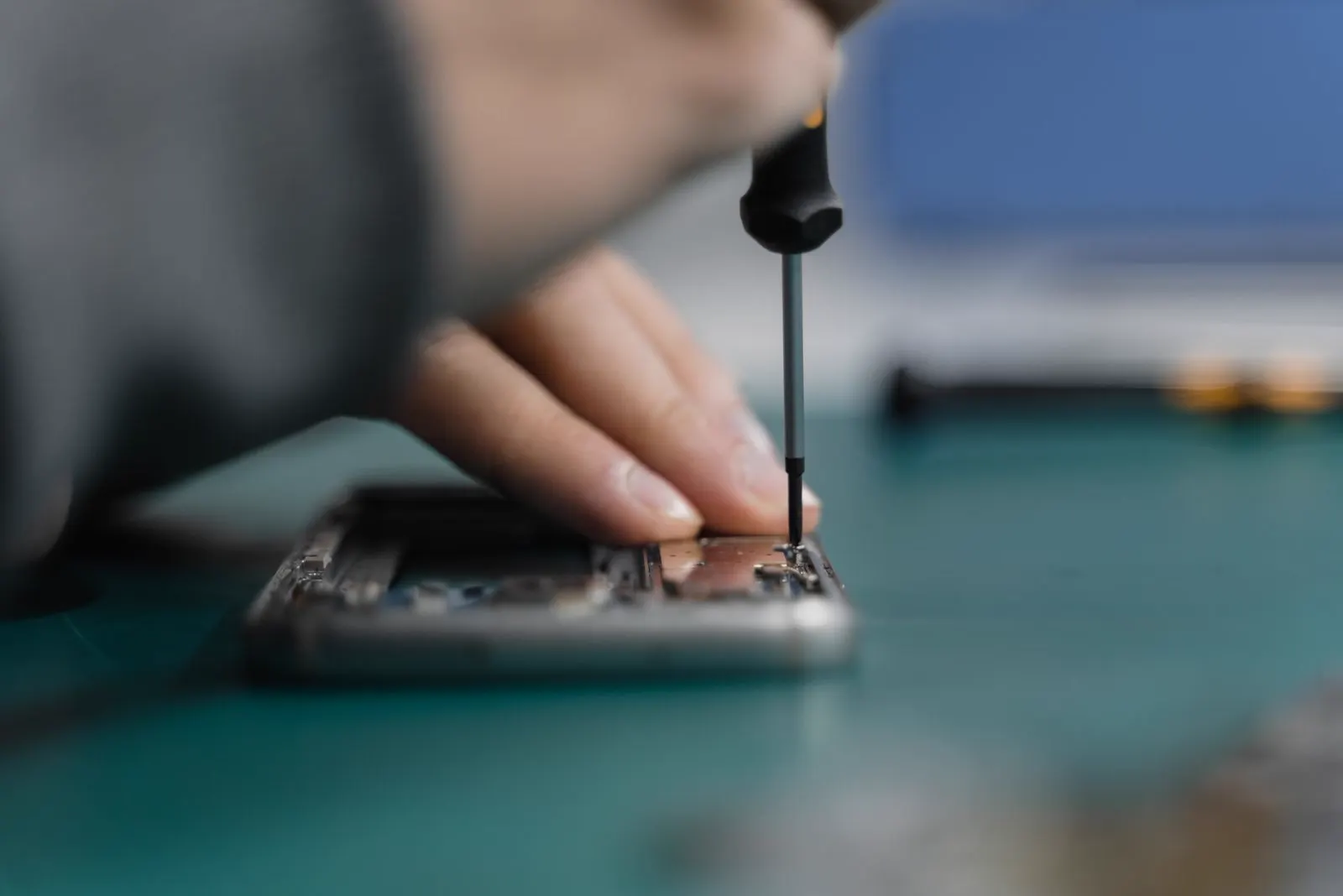
iPhone Microphone
Why Is My iPhone Microphone Not Working? Causes, Tests and Repair Options
If your iPhone microphone is not working, the cause may be as simple as debris in a microphone opening, a case covering it, or microphone permission switched off for one app. If your voice is still muffled, silent or cutting out across calls, recordings and apps after the basic checks, the iPhone may have a hardware fault that needs professional diagnosis. Apple recommends testing with Voice Memos and Camera, checking app permissions, and keeping the openings clear.
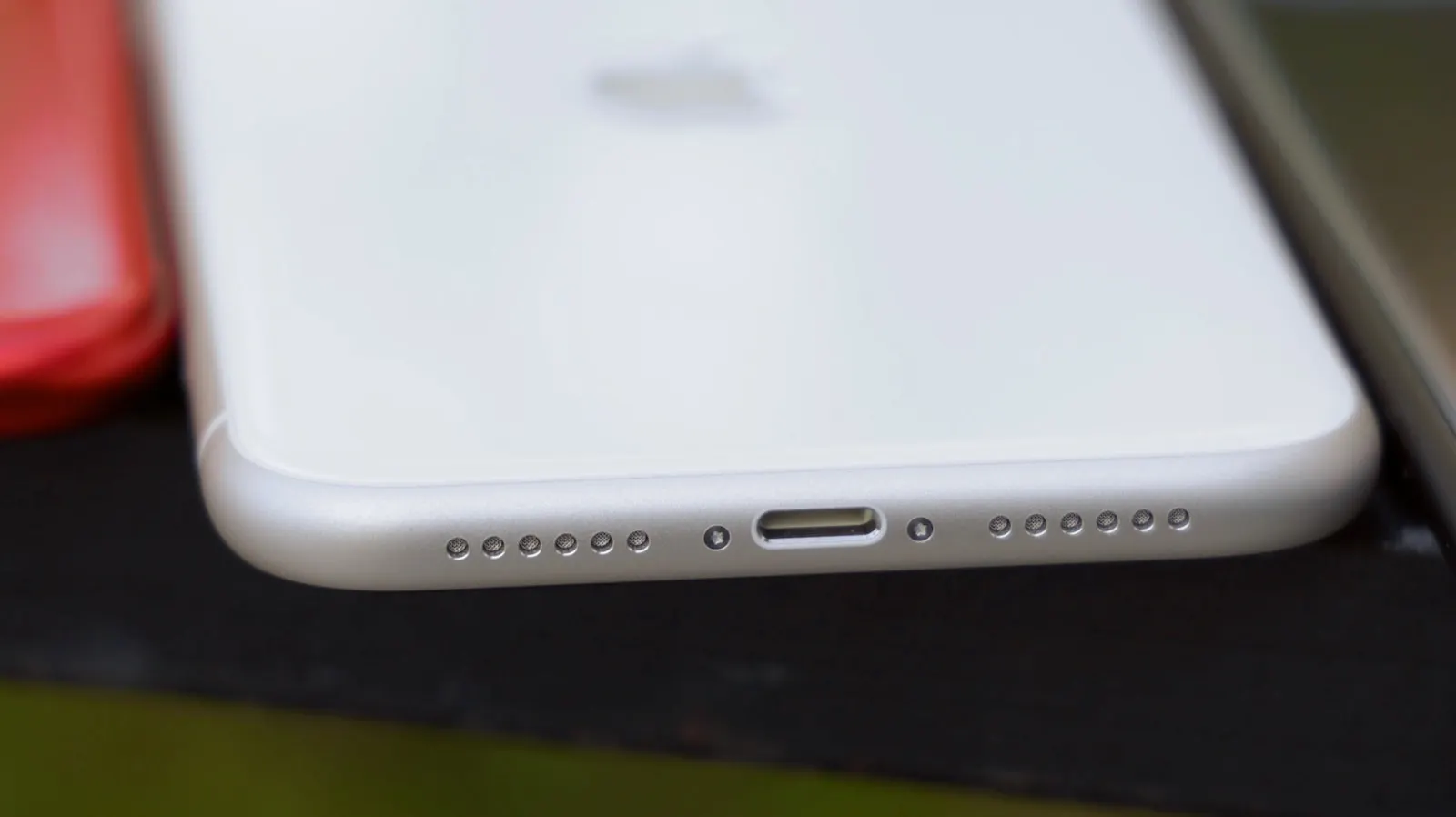
If your iPhone microphone is not working, the problem may be caused by something simple such as debris, a case blocking the microphone opening, or microphone permissions being disabled for an app. However, if your voice is still muffled, silent, or cutting out across calls, recordings, and apps after basic checks, your iPhone may have a hardware problem that needs professional diagnosis. Apple recommends testing the microphones with Voice Memos and Camera, checking app permissions, and making sure the microphone openings are unobstructed.
If your iPhone recently fell, was exposed to liquid, or developed the microphone problem suddenly, professional inspection can help determine whether the issue is related to internal hardware rather than a simple setting.
Why Is My iPhone Microphone Not Working?
The most common reasons an iPhone microphone may stop working include:
- Dust, lint, or debris blocking a microphone opening
- A case or screen protector interfering with the microphone
- Microphone permissions being disabled for a specific app
- Bluetooth or another connected audio device affecting audio input
- A temporary software or app issue
- Physical damage after a drop or impact
- Liquid damage or internal corrosion
- A damaged microphone or related internal component
The fastest way to narrow down the problem is to test your iPhone in several different situations instead of assuming the microphone itself is broken.
What Does It Mean When Your iPhone Microphone Isn't Working?
"Microphone not working" can describe several different problems. You may notice that:
- People cannot hear you during phone calls.
- Your voice sounds very quiet.
- Your voice sounds muffled or distorted.
- Voice Memos records silence.
- Video recordings have no clear audio.
- Your microphone works in one app but not another.
- Your voice cuts in and out during calls.
- Siri or another voice feature does not hear you properly.
- The problem started after dropping your iPhone.
- The problem appeared after water or liquid exposure.
These symptoms matter because an iPhone can use different microphones for different functions. Testing more than one function can help determine whether the problem is isolated or affects the device more broadly. Apple specifically recommends Voice Memos and Camera testing to identify microphone problems.
How Can You Test If Your iPhone Microphone Is Working?
Before paying for a repair, perform a few simple tests.
1. Test the Microphone With Voice Memos
Open the Voice Memos app and record yourself speaking normally. Play the recording back.
If your voice is clear, the microphone is at least working for that recording path. If the recording is silent or extremely unclear, continue testing rather than assuming the entire phone microphone system has failed. Apple recommends this test when people cannot hear you during phone or FaceTime calls.
2. Test the iPhone With the Camera App
Open the Camera app and record a short video while speaking. Test the available camera options and play the video back.
This helps determine whether audio capture works during video recording. Apple recommends this type of test when investigating microphone problems.
3. Test More Than One App
Try recording or speaking through:
- Phone calls
- Voice Memos
- Camera
- FaceTime
- A messaging app with voice messages
If the microphone fails only in one application, the hardware may not be the problem.
Why Is My iPhone Microphone Not Working in One App?
If the microphone works normally everywhere except one application, check that application's microphone permission. On iPhone, open Settings, then Privacy & Security, then Microphone. Find the affected app and make sure microphone access is enabled.
Apple recommends checking microphone permissions when the problem happens only in a specific app. For example, you might find that Voice Memos works, Camera works, but one messaging app does not. This points you toward an app or permission problem rather than automatically indicating a failed microphone.
Could Dust or Lint Be Blocking the iPhone Microphone?
Yes. Pocket lint, dust, dirt, and other debris can collect around the microphone openings and interfere with sound pickup. This can cause:
- Very quiet audio
- Muffled voice
- Distorted recordings
- Callers struggling to hear you
Apple recommends removing cases, films, or screen protectors that could interfere with the openings and clearing debris from them. Inspect the openings carefully and avoid pushing anything into the phone.
If the microphone remains weak after removing visible obstruction, the problem may require further diagnosis.
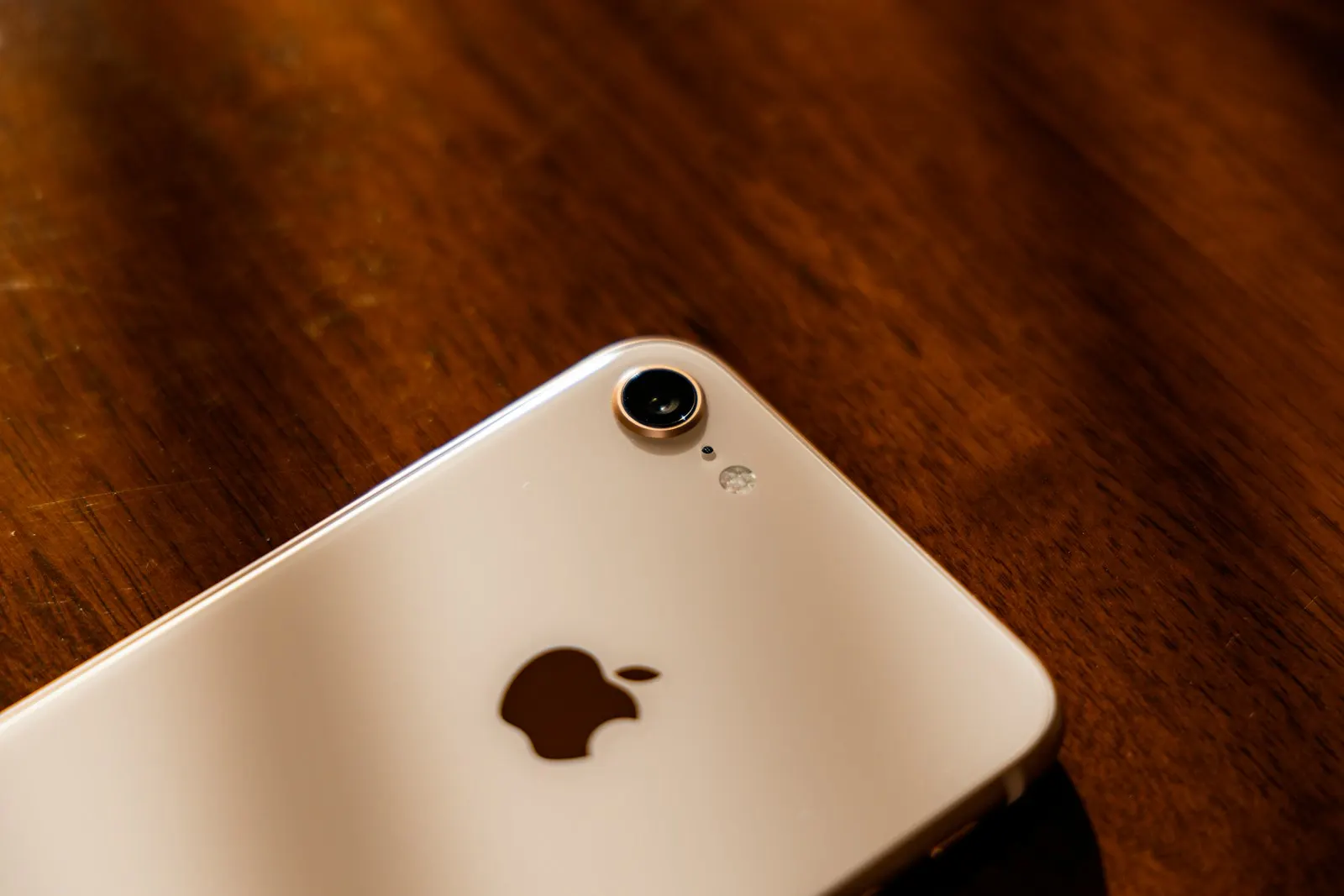
Can an iPhone Case Cause Microphone Problems?
It can. A case that is poorly aligned, damaged, or incorrectly fitted may partially cover a microphone opening. Remove the case and perform another Voice Memos or Camera test.
If the audio immediately becomes normal, you may have found the cause without needing a repair. If nothing changes, continue with the other diagnostic checks.
Could Bluetooth Be Causing My iPhone Microphone Problem?
Sometimes the iPhone is working correctly but audio is being handled through a connected accessory. A Bluetooth headset, AirPods, vehicle system, or another audio device may change the audio input being used.
Disconnect external audio devices and test the iPhone's built in microphone again. This is particularly useful if the problem started after connecting a headset or using your iPhone with a car audio system.
Why Is My iPhone Microphone Suddenly Not Working?
A sudden microphone failure does not always mean the microphone physically broke. Possible causes include:
- A temporary software problem
- An application issue
- Permission changes
- Audio routing through another device
- Debris entering the microphone opening
- Physical impact
- Liquid exposure
- Internal hardware failure
The timing of the problem can provide an important clue. For example:
- After installing or changing an app: check permissions and app behavior
- After dropping the iPhone: consider physical damage
- After liquid exposure: consider liquid damage
- Gradually becoming quieter: inspect for blockage, wear, or hardware issues
Can a Drop Damage an iPhone Microphone?
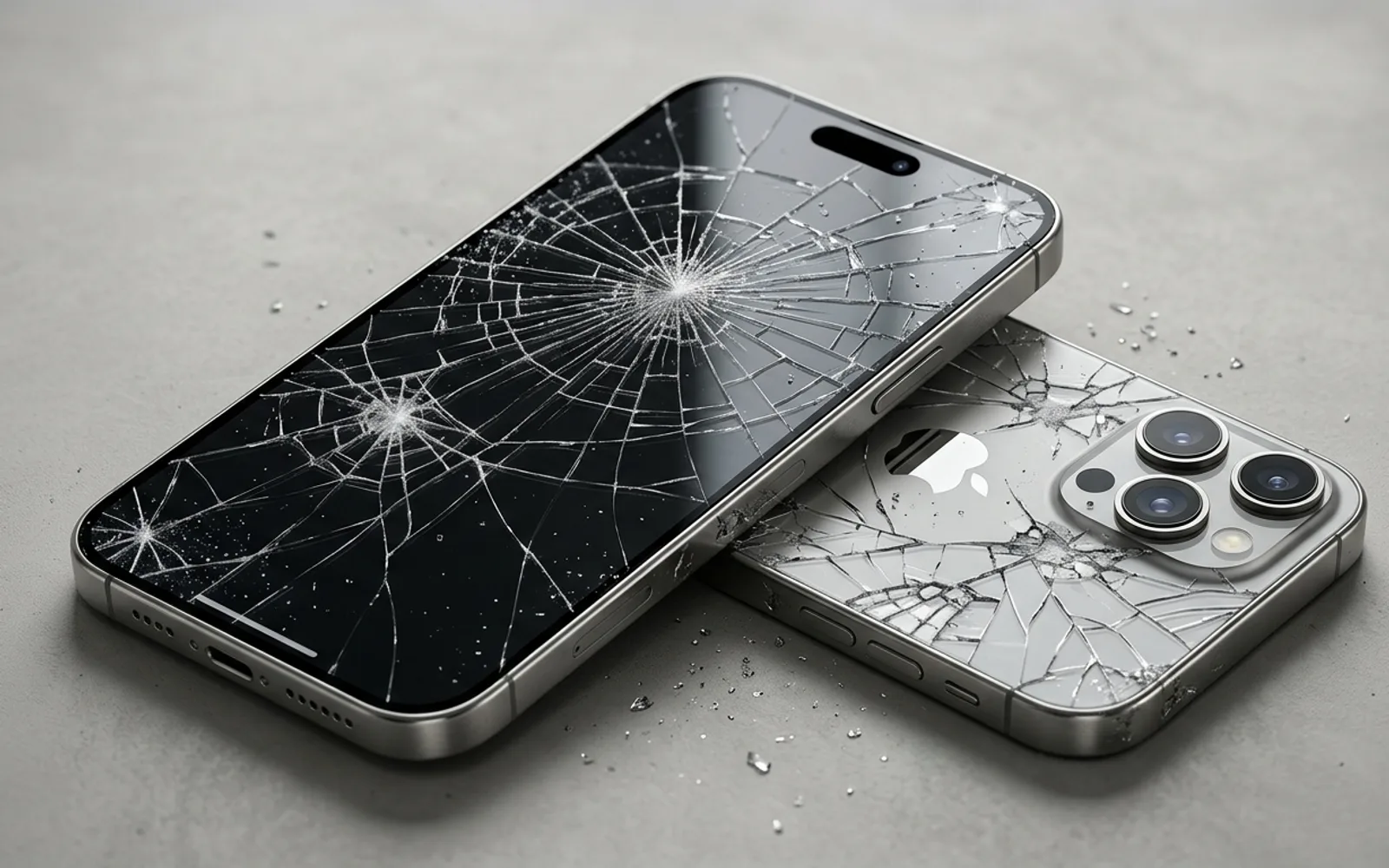
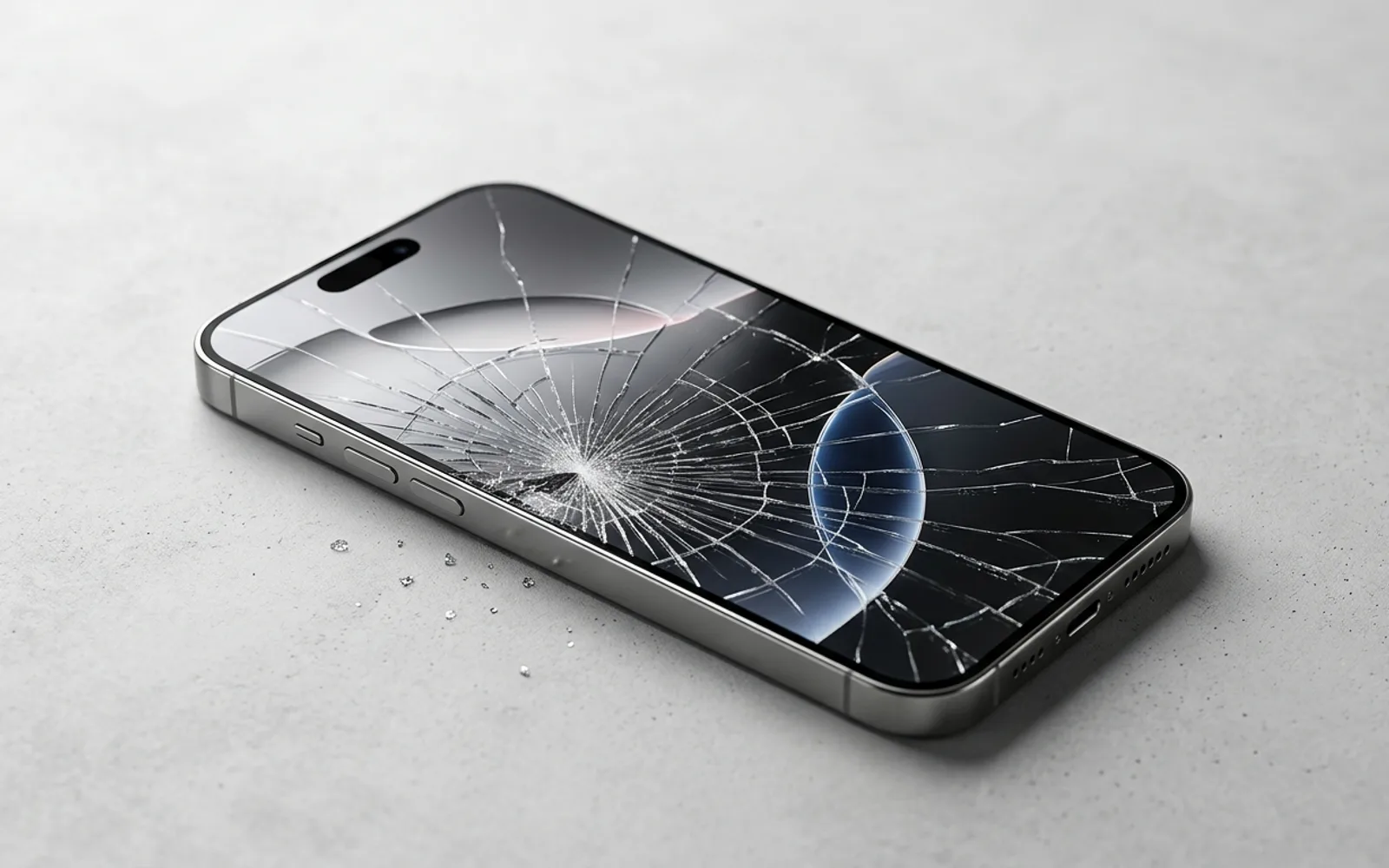
Yes. A hard impact can damage internal components even when the outside of the phone does not appear severely damaged. You might notice the microphone stopped working at the same time as:
- A cracked screen
- Bent frame
- Camera problems
- Charging problems
- Button problems
- Intermittent audio
Don't assume the visible damage is the only damage. CELLTECH explains that the visible symptom is not always the actual fault and that an iPhone is inspected before the appropriate iPhone repair is recommended.
Can Water Damage Make an iPhone Microphone Stop Working?
Yes. Liquid can affect internal components and may produce audio problems even when the iPhone initially continues to work. You may experience:
- Muffled microphone audio
- Distorted recordings
- Intermittent microphone performance
- No microphone input
- Other unrelated device problems
Liquid related problems can require inspection because more than one component may be affected. CELLTECH specifically recommends bringing liquid damaged iPhones in for water damage inspection and repair rather than assuming the visible symptom tells the whole story.
What Should I Do If My iPhone Microphone Is Not Working?
Work through these checks in order:
Remove the case
Take off the case and any accessory that could cover the microphone openings.
Check for debris
Look carefully around the microphone openings and remove visible debris without pushing anything deeper into the device.
Check microphone permissions
Open Settings, then Privacy & Security, then Microphone, and make sure the affected application has permission.
Disconnect external audio devices
Turn off or disconnect Bluetooth audio accessories and test the built in microphone again.
Test with Voice Memos
Record your voice and listen to the result.
Test with Camera
Record video and check whether the audio is captured normally.
Consider what happened before the problem
Ask yourself: Was the iPhone dropped? Was it exposed to water? Did the problem begin after a repair? Did it start in only one app? Does the microphone work intermittently? These details can help a technician identify the likely cause more efficiently.
What Should You NOT Do If Your iPhone Microphone Isn't Working?
Avoid aggressive DIY repairs. Do not:
- Insert needles or sharp metal objects into microphone openings.
- Pour liquid cleaners into microphone openings.
- Open the iPhone without the appropriate equipment and repair experience.
- Replace random components because an online guide suggested it.
- Keep charging a recently wet iPhone.
- Erase the entire device before determining whether the issue is hardware related.
The goal is to identify the cause, not create another problem while attempting to solve the first one.
When Should You Get Professional iPhone Repair?
You should consider professional diagnosis when basic checks do not solve the problem.
Your Microphone Doesn't Work in Multiple Tests
If Voice Memos, Camera recordings, calls, and other applications consistently have audio problems, a broader device or hardware issue becomes more likely.
The Problem Started After a Drop
A microphone fault immediately following physical impact should be inspected for possible internal damage.
Your iPhone Was Exposed to Liquid
Liquid can affect more than one internal component, so professional inspection is preferable to guessing which part failed.
Your Microphone Works Intermittently
A microphone that cuts in and out can indicate an issue that may become more disruptive over time.
Another iPhone Function Stopped Working at the Same Time
If you also have charging, camera, screen, button, or power problems, the microphone symptom may be part of a larger hardware problem.
Basic Troubleshooting Didn't Help
Apple states that service may be needed when audio remains unclear during calls, recordings, or apps after troubleshooting.
Does an iPhone Microphone Problem Always Mean the Microphone Needs Replacement?
No. The symptom alone does not identify the failed component. A professional inspection may determine that the cause is:
- Software or permission issue: no hardware repair may be necessary
- Blocked opening: cleaning may solve the problem
- Damaged component: hardware repair may be required
- Liquid exposure: additional inspection may be needed
- Physical impact: related internal components may also need checking
This is why it is better to diagnose the problem before buying a replacement part or approving a repair.
Is It Worth Repairing an iPhone With a Microphone Problem?
That depends on the iPhone model, the diagnosed problem, the overall condition of the phone, and the repair cost.
Repair can make sense when the rest of the device is functioning well and the microphone issue can be addressed reasonably. Replacement may be worth considering when the iPhone has several major problems or the total repair cost approaches the cost of replacing the device.
CELLTECH inspects the iPhone and provides repair options and pricing before repair work begins, so you can make the decision based on the actual condition of the device. Our guide on whether to repair or replace a damaged phone walks through that comparison in more detail.
How Can CELLTECH Help With an iPhone Microphone Problem?
You do not need to know which internal component has failed before bringing your iPhone in. CELLTECH's iPhone repair process starts with the symptom.
Tell Us What Your iPhone Is Doing
Explain whether:
- Callers cannot hear you.
- Voice Memos are silent.
- Your voice sounds muffled.
- Video audio is missing.
- The microphone works intermittently.
- The problem started after a drop or liquid exposure.
Get the iPhone Inspected
CELLTECH states that the iPhone is inspected before a repair is recommended because the visible symptom is not always the underlying fault. The diagnostic is free, and inspection always comes first.
Review the Repair and Quote
Repair options, pricing, and other relevant repair details are explained before work begins. Most iPhone repairs are completed the same day when the part is in stock, and qualifying repairs are covered by a 90 day malfunction warranty.
Decide Whether to Proceed
You can then decide whether repairing the iPhone makes sense based on the diagnosed issue and quoted repair. Get an iPhone repair quote online, or view the full range of iPhone repair services to see what the team can handle.
Where Can I Get iPhone Repair From CELLTECH?
CELLTECH has seven walk in Texas repair stores serving customers across the Dallas and Fort Worth area and El Paso. Dedicated iPhone repair counters at Galleria Dallas and The Parks Mall at Arlington handle microphone, speaker and liquid damage diagnostics daily. Because a microphone fault can be sorted out at any location, the simplest step is to use the store finder to choose the store nearest you rather than picking a city first.
CELLTECH also accepts walk ins and allows customers to book a repair appointment in advance.
Frequently Asked Questions About iPhone Microphone Problems
Check the microphone openings, remove your case, test Voice Memos, and check microphone permissions. If the problem continues across different functions, your iPhone may need professional diagnosis.
A blocked microphone opening, case interference, liquid exposure, physical damage, or an internal hardware problem can cause muffled audio. Start by removing the case and checking for debris before testing the microphone again.
This can mean that the microphone itself has not completely failed. Test another calling application and check whether the problem is limited to calls, audio routing, or another part of the system.
If the microphone works in Apple's built in apps but not WhatsApp, open Settings, then Privacy & Security, then Microphone, and confirm that WhatsApp has permission to use the microphone.
Yes. Physical impact can affect internal components even when the external damage appears limited. If the microphone stopped working after a drop, professional inspection can help determine whether internal damage is involved.
Yes. Liquid exposure can affect audio components and other internal hardware. If the problem starts after getting wet, avoid charging the device while it is wet and consider professional inspection.
If the microphone remains unclear or silent during calls, Voice Memos, recordings, or multiple apps after basic troubleshooting, professional service may be appropriate. Apple recommends getting service when microphone problems persist.
No. CELLTECH specifically states that customers do not need to diagnose the technical problem themselves. You can describe what the iPhone is doing and the device can be inspected before repair options are explained.
Your iPhone Microphone Still Isn't Working? Get It Checked
A microphone problem can be caused by something simple, but persistent audio failure should not be ignored. Start with the safe checks: remove the case, inspect the openings, check microphone permissions, disconnect external audio devices, and test the microphone with Voice Memos and Camera.
If the microphone still doesn't work, or the problem began after a drop, liquid exposure, or another repair, professional diagnosis can help identify the actual fault.
You don't need to know which component is broken before contacting CELLTECH. Bring the iPhone in, explain the symptoms, and let the device be inspected before deciding whether a repair makes sense. Book an iPhone repair or find your nearest CELLTECH store and walk in when it suits you.
Related guides: Face ID not working and how it is diagnosed, can a water damaged phone be repaired and phone camera won't focus after a drop.