MacBook Repair & Diagnostics
MacBook Keyboard Not Working on Some Keys? Causes, Fixes & Repair Signs
If your MacBook keyboard has some keys not working while the rest of the machine functions normally, the issue usually stems from accessible macOS settings, trapped debris under the key mechanism, temporary software conflicts, physical switch wear, or liquid exposure. The pattern of unresponsive keys—whether a single letter, an entire row, or intermittent keystrokes—helps pinpoint the underlying cause. Follow our step-by-step diagnostic sequence to isolate safe software fixes before pursuing professional hardware repair.

When you discover your MacBook keyboard some keys not working during everyday typing, it is easy to assume the entire machine has suffered an expensive hardware failure. Fortunately, individual unresponsive keys often stem from accessible macOS settings like Slow Keys or Mouse Keys, background app conflicts, or microscopic debris wedged beneath the keycap rather than permanent circuit destruction. Before scheduling a bench repair, use this diagnostic guide to isolate why specific keys are failing and what safe troubleshooting steps you can perform.
Why Are Only Some Keys Not Working on My MacBook?
Unlike a total keyboard blackout where the entire input bus disconnects, having only specific keys fail provides distinct diagnostic clues. Modern MacBook keyboards—including older butterfly designs (select 2015–2019 models) and scissor-switch Magic Keyboards (late 2019 and newer Apple silicon and Intel models)—operate through a layered grid of electrical traces, silicone dome switches, and plastic stabilization hinges.
When only a few keys stop responding, the root cause generally falls into one of four categories:
- Mechanical Obstruction: A crumb, pet hair, or lint particle wedges under the keycap, preventing the key from traveling downward far enough to actuate the electrical dome switch.
- macOS Accessibility Settings: Features designed for motor assistance, such as Slow Keys or Mouse Keys, alter keystroke registration. Short taps are ignored or letter keys are remapped to move the mouse cursor.
- Component Membrane Wear: The internal silicone dome or conductive contact pad beneath that specific key has degraded, torn, or suffered localized oxidation.
- Matrix Trace Interruption: The keyboard relies on a multiplexed grid of rows and columns. If a trace fractures or suffers corrosion, an entire diagonal line or row of related keys fails simultaneously.
MacBook Keyboard Problems: Software or Hardware?
Before cleaning or scheduling service, compare your symptoms against the table below to determine whether the issue is rooted in macOS settings or internal hardware:
| Diagnostic Sign | Possible Explanation | Recommended Check |
|---|---|---|
| Keys only type after being held down firmly | Slow Keys accessibility feature is active in macOS | Turn off Slow Keys in System Settings > Accessibility > Keyboard |
| Keys 7, 8, 9, U, I, O, J, K, L, M do not type; cursor moves | Mouse Keys is enabled, remapping keys to pointer control | Disable Mouse Keys in System Settings > Accessibility > Pointer Control |
| Wrong symbols or accented letters appear when typing | Incorrect keyboard layout or third-party remapping utility | Verify standard US layout in System Settings > Keyboard > Input Sources |
| One key physically sticks, feels mushy, or will not spring up | Debris trapped under scissor hinge or dried sticky residue | Hold Mac at a 75-degree angle and use compressed air per Apple guidelines |
| A whole horizontal row, diagonal line, or cluster of keys is dead | Broken keyboard matrix trace, loose flex cable, or spill damage | Test with an external USB keyboard; if external works, seek bench inspection |
| Keys fail only inside one specific app or browser window | Application keybinding conflict or corrupted preference cache | Test keys inside TextEdit or Spotlight; update or reinstall the app |
| Keys stopped working immediately following a liquid spill | Corrosion across circuit traces or shorted logic board components | Shut down immediately, unplug charger, and seek professional assessment |
| External USB keyboard types normally, built-in keys fail | Built-in keyboard hardware defect, internal flex fault, or debris | Confirms macOS processes inputs; isolates fault to built-in keyboard assembly |
How to Fix MacBook Keyboard Keys That Aren't Working
Follow this prioritized sequence of safe, non-invasive troubleshooting steps to eliminate software conflicts and superficial debris:
1. Test Keys Across Multiple Applications
Open TextEdit and create a blank plain text document. Tap each unresponsive key, then test them inside Spotlight Search (Command + Space). If keys type normally in TextEdit but fail in your browser or design software, the issue is an application-level shortcut conflict or corrupted preference file rather than a defective switch.
2. Restart Your MacBook
If there is no recent liquid spill, perform a clean restart via Apple menu > Restart. A reboot terminates hung background input daemons, clears memory caches, and reloads core Human Interface Device (HID) drivers.
3. Verify Keyboard Input Source and Layout
Navigate to System Settings > Keyboard. Under 'Input Sources', click Edit and confirm that 'U.S.' (or your intended regional layout) is active. Alternate layouts like Dvorak, French AZERTY, or German QWERTZ change character mapping and make standard keys appear unresponsive.
4. Check Accessibility: Slow Keys and Mouse Keys
Two macOS accessibility features frequently mimic keyboard failure. In System Settings > Accessibility > Keyboard, ensure 'Slow Keys' is toggled off; when enabled, brief taps are ignored. In System Settings > Accessibility > Pointer Control, verify that 'Mouse Keys' is disabled, as it remaps common letter keys to mouse pointer movement.
5. Disable Third-Party Keyboard Utilities
Apps that intercept or remap keystrokes—such as Karabiner-Elements, BetterTouchTool, or gaming macros—can malfunction after macOS updates. Quit these apps and temporarily disable their background launch items in System Settings > General > Login Items & Extensions.
6. Inspect the Keycaps for Visible Obstructions
Examine the non-working keys under direct, bright light. Look for crumbs, lint, or pet hair trapped between the keycap perimeter and the aluminum top case. Even microscopic particles can restrict vertical key travel.
7. Follow Apple-Supported Compressed Air Cleaning
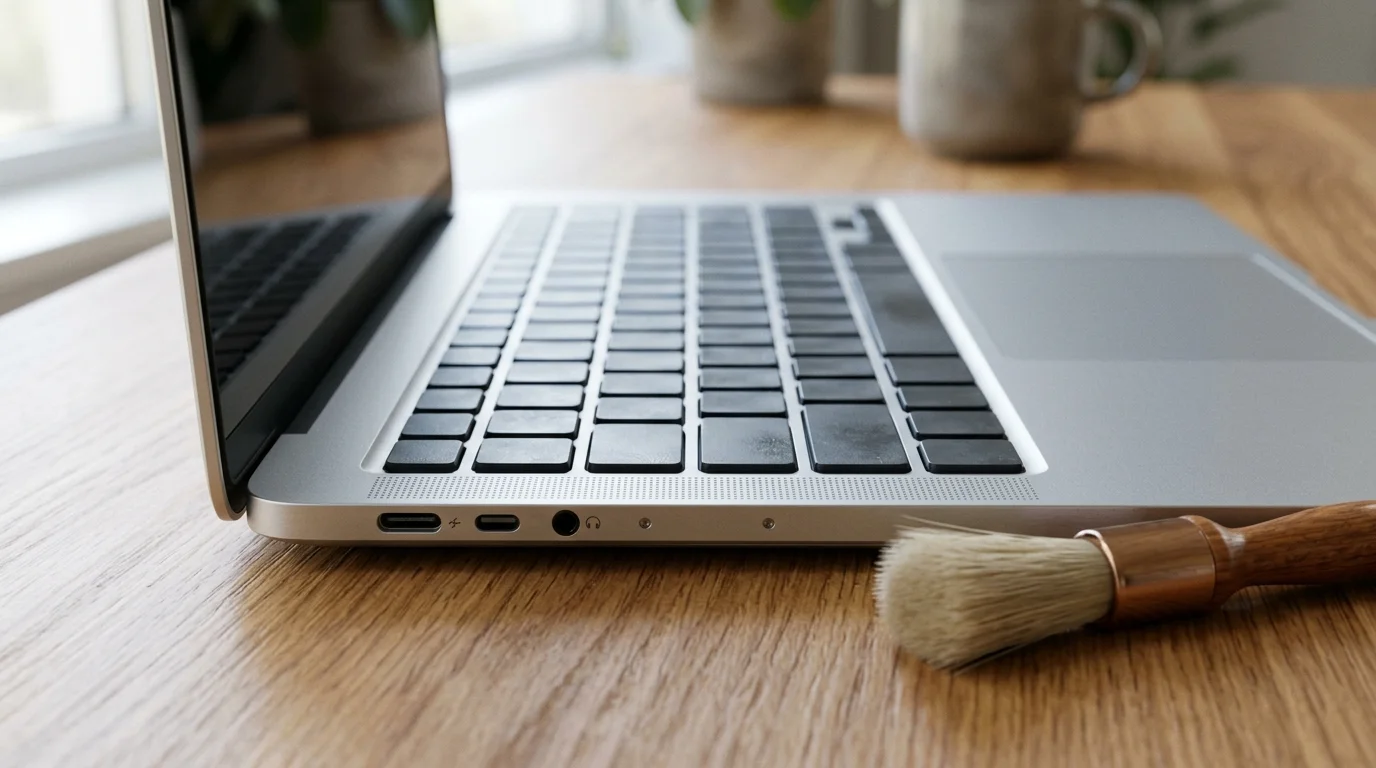
If dry debris is suspected under sticking keys, use Apple's official compressed-air procedure. Hold your MacBook at a 75-degree angle (almost upright), attach the nozzle straw, keep the can upright, and spray affected keys in a left-to-right zigzag motion. Rotate the laptop 90 degrees right and repeat, then rotate 90 degrees left. Never invert the can, and never use compressed air after a liquid spill.
8. Test With an External Keyboard
Connect a USB wired or Bluetooth keyboard. If the external keyboard types the problematic characters effortlessly, macOS is functioning correctly, confirming the fault lies in the built-in keyboard assembly, membrane, or ribbon cable. If the external keyboard also fails, the issue is entirely software-driven.
9. Check for macOS Updates
Go to System Settings > General > Software Update and install any pending updates. Apple regularly issues firmware and system patches that resolve embedded controller glitches and keyboard driver panics.
10. Boot Into Safe Mode to Isolate Conflicts
Safe Mode boots macOS without third-party extensions and clears kernel caches. On Apple silicon Macs (M1/M2/M3/M4), shut down, hold the power button until 'Loading startup options' appears, select your disk, hold Shift, and click 'Continue in Safe Mode'. On Intel Macs, restart and hold Shift until the login window appears. If keys work in Safe Mode, a background startup item is responsible.
11. Seek Professional Bench Diagnostics
If keys remain dead across Safe Mode and after safe cleaning, the internal physical switch, conductive trace, or flex connector requires bench evaluation.
Why Do Certain MacBook Keys Work Only Sometimes?
Intermittent key registration—where a key works only on the third tap, produces duplicate letters, or fails when the laptop warms up—points to subtle mechanical or electrical degradation:
- Shifting Micro-Debris: Loose particles move around inside the keywell. As you type, debris shifts under the silicone dome, intermittently blocking the contact pad before sliding away.
- Worn Conductive Carbon Pads: Inside the keyboard membrane, keypresses bridge conductive pads. Over years of use, the carbon coating on frequent keys (like Space, Enter, or E) wears thin, requiring heavier pressure to register.
- Thermal Expansion: As internal components warm during intensive workloads, the aluminum chassis and keyboard frame expand minutely, temporarily opening hairline fractures in marginal solder joints or traces.
What If One Key or an Entire Row Stops Working?
The pattern of failed keys reveals critical clues about the underlying fault:
- Single Dead Key: An isolated dead key surrounded by working keys points to a local mechanical fault—such as a cracked scissor clip, a torn silicone dome, or foreign debris.
- Entire Row or Diagonal Column Dead: MacBook keyboards use multiplexed row-and-column wiring. If a group of adjacent keys (such as Q-W-E-R-T-Y or a diagonal cluster) stops working together, a shared matrix bus line has likely cracked, corroded, or disconnected at the logic board.
- Spacebar or Modifier Keys Tilting: Wider keys rely on metal stabilizer wires. If a wire unhooks from its retention bracket, pressing the key edge tilts the cap without depressing the central switch.
How to Safely Clean a MacBook Keyboard
Modern MacBook keys have low travel and delicate sub-millimeter plastic hinge tabs that break easily. Strict safety precautions are essential:
To safely clean your keyboard, shut down your Mac and disconnect power. Use a dry, soft-bristled brush to gently sweep away surface dust around the keycaps. If using compressed air, adhere strictly to Apple's 75-degree angle protocol, keeping the nozzle half an inch away to avoid spraying cold liquid propellant.
Why Did My MacBook Keyboard Stop Working After a Spill?
Liquid spills are the leading cause of sudden keyboard failure. Even minor splashes of coffee, water, or soda rapidly seep between keycaps into the delicate membrane. While water causes electrical shorts and mineral buildup, sugary drinks leave sticky residue that gums up mechanisms and actively corrodes copper traces.
If your MacBook has suffered a spill, prioritize immediate device safety over troubleshooting:
- Shut down the MacBook immediately if safe to do so.
- Disconnect the MagSafe or USB-C power charger.
- Do NOT repeatedly test keys to see if they work.
- Do NOT plug the machine into power.
- Do NOT use rice, which introduces abrasive starch into vents.
- Do NOT blow compressed air into wet keys, which forces liquid deeper into the logic board.
- Bring the laptop to a technician promptly for professional disassembly and ultrasonic cleaning.
Can a macOS Update Cause Some Keyboard Keys to Stop Working?
A macOS update rarely damages physical hardware, but major operating system upgrades can reset accessibility preferences, expose incompatibilities with outdated keyboard remapping tools, or corrupt local driver caches. Testing in Safe Mode or creating a temporary new user profile in System Settings > Users & Groups quickly verifies whether the issue is purely software-related.
Can You Test Whether a MacBook Keyboard Is Physically Damaged?
macOS provides built-in tools to help test keyboard hardware integrity:
- macOS Keyboard Viewer: Enable the Accessibility Keyboard in System Settings > Accessibility > Keyboard. The virtual on-screen keyboard highlights keys in real-time as you press them. If physical keystrokes fail to highlight on screen, the switch is not completing the circuit.
- External Keyboard Comparison: If an external keyboard works perfectly while built-in keys fail in identical apps, the operating system is healthy.
- Apple Diagnostics: Running Apple Diagnostics (hold 'D' on Intel Macs during boot, or hold the power button on Apple silicon until options appear and press Command + D) checks power, memory, and controllers. However, Apple Diagnostics does not test individual key membrane contacts; a passing code does not rule out keyboard hardware faults.
When Should You Get Professional MacBook Keyboard Repair?
While settings checks and gentle brushing resolve minor issues, certain signs point to hardware failure requiring bench service:
- Persistent Unresponsive Keys: Keys remain completely dead across all applications, new user accounts, and Safe Mode.
- Physical Sticking or Broken Clips: A keycap feels loose, wobbles, or has damaged scissor hinges preventing normal travel.
- Repeating or Ghost Characters: Tapping a key once types multiple letters or characters fire erratically.
- History of Liquid Exposure: Keys stopped working after contact with water, coffee, or other liquids.
- Adjacent Row Failure: Multiple neighboring keys fail together, indicating severed matrix bus traces.
- Chassis Warping or Bulging: The aluminum case around the keyboard or trackpad feels raised or uneven.
If you notice that your trackpad has also become stiff or unresponsive alongside keyboard issues, consult our detailed guide on what to check when your MacBook trackpad not working prevents smooth navigation. If your machine suffers from broader instability or sudden shutdowns, review our diagnostic walkthrough for a MacBook shutting down randomly, or see how to address a MacBook running slow to isolate system performance.
Can a MacBook Keyboard Be Repaired Without Replacing the Entire Keyboard?
Repair feasibility depends heavily on your specific MacBook model and the diagnosed fault:
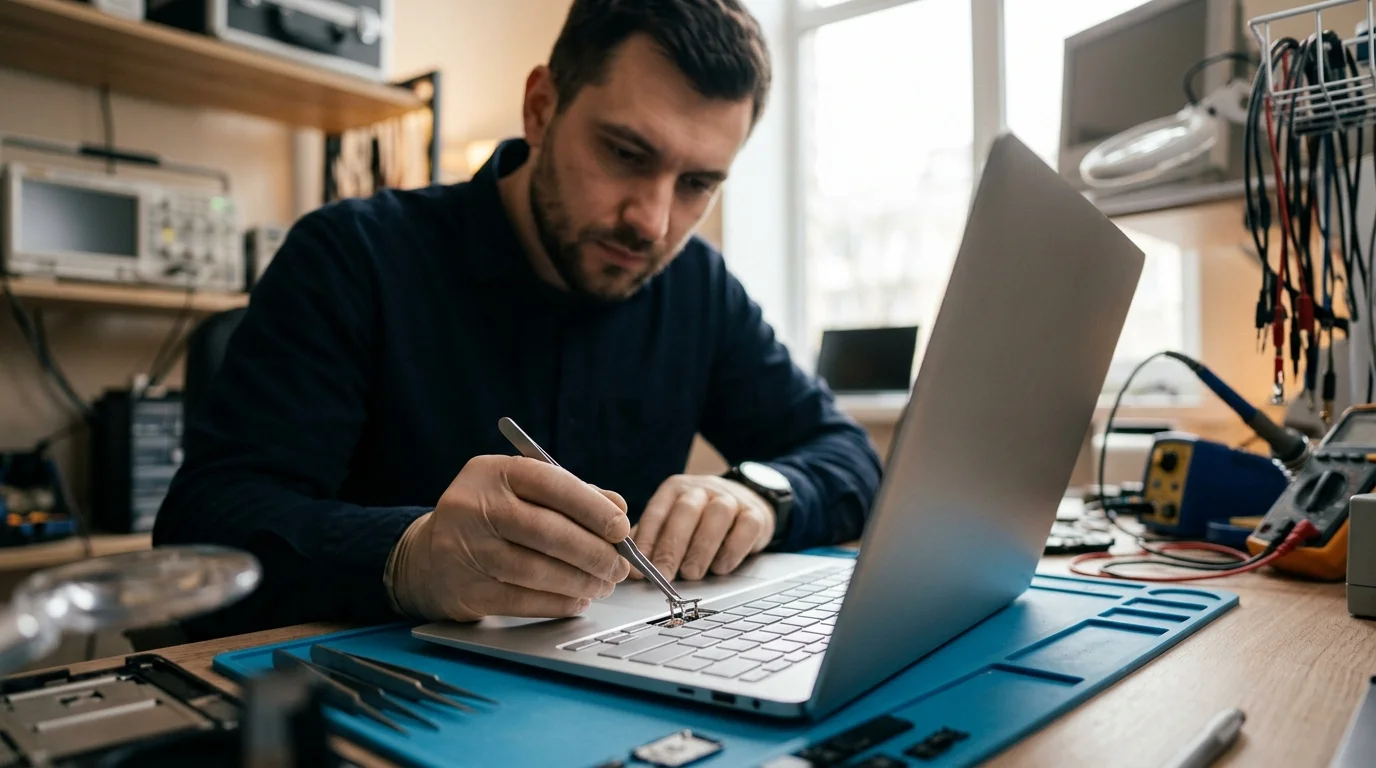
- Keycap and Scissor Clip Replacement: If the underlying silicone dome is intact and only a plastic scissor wing or keycap is broken, technicians can often replace the individual mechanical assembly without replacing the entire keyboard.
- Membrane and Matrix Trace Damage: If conductive traces beneath the keys are corroded or severed, individual keys cannot be rewired. Because modern MacBook keyboards are riveted into the aluminum enclosure, repairing membrane failure requires replacing the keyboard module or the complete top-case assembly.
- Butterfly Keyboard Service Programs: Apple's historical Keyboard Service Program for butterfly models (select 2015–2019 MacBooks) covered devices for four years from original retail sale and has now expired for virtually all eligible devices.
MacBook Keyboard Repair Options at CELLTECH
When home troubleshooting cannot restore your keyboard, CELLTECH provides comprehensive, model-specific MacBook diagnostics and repairs across Texas:
- Comprehensive Hardware Diagnostics: Testing keyboard matrix continuity, ribbon cable health, and battery condition to pinpoint the failure.
- Acoustic & Debris Extraction: Safe removal of compacted dust, pet hair, and debris using anti-static equipment.
- Key Mechanism & Top-Case Replacement: Replacing broken scissor mechanisms, keycaps, or complete top-case assemblies using premium parts.
- Upfront Estimates & 90-Day Warranty: Transparent written quotes before work begins, backed by our 90-day parts and labor warranty.
Visit any of CELLTECH's seven verified Texas retail store locations for an in-person evaluation:
- Dallas — Galleria Dallas: 13350 Dallas Pkwy, Level 2 · (214) 628-6019
- Grand Prairie: Grand Prairie Premium Outlets, 2950 W Interstate 20, Space 75 · (469) 286-2520
- Arlington — The Parks Mall: The Parks Mall at Arlington, 3811 S Cooper St, Level 2 (Next to GameStop) · (817) 538-9520
- Hurst — North East Mall: 1101 Melbourne Rd, Kiosk 92 · (817) 768-8112
- Mesquite — Town East Mall: 2063 Town East Mall, Level 2, Unit 2208 · (972) 220-8548
- Frisco — Stonebriar Centre: 2601 Preston Rd, Level 2, Suite 2210 · (817) 800-7577
- El Paso — Cielo Vista Mall: 8401 Gateway Blvd W, Level 2, Kiosk K113 · (915) 253-1236
Find your nearest store with our CELLTECH store locator, explore our complete professional MacBook repair services, or request a MacBook repair quote online.
Frequently Asked Questions
A few dead keys are usually caused by trapped debris under keycaps, macOS accessibility settings like Slow Keys or Mouse Keys, an incorrect keyboard layout, or physical damage to the internal contact membrane. Testing with an external keyboard helps isolate software causes from hardware failure.
Test the key in TextEdit to rule out app bugs, then restart your Mac. Next, check System Settings > Accessibility > Keyboard to confirm Slow Keys is off, and check Pointer Control to ensure Mouse Keys is disabled. If the key physically sticks, follow Apple's 75-degree compressed air cleaning procedure to clear debris.
Yes. Modern laptop keyboards feature ultra-short key travel. A speck of dust, dried food particle, or pet hair lodged under the scissor hinge can physically block the keycap from moving downward far enough to actuate the electrical switch.
If an external keyboard types the problematic characters normally, macOS is processing keystroke data correctly. This confirms the operating system is healthy and isolates the fault to the built-in keyboard's physical switches, ribbon cable, or contact membrane.
While macOS updates do not physically damage hardware, they can alter accessibility preferences, trigger conflicts with third-party keyboard utilities, or corrupt driver caches. Booting into Safe Mode quickly determines whether background software conflicts are causing the issue.
In many cases, yes. Liquids penetrate the delicate membrane layers beneath the keys, creating short circuits and leaving mineral residue or sugars that corrode circuit traces. While professional ultrasonic cleaning can sometimes salvage components if treated immediately, corroded traces generally require top-case replacement.
Yes. Replacing damaged scissor mechanisms or installing a replacement top-case assembly is significantly more economical than purchasing a new laptop, restoring full typing performance and extending your MacBook's useful lifespan for years.
Restore Full Typing Performance on Your MacBook
Dealing with unresponsive keys turns everyday computing into an exhausting chore, but a methodical approach to troubleshooting quickly reveals whether you are facing a simple settings fix or a genuine hardware failure. By checking Slow Keys, testing across applications, and safely clearing surface dust, many keyboard issues can be resolved at home.
If your keys remain silent, sticky, or broken after completing these steps, professional bench testing can accurately diagnose whether an individual scissor hinge, flex connector, or top-case replacement is required. Visit any of CELLTECH's seven Texas stores or book a MacBook repair appointment today to restore fast, reliable typing.