MacBook Trackpad
MacBook Trackpad Not Working? Causes and Repair Options
A MacBook trackpad that stops working is usually one of three things: a setting that has changed, a battery that has swollen underneath it, or damage to the trackpad or its cable. The first is fixed in minutes at home. The second is a safety issue and the machine should come out of use. The third is a repair, and a contained one on most models.

You go to click and nothing happens. Or the cursor drifts across the screen on its own, or stops moving while the rest of the Mac carries on as normal. A trackpad fault is one of the more disorienting things that can go wrong with a MacBook, because the trackpad is how you do everything else.
A dead trackpad is rarely a dead Mac. Most causes are cheap to rule out, and the ones that need a repair are usually contained to one part. This guide covers how to tell which kind of fault you have, what you can safely try, and when to bring the machine to a technician.
First, Which Kind of Trackpad Fault Is It?
The cursor moves but it will not click
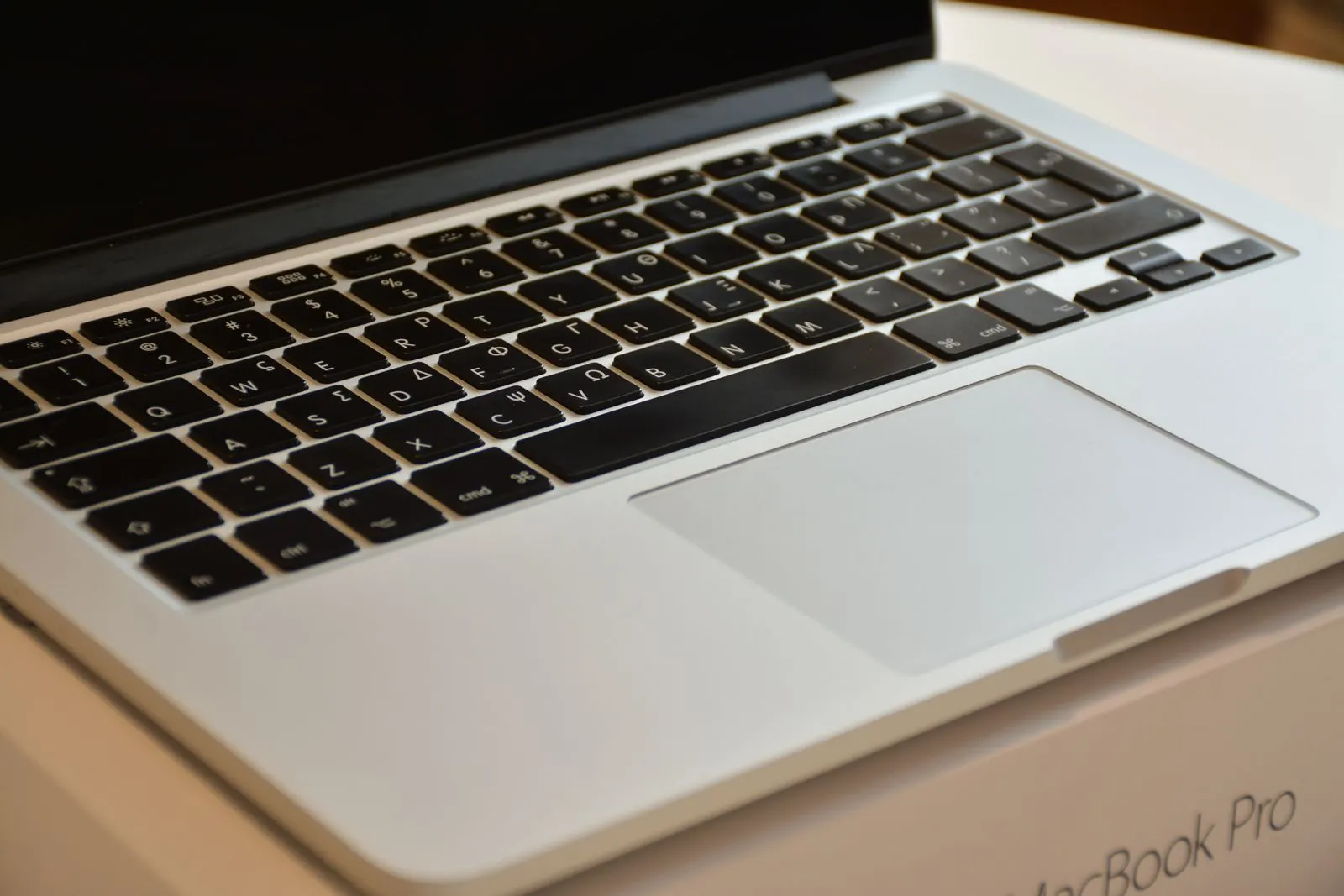
On every MacBook since 2015 the trackpad does not physically move when you press it. A small motor called the Taptic Engine gives you the feeling of a click, and sensors measure how hard you are pressing. If tracking works but clicks do not register, the fault is a Force Click setting or something interfering with the pressure sensing underneath. That last one matters, because the most common thing pushing on a trackpad from below is a swollen battery.
It clicks but the cursor will not move
If you feel a click but the cursor is frozen, the glass is not reading your finger. That is the touch layer of the trackpad, its flex cable, or macOS deliberately ignoring the trackpad because it thinks a mouse is connected. Settings come first here, then the cable.
The cursor jumps, drifts or acts on its own
An erratic cursor means the trackpad is receiving signals it should not. Moisture on the glass, a charger with a poor ground, a cracked surface, pressure from beneath, or a Bluetooth mouse left switched on in a bag can all produce it. Testing with an external mouse tells you the most here.
Settings That Make a Healthy Trackpad Look Broken
Before assuming hardware, check these. Each is a real setting that regularly gets switched by accident, by a family member, or by an update.
- Ignore built in trackpad when a mouse is present. It lives in Accessibility under Pointer Control. With it on, the trackpad goes dead the moment any mouse connects, including a Bluetooth mouse you forgot about.
- Tracking speed. At the slowest position the cursor can feel almost frozen. At the fastest it feels twitchy. Neither is a fault.
- Force Click and haptic feedback. Turning this off or changing click firmness can make clicks feel absent or need far more pressure than you are used to.
- Tap to click. If you tap rather than press and the option has been switched off, the trackpad will seem to ignore you.
Hardware Causes of a Failed MacBook Trackpad
A swollen battery pushing up from underneath
This is the one to rule out first. The MacBook battery sits directly beneath the trackpad. As a lithium ion battery ages or fails it can produce gas and expand, and the first place that pressure goes is upward into the trackpad. Early on the trackpad feels slightly raised, clicks on its own, or refuses to click because it is already being pressed from below. Later it sits visibly proud of the case, the bottom cover bulges, and the keyboard deck can lift.
Liquid under the trackpad
The trackpad sits at the front edge of the machine, exactly where a knocked over drink lands. Liquid that reaches the underside can short the pressure sensors and corrode the flex cable connector. A trackpad that started misbehaving within days of a spill, even a small one that seemed to dry out, is almost always liquid related. Corrosion keeps spreading after the surface is dry, which is why this fault tends to get worse rather than better.
A damaged trackpad flex cable
The trackpad connects to the logic board through a thin ribbon cable. On several MacBook generations that cable runs under the battery and can crease or lift at its connector over years of the case flexing. A damaged cable produces intermittent faults: the trackpad works flat on a desk and stops on your lap, or drops out when you press near one corner. On some models the keyboard shares the same cable, so keyboard and trackpad failing together points to the cable rather than the trackpad.
A trackpad that failed after a drop
A drop onto the front edge or a hard knock on the closed lid can crack the trackpad glass, unseat its connector, or damage the Taptic Engine. A hairline crack at the edge is easy to miss but still lets moisture in. If the trackpad stopped working the same day as a fall, say so when you bring it in.
Signs It Is Hardware Rather Than a Setting
- An external mouse works perfectly while the trackpad does not, and the settings above are all normal.
- The surface feels raised, uneven or rocks slightly when you rest a finger on it.
- Clicks register only in one area, or the trackpad clicks with nothing touching it.
- The problem changes with how the machine is held, or comes and goes with lid position.
- It started after a spill, a drop, or on a battery already reporting Service Recommended.
- The keyboard, or some keys, stopped at the same time.
What You Can Safely Try at Home
Look at the trackpad before you touch anything
With the lid open, sight along the palm rest. The trackpad should sit flush with the aluminum. If it is raised, or the machine does not sit flat on a table, treat it as a swollen battery and skip the rest of these steps.
Connect an external mouse
Any USB or Bluetooth mouse will do. It lets you reach the settings, and it tells you whether the rest of the Mac is healthy. A MacBook that behaves normally with a mouse has a trackpad problem, not a system problem.
Check the trackpad and accessibility settings
Open System Settings, then Trackpad, and confirm tracking speed, tap to click and Force Click are where you expect. Then open Accessibility, Pointer Control, and make sure the option to ignore the built in trackpad is off. Disconnect any Bluetooth mouse you are not using.
Clean the surface and dry your hands
Wipe the trackpad with a slightly damp, lint free cloth and let it dry. Moisture, hand cream and sweat all confuse the touch layer. Remove any keyboard cover or palm rest skin while you test.
Restart, and on an Intel Mac reset the SMC and NVRAM
A full shutdown and restart clears a surprising number of trackpad glitches. On Intel MacBooks, Apple publishes key combinations to reset the SMC, which manages power and some input hardware, and NVRAM. Both are safe and do not touch your files. Apple silicon Macs have no separate SMC reset; a shutdown, a minute's wait and a restart does the same job.
Test in Safe Mode, then back up
Safe Mode loads macOS without third party extensions. If the trackpad works there, a recently installed app is interfering. If it still fails, the fault is almost certainly hardware, so make a Time Machine or iCloud backup now while you still have a mouse to work with.
What Not to Do
- Do not press hard on a trackpad that feels raised. You are pushing on a swollen battery.
- Do not keep charging a MacBook with a raised trackpad, a bulging bottom cover or a lid that no longer closes flat.
- Do not open the machine to reseat the cable or look at the battery. On many models the cable is under a battery that is glued to the case.
- Do not apply heat or leave the Mac in a hot car to dry a spill. Heat drives moisture further in and stresses the battery.
- Do not ignore a trackpad that clicks on its own. It is a symptom, not a quirk.
When Professional Repair Is the Right Call
Bring the machine in straight away if the trackpad is raised, the case is bulging, or there has been any liquid near it. Those are inspection first situations where continuing to test at home has no upside.
Otherwise, stop troubleshooting once an external mouse works, the settings are correct, and Safe Mode and a restart have changed nothing. At that point the fault is in the trackpad, its cable or the battery under it, and none of those can be fixed from the keyboard. A technician can test the trackpad and cable directly, check the battery for swelling, and tell you which part has actually failed before you pay for anything.
Can a MacBook Trackpad Be Repaired?
In most cases, yes. What gets replaced depends on what the diagnostic finds:
| What failed | The repair | What to know |
|---|---|---|
| Swollen battery pressing on the trackpad | Battery replacement | The trackpad usually survives if the machine comes in early. It is tested again once the new battery is fitted. |
| Cracked or dead trackpad | Trackpad replacement | Supplied per exact model and year. On many models the battery comes out to reach it, which is part of the quoted work. |
| Damaged flex cable | Cable replacement | A small part, though reaching it can involve the battery on some generations. Keyboard faults on the same cable are fixed at the same time. |
| Liquid corrosion | Cleaning, then cable or trackpad as needed | Assessed rather than quoted from a description. Damage that reached the logic board is a separate conversation. |
Replacing the whole Mac only makes sense when the trackpad fault is one of several: a spill that also took out the logic board, or a drop that cracked the display and the trackpad together on a machine already showing its age. On a MacBook that otherwise runs well, a trackpad or battery repair is almost always the better value, and the quote gives you a real number to compare.
How CELLTECH Repairs MacBook Trackpads
Bring the Mac to any CELLTECH counter and describe what the trackpad is doing. Our MacBook repair service starts with a free diagnostic: the trackpad, keyboard and cable are tested, the settings are checked, and the battery is inspected for swelling with its cycle count read. The exact model, year and chip are confirmed so the right part can be sourced. You get the failed component, the price and the expected turnaround before anything is opened.
Where the cause is the battery, a MacBook battery replacement removes the pressure and the trackpad is tested again afterwards. Where the Mac has been spilled on, it goes through our liquid damage assessment first so corrosion is dealt with before a new part goes in. Most trackpad and battery repairs are completed the same day when the part is in stock, and qualifying repairs carry a 90 day malfunction warranty.
Where to Get a MacBook Trackpad Fixed
CELLTECH has seven walk in stores in Texas, six around Dallas and Fort Worth and one in El Paso. North of the city, Stonebriar Centre in Frisco is the closest counter; on the east side, Town East Mall in Mesquite offers the same MacBook service. No appointment is needed. Use the store finder to check hours for the store nearest you.
Frequently Asked Questions About MacBook Trackpad Problems
A trackpad that clicks with nothing touching it is being pressed from underneath, and on a MacBook the thing underneath is the battery. A battery that has started to swell pushes against the pressure sensors and the trackpad registers that as a click. Stop using and charging the machine and have the battery inspected. Caught early, the trackpad itself is usually fine once the battery is replaced.
That pattern points to a flex cable or connector that is only just making contact. When the case flexes slightly on your lap the contact opens and the trackpad drops out. It can also happen with a battery that is beginning to swell. Either way it is a hardware fault that tends to get worse, so have the cable and battery checked rather than working around it.
If the trackpad is flat, the battery is healthy and there has been no liquid, a mouse is a reasonable stopgap while you decide. If the trackpad is raised or the machine has been spilled on, no. Those causes carry on developing whether or not you use the trackpad, and the longer a swollen battery stays in the case the more it can damage around it.
On Intel MacBooks the SMC reset is a published Apple procedure that only resets power and hardware management settings. It does not touch your files, apps or accounts. An NVRAM reset is similarly safe and may reset things like your startup disk choice and speaker volume. Apple silicon Macs have no separate SMC reset; a full shutdown and restart covers it.
Usually not. On most MacBook Air and MacBook Pro generations the trackpad is a separate part that can be replaced on its own, although on many of them the battery has to come out to reach it. The top case, which includes the keyboard, is a different and larger job. The diagnostic confirms which applies to your exact model before a price is given.
Very likely. The trackpad sits where liquid lands, and even a small amount that reaches the underside can corrode the sensor connections over the following weeks. Drying the surface does not stop that. The machine should be inspected for corrosion before a new trackpad is fitted, otherwise the replacement can fail the same way.
Look for a trackpad that sits above the palm rest, a bottom cover that no longer sits flat on a table, a lid that does not close evenly, or keys near the center that feel raised. A trackpad that clicks by itself or will not click at all is the earliest sign. If you see any of these, stop charging the Mac and bring it in.
Get Your MacBook Trackpad Working Again
A trackpad fault is a good reason to have a MacBook looked at, and a bad one to put up with. If the settings and a restart have not brought it back, or the surface feels raised, let a technician find the actual cause before it turns into a bigger repair.
The diagnostic is free, the price comes before the work, and most trackpad and battery repairs are same day when the part is in stock. Book a MacBook diagnostic or walk into your nearest store; find a CELLTECH location to get started.
Related guides: MacBook shutting down randomly, why your MacBook is overheating and is it safe to use a device with a swollen battery.