Contact Recovery
How to Recover Contacts From a Broken Phone
If your phone was signed in to iCloud, Google or a Samsung account, your contacts are almost certainly still safe in that account and you can get them back from any web browser in a few minutes, even if the phone never turns on again. If they were only stored on the phone itself, a temporary screen repair or professional data recovery is usually the way to reach them. Here is how to check each route, in order.
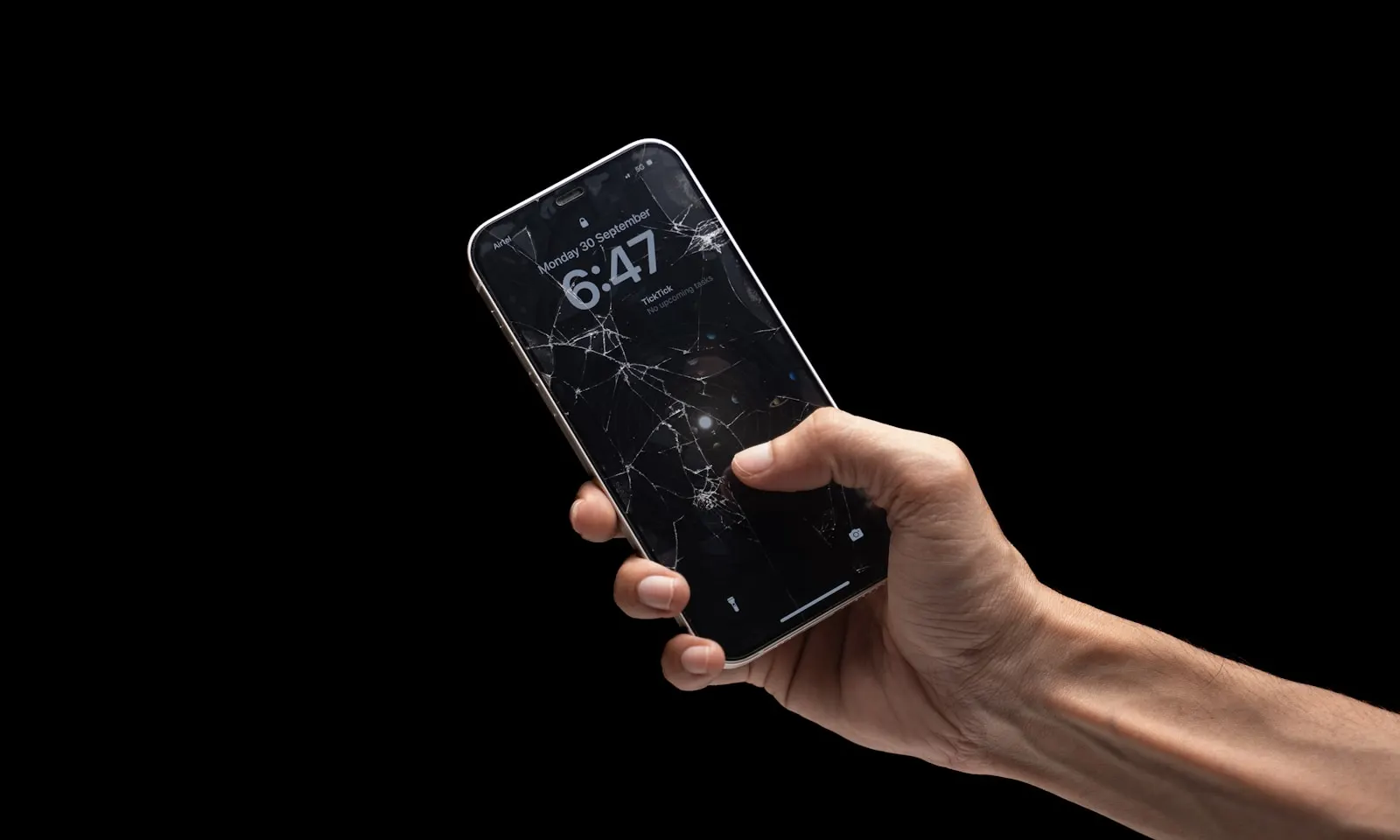
The phone is broken, and the first thing you think of is not the phone. It is the numbers: family, the doctor, years of people you never wrote down anywhere else. Whether the screen is shattered or the phone will not power on at all, the question is the same: can I get my contacts back?
For most people the answer is yes, and it is easier than it feels right now. Modern phones sync contacts to an online account by default, so the copy on the phone is usually not the only copy. This guide walks through every place your contacts might be, starting with the ones you can check from any computer, and finishes with what to do when the phone itself is the only copy.
Start Here: Check Your Online Account First
iPhone: iCloud contacts
Go to icloud.com and sign in with your Apple ID. You may need a verification code; if the only trusted device is the broken phone, have the code sent by text to your number on a replacement phone with the same SIM. Once in, open Contacts. Everything that was syncing is there, and you can export the lot as a vCard file from the settings gear in the bottom corner. Signing in to the same Apple ID on a new iPhone restores them automatically.
Android: Google Contacts
Go to contacts.google.com and sign in with the Google account that was on the phone. Most Android phones save new contacts to the Google account unless you chose otherwise, so this is where the majority of Android users find everything. If the list looks short, check the Other contacts view and the Trash, and look for a second Google account you may have added years ago. Sign in on a new Android phone and they sync automatically.
Samsung: Samsung account and Smart Switch
Samsung phones can store contacts in a Samsung account as well as, or instead of, a Google account. Sign in at the Samsung account website and check Samsung Cloud, or sign in to your Samsung account on a replacement Galaxy phone and restore from the cloud backup. If you ever ran a Smart Switch backup to a computer or an SD card, that backup contains your contacts too, and Smart Switch on a new Samsung phone can restore from it.
If none of those accounts show your contacts, do not panic yet. Work through the next sections in order.
Other Places Your Contacts May Be Stored
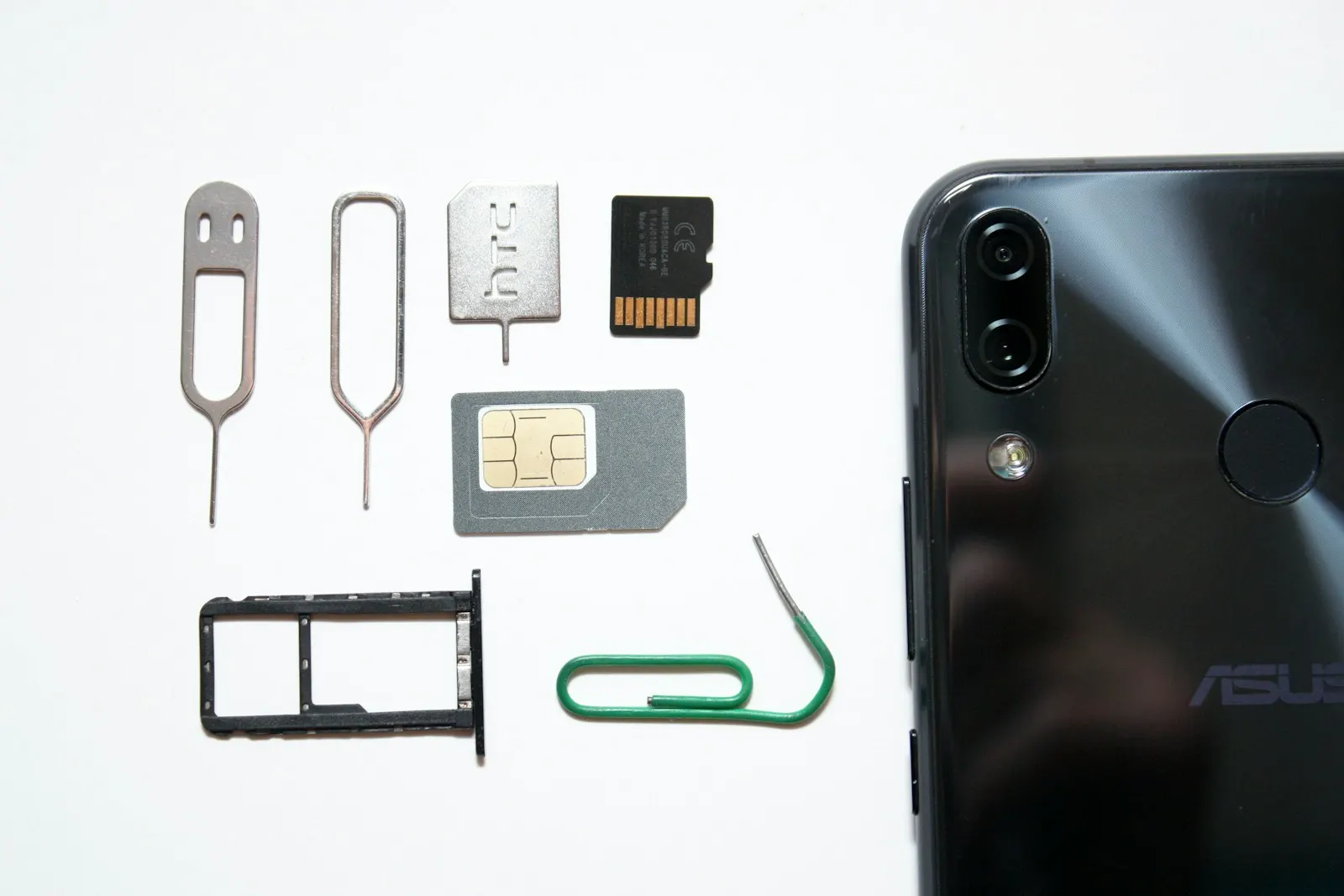
The SIM card
Older phones and many prepaid phones save contacts to the SIM card. Move the SIM into any working phone and look for an option to import contacts from SIM. The limits are real: a SIM holds a few hundred entries at most, each with a name and a single number, and modern iPhones do not save contacts to the SIM at all. If your phone uses an eSIM, there is no card to move.
Carrier backup apps
Some carriers offer a contact backup or cloud service through their own app, and phones bought from a carrier often had it switched on at setup. Sign in to your carrier's account on the web or in the app on a replacement phone and look for a backup, sync or content transfer section. This is worth checking even if you do not remember enabling it.
Computer backups
If you ever backed the phone up to a computer, that backup includes contacts. On a Mac, iPhone backups are made through Finder; on Windows, through iTunes or the Apple Devices app. Restoring one to a replacement iPhone brings the contacts back, as long as the backup was not encrypted with a password you have since lost. Android users should search their computer for vCard or CSV files, and Google keeps a device backup that a new Android phone offers to restore during setup.
When the Screen Is Dead but the Phone Is Still On
This is the most common situation after a drop. The phone vibrates, rings, and may even make sounds when you plug it in, but the display is black or shattered and touch does not work. The good news is that the data is intact; you just cannot see it or unlock it.
The obstacle is that the phone is locked, and it will not sync new data or trust a computer until it is unlocked. If the contacts were already syncing, you may not need the phone at all. If not, your options are:
- If touch still works under the cracked glass, you may be able to enter your passcode blind. Try it carefully, as too many wrong attempts can lock the phone for longer.
- If the phone was previously trusted by your computer and was unlocked recently, Finder, iTunes or Android desktop tools may still be able to make a backup without touching the screen.
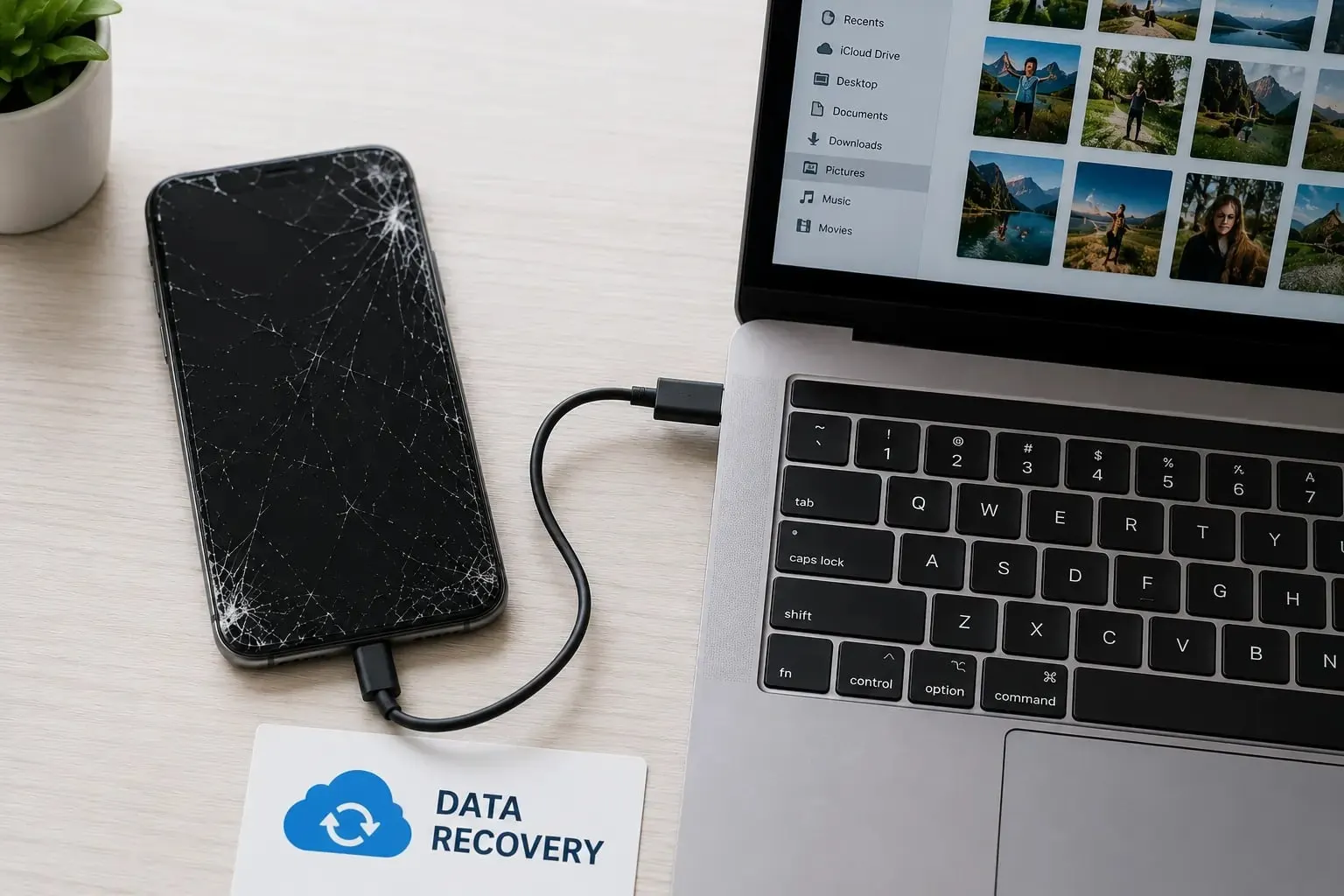
- A temporary screen fitted by a technician lets the phone be unlocked normally, contacts synced or exported, and a full backup made. This is often the fastest and most reliable route, and the working screen can stay on if you decide to keep the phone.
When the Phone Will Not Turn On at All
A phone that shows no sign of life is harder, but not hopeless. Often the phone is not actually dead. A drained battery, a failed charging port, a damaged screen with a working phone behind it, or a battery connector knocked loose in a drop can all look identical from the outside. Charge it for at least half an hour with a known good cable and charger, then hold the power button for a long press. If nothing happens, get it inspected: a technician can test whether the board still powers on with a known good battery and screen, and if it does, your contacts are reachable.
What You Can Safely Try Right Now
Work through these in order. Stop as soon as you find your contacts.
Sign in to your cloud account on a browser
Visit icloud.com, contacts.google.com or your Samsung account page from any computer. This is where the majority of people find their contacts within minutes.
Check every account you have ever used
Old Google accounts, a work Apple ID, a Samsung account you forgot about, a carrier backup service. Contacts often live in the account that was set up first, not the one you use most.
Move the SIM to another phone
If your phone uses a physical SIM, put it in a working phone and import contacts from SIM. Expect names and numbers only.
Search your computer for a backup
Check Finder or iTunes for an iPhone backup, and search for vCard or CSV files that may have been exported in the past.
Bring the phone in
If the contacts are only on the phone, a technician can fit a temporary screen or carry out data recovery. Bring your passcode or be ready to enter it yourself; recovery is not possible without it on an encrypted phone.
What Not to Do
- Do not factory reset, erase or restore the phone from a browser or another device in an attempt to fix it. Erasing the phone erases the contacts that were only stored on it.
- Do not enter the passcode repeatedly on a blind screen. Too many failed attempts can lock the phone for an hour or more, and on some settings may erase it.
- Do not open the phone or disconnect the battery to check for damage. Unplugging a battery incorrectly can damage the board, and a punctured battery is a fire risk.
- Do not use heat, rice or a hair dryer on a phone that got wet. Liquid damage needs proper cleaning, and delay makes corrosion worse.
- Do not remove the old phone from your Apple ID or Google account until the contacts are safely on the new one.
When Professional Data Recovery Is the Right Call
Go to a technician when the contacts are not in any cloud account, when the phone will not power on, or when the screen is dead and the phone was not synced. It is also the right call when the phone got wet, because every hour of corrosion reduces the chance of a clean recovery.
At CELLTECH, phone data recovery begins with a free diagnostic to find out why the phone is not responding. Often the fix is simpler than it looks: a new screen, a new battery or a repaired charging port brings the phone back to life, and your contacts come with it. When the board is at fault, a technician will explain what is possible on your model and quote the work before starting.
Can the Contacts Always Be Recovered?
Honestly, no. Every modern iPhone and most Android phones encrypt their storage, and the key lives in the phone's own security chip and passcode. That means:
- If the phone has been erased, reset or remotely wiped, contacts that were only on the phone are gone. Cloud copies are unaffected.
- If the storage chip or security chip is physically destroyed, for example by a crushed or burnt board, the data cannot be read even by a laboratory.
- If you do not know the passcode, an encrypted phone cannot be unlocked or recovered, and no reputable shop will attempt to bypass that security.
Everything else, from a shattered screen to a dead battery to a broken port, is usually recoverable.
How CELLTECH Helps
Bring the broken phone to any CELLTECH store and a technician will inspect it for free and tell you the fastest route to your contacts. In many cases that is a same day screen repair so the phone can be unlocked, synced and backed up normally. If the phone will not power on, we test the battery and port before assuming the worst.
You receive a price before any work begins. Most screen, battery and port repairs are completed the same day when the part is in stock, and qualifying repairs are covered by a 90 day malfunction warranty. Your data stays on your phone and you remain in control of your passcode throughout.
Where to Bring a Broken Phone in Texas
CELLTECH has seven walk in stores across Texas, including Grand Prairie Premium Outlets, North East Mall in Hurst and Town East Mall in Mesquite, plus Cielo Vista Mall in El Paso. No appointment is needed for a diagnostic. Use the store finder to find your closest location and opening hours.
Frequently Asked Questions About Recovering Contacts From a Broken Phone
If the contacts were syncing to iCloud, Google or a Samsung account, yes, simply sign in to that account on a browser or a replacement phone. If they were only stored on the phone, a technician needs to get the phone powering on first, which is often possible with a new battery, screen or charging port. Recovery is not possible if the storage chip is physically destroyed or the phone has been erased.
First check icloud.com from a computer, since most iPhones sync contacts automatically. If they are not there, a temporary or permanent screen replacement lets you unlock the phone, turn on iCloud sync or make a full backup. A previously trusted computer may also be able to back the phone up without the screen if it was recently unlocked.
On modern iPhones, no; they are stored on the phone and in iCloud. On older Android phones and prepaid phones, possibly, if you chose to save them there. A SIM stores a limited number of entries with a name and one number each, so even when it helps it is rarely a complete list.
No. Modern phones encrypt their storage and the passcode is part of the key. A reputable shop will not attempt to bypass that security, and technically it is not possible to read the data without it. Bring your passcode with you or be ready to enter it yourself.
Check for a second Google account, look in the Other contacts and Trash views at contacts.google.com, and check whether some contacts were saved to the phone or SIM rather than the account. Samsung users should also check their Samsung account, as contacts can be saved there instead.
Often yes, because it is the most reliable way to unlock the phone and take a complete backup of everything, not only contacts. If you plan to keep the phone, the screen simply stays on. If you are replacing it, the repair still gives you full access to move your data and sign out of your accounts properly.
Get Your Contacts Back
If you have checked your accounts and the contacts are only on the broken phone, do not keep experimenting. Bring it in, let a technician confirm the fastest route, and get a price before any work starts.
Book an appointment or walk in to your nearest CELLTECH store with the phone and your passcode.
Related guides: how to recover data from a broken phone before it is too late and what to do when your iPhone screen is black but the phone is still on.