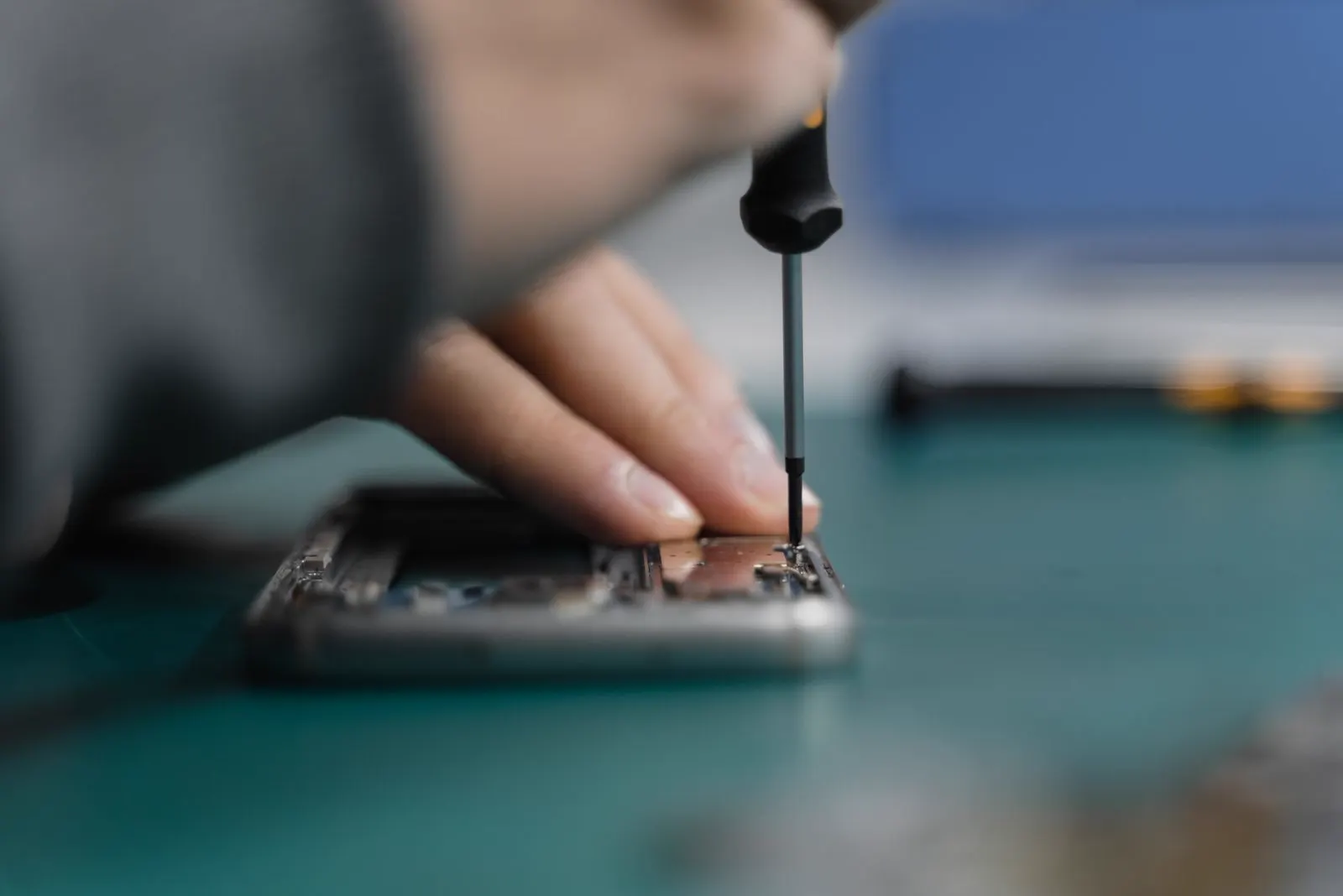
Laptop Charging
Laptop Charging Port Broken? Symptoms, Causes and Repair
A laptop charging port that has to be wiggled, held at an angle or pushed in to charge is physically damaged, and it will not improve on its own. On most Windows laptops and Chromebooks the port is a replaceable part, either a barrel jack on its own cable or a USB-C connector on a board. The repair is usually contained, but the checks that prove it is the port and not the charger come first.
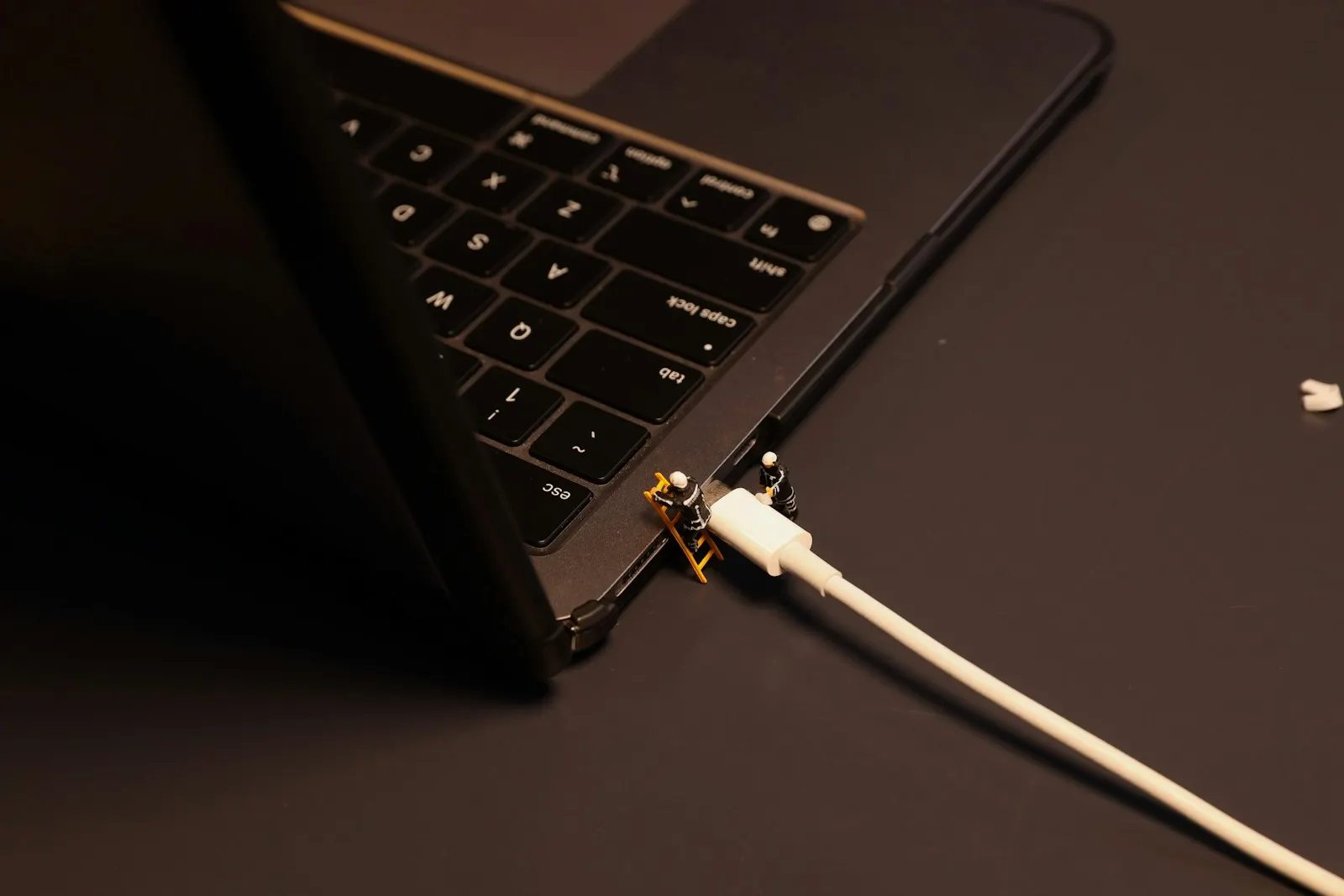
It started as a small thing. The charging light flickered when the cable moved, so you learned to leave it alone. Then it needed a nudge to start charging. Now you have found the exact angle, propped the plug with a book, and the laptop still drops to battery whenever someone walks past the desk.
That progression is a charging port wearing out or breaking, and it is one of the most common laptop repairs we do. It is also one of the most misdiagnosed, because a failing charger produces a very similar story. This guide covers the symptoms, what causes them, the checks that separate port from charger, and what a port repair involves on the different kinds of laptop.
Barrel Jack or USB-C: Two Kinds of Port, Two Kinds of Failure
Most Windows laptops from before around 2018, and many larger gaming and workstation machines still, charge through a round barrel connector. The port is a small socket, often on its own short cable or a small board, sometimes soldered directly to the motherboard. Its weakness is mechanical: a center pin that bends, a socket that loosens from repeated plugging, and solder joints that crack when the plug gets knocked sideways.
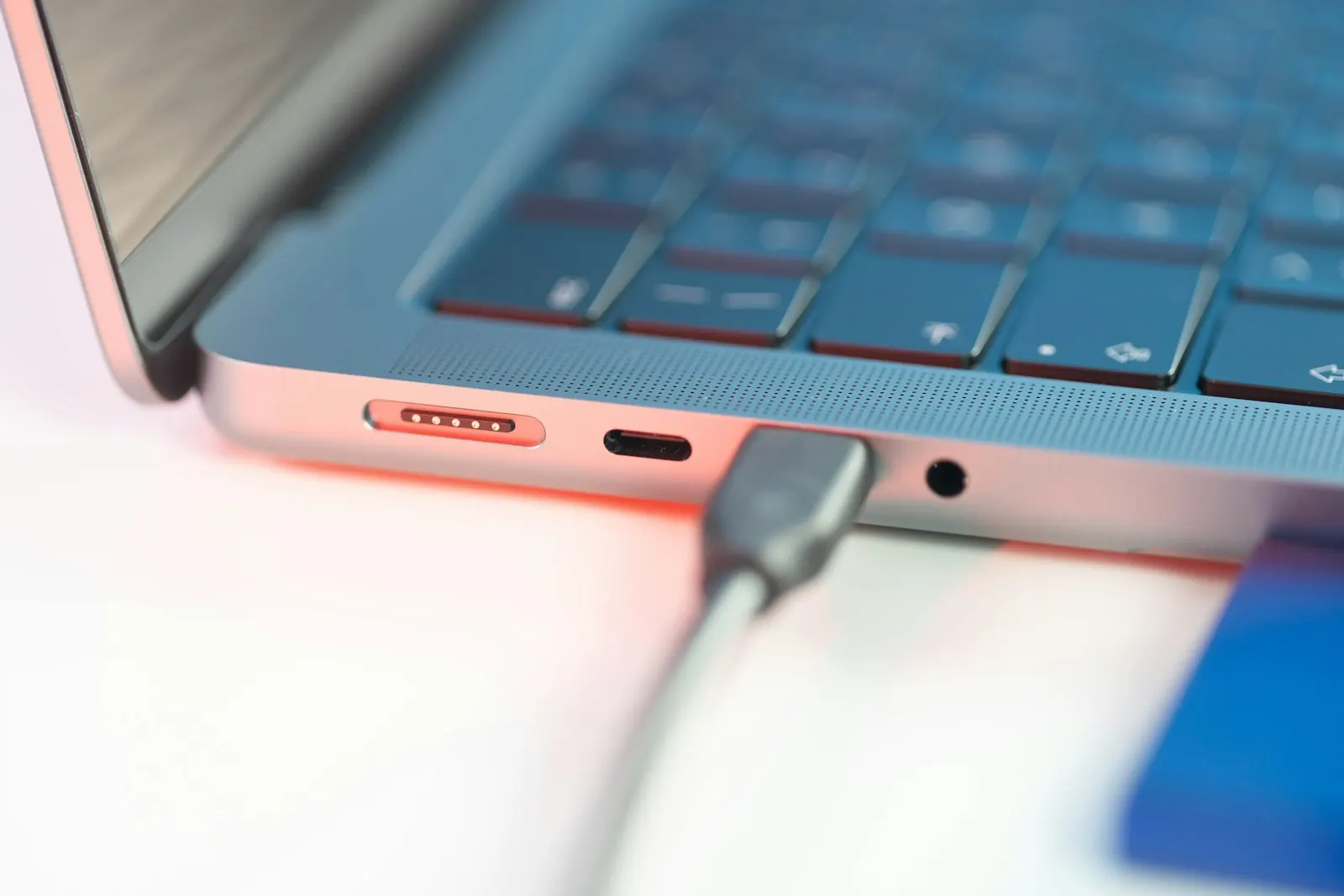
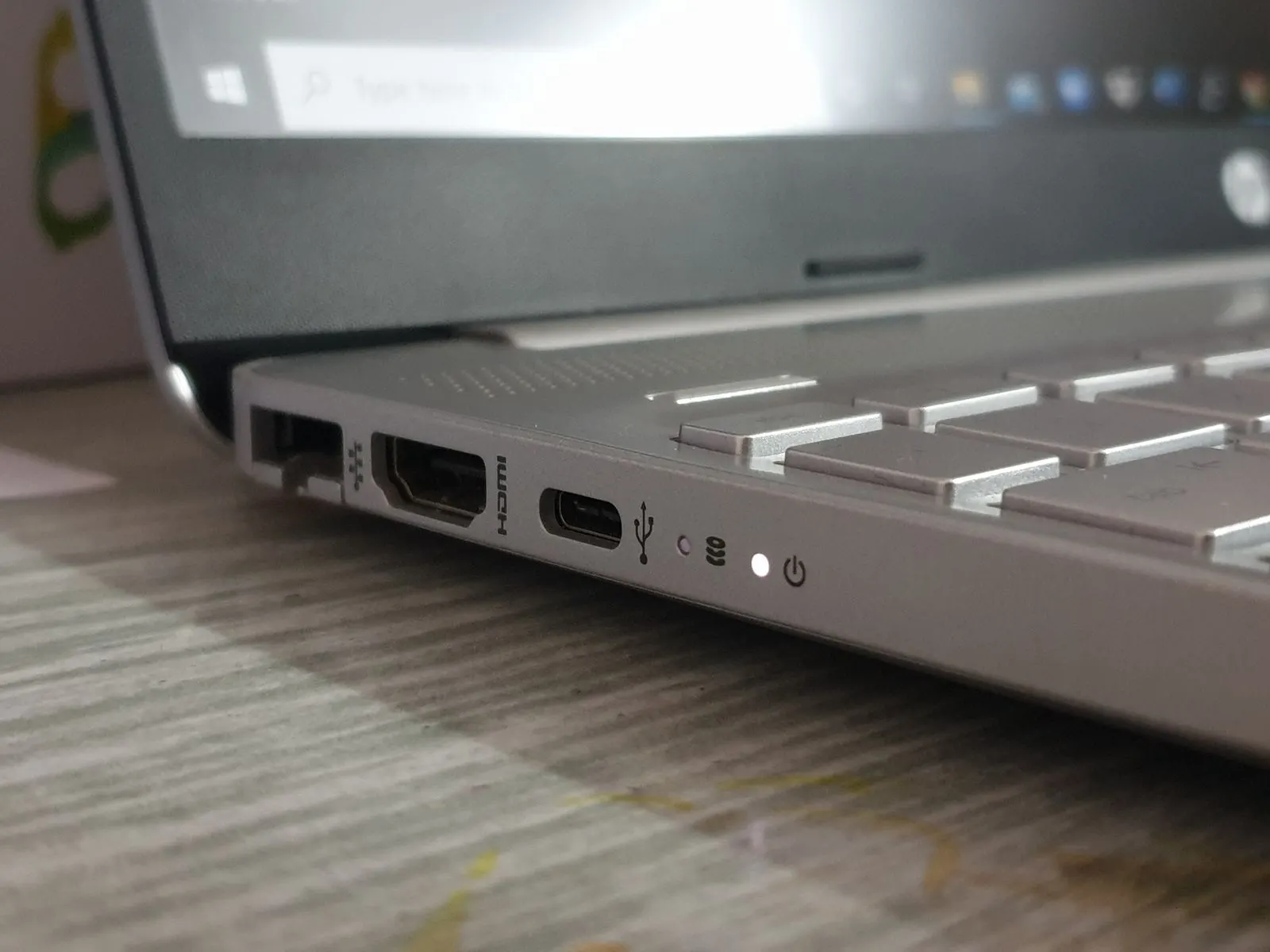
Newer thin laptops, most Chromebooks and many business machines charge through USB-C. The connector is smaller, carries data as well as power, and is more often soldered to the motherboard or to a small daughterboard. Its weakness is wear and debris: the tiny contacts inside wear with thousands of insertions, the shell loosens, and pocket lint packs into the bottom. USB-C also introduces a cause barrel jacks never had, which is a charger that connects but does not supply enough power for the laptop.
Symptoms of a Damaged Charging Port
- You have to wiggle, angle or hold the plug to make the laptop charge.
- The charging LED flickers on and off when the cable is touched or the laptop is moved.
- The laptop does not charge at all on a charger that works on another machine.
- The plug feels loose in the port, rattles, or goes in further than it used to.
- The port has visibly moved, sits pushed into the case, or is off center.
- The charger plug or the area of the laptop around the port gets unusually hot.
- The laptop charges on one USB-C port but not the other.
- Sparks, a burning smell, discoloration or melted plastic at the port.
What Breaks a Charging Port
Someone tripped over the cable
The most common cause by far. A cable under sudden tension levers the plug sideways in the socket, and the socket transfers that force to whatever holds it: a cable, a small board, or solder joints on the motherboard. One good yank is enough to crack the joints or bend the barrel pin, and the port works intermittently from then on.
A bent center pin
Barrel ports on many laptops have a thin pin in the middle that the plug slides over. Pushing the plug in at an angle, or a plug that has itself been damaged, bends that pin. The laptop then charges only when the plug happens to press the pin back into contact. On some designs the pin also carries the signal that tells the laptop which charger is connected, so a bent pin can produce a charger not recognised message rather than no charging.
Loose solder joints on the DC jack
Where the barrel socket is soldered directly to the motherboard, years of plugging and unplugging, plus the weight of the cable hanging off the side of the laptop, work the joints loose. A hairline crack in a solder joint is invisible and behaves exactly like a loose plug: contact when pressed one way, none when pressed the other. This is the fault behind most wiggle to charge laptops.
A worn USB-C port
USB-C ports are rated for a large number of insertions, but a laptop that charges every day from the same port, often with the plug bearing the cable's weight, reaches that number. The shell spreads, the plug no longer holds firmly, and the contacts inside wear. Charging becomes intermittent, and data accessories on that port start dropping out too.
Debris in the port
Lint, crumbs and grit collect in any open port. In a USB-C port they pack into a firm plug at the bottom that stops the connector seating, so the plug feels like it is not quite in and charging depends on angle. In a barrel port debris around the pin can hold the plug off contact. This is one of the few causes with no damage behind it, and it is cleared properly with the right tools rather than with a pin.
The adapter has died
Not the port at all, but it produces the same symptom. Laptop adapters fail from heat, from cables fraying at the strain relief, and from being bent sharply near the plug. An adapter with an intermittent break in its cable flickers exactly like a broken port, which is why testing with a second charger is the first check below.
Is It the Port or the Charger? Checks You Can Do Safely
Check the adapter's own light
Most laptop adapters have a small LED on the brick or the plug. Plug it into the wall with nothing connected. No light means the adapter or the outlet is dead. A light that flickers when you flex the cable near either end means the cable is failing.
Try the wall outlet and the removable lead
Plug the adapter into a different outlet. If the adapter uses a separate mains lead, reseat it firmly at the brick; they work loose. A dead outlet or a loose lead is a common non fault.
Test with a known good charger
Borrow the same type of charger from a colleague or family member with a matching laptop, or use a spare you know works. If the laptop charges normally, the port is fine and the charger is the fault. If it behaves the same way, the port is the likely cause. For USB-C, make sure the borrowed charger is rated for your laptop's power, not a phone charger.
Try the other USB-C port
If your laptop has two USB-C ports that both charge, swap the plug to the other one. Charging on one and not the other proves the charger is fine and isolates the fault to that port.
Look into the port with a light
Shine a torch into the port. Look for lint packed at the bottom, a bent or missing center pin, a socket that sits crooked or has moved inward, and any discoloration. Looking is safe. Note what you see for the technician.
Check the battery report
On Windows, the battery icon shows whether the laptop sees a charger. Plugged in, not charging while a good charger is connected suggests the port is delivering something but not enough, or the battery is refusing it. A Chromebook shows a similar status. This helps the technician narrow down between port, board and battery.
Back up while you still can
If the port is failing, there will be a day when the laptop does not charge at all. Copy your files to an external drive or the cloud while it still has power.
What Not to Do
- Do not tape or wedge the plug in place. Constant pressure on a cracked joint spreads the crack across the board, and a repair that started as a jack becomes a motherboard job.
- Do not force a plug that no longer fits. If it will not go in straight, something is bent or blocked.
- Do not put a pin, paperclip, tweezers or anything metal into the port. A short across a live power connector can damage the charging circuit and the battery.
- Do not keep using a charger that is hot, frayed, or whose plug is bent or discolored. A damaged adapter can take the port with it.
- Do not buy the cheapest generic adapter online as a fix. Wrong voltage or a poor connector is a common cause of the very symptom you are trying to cure.
- Do not open the laptop to look at the jack. On many models the jack sits under the motherboard, and the battery has to be disconnected before anything else is touched.
- Do not run the laptop from a port that has sparked or smelled hot, even if it seems to work now.
When Professional Repair Is the Right Call
Once a known good charger behaves the same way as yours, the fault is inside the laptop and the checks at home are done. The same is true of any port that is loose, pushed in, crooked, discolored, or that needs the plug held to charge. A port that has sparked or smelled hot should go in the same day.
A technician can measure what the port actually delivers under load, test the charging circuit and battery, and see whether the damage stopped at the jack or reached the board. That inspection takes minutes and it decides the repair, which matters because a jack on a cable, a jack on the motherboard and a damaged charging circuit are three different jobs.
Is a Laptop Charging Port Repairable?
Almost always, though how depends on the laptop:
| Port design | The repair | What to know |
|---|---|---|
| Barrel jack on its own cable | DC jack replacement | The most straightforward version. The old jack and cable come out and a new one goes in. Common on mid range Windows laptops. |
| Barrel jack soldered to the motherboard | Board level jack replacement | The old jack is desoldered and a new one fitted. Longer job and depends on the model, but far cheaper than a motherboard. |
| USB-C on a separate daughterboard | Charging board replacement | The small board carrying the port is replaced. Common on Chromebooks and thin laptops. |
| USB-C soldered to the motherboard | Board level port replacement | Precision soldering work, quoted per model once the board is inspected. Not every model is a candidate, and you would be told. |
| Dead adapter | Charger replacement | The port is fine. The right adapter for the laptop's voltage and power is what matters. |
Replacing the laptop makes more sense when the damage reached the charging circuit on the motherboard of a machine that was already old, or when the port fault is one of several. On a laptop that otherwise works well, a jack or port repair is nearly always the better value, and the quote gives you a real number to compare.
How CELLTECH Repairs Laptop Charging Ports
Bring the laptop and its charger to any CELLTECH counter. Our laptop repair service covers Windows machines from Dell, HP, Lenovo, Asus, Acer and Microsoft Surface, plus Chromebooks, and starts with a free diagnostic. The adapter, the port and the battery are tested against each other, the exact model is identified so the correct jack or board can be sourced, and you get the price and expected turnaround before any work is approved.
Our charging port repair covers DC jack replacement, USB-C port and charging board replacement, and board level soldering where the model allows. Many jack and board replacements are completed the same day when the part is in stock; soldered port work can take longer and you are told which applies before you decide. Qualifying repairs carry a 90 day malfunction warranty.
Where to Get a Laptop Charging Port Repaired
CELLTECH has seven walk in stores in Texas, six around Dallas and Fort Worth and one in El Paso. North East Mall in Hurst and The Parks Mall at Arlington both take laptops without an appointment. Use the store finder for the nearest counter and its hours.
Frequently Asked Questions About Broken Laptop Charging Ports
Usually the port, but test a known good charger before deciding. If a second charger behaves the same way, the socket, its center pin or its solder joints are damaged and the plug only makes contact when pressed a certain way. Holding it there works until it does not, and each session of pressure spreads the damage. Have the jack replaced before the board joins it.
Yes, on nearly every laptop. Where the jack is on its own cable, it is simply swapped. Where it is soldered to the motherboard, the old jack is desoldered and a new one fitted, which takes longer but leaves the board in place. Motherboard replacement is only discussed when the damage has spread into the charging circuit itself.
The laptop can see the charger but is not accepting power from it. Common causes are a USB-C adapter that is too weak for the laptop, a damaged port delivering only part of the connection, a charger not being recognised because of a bent signal pin, or a battery that is refusing charge. A known good charger rules out the first; a diagnostic separates the rest.
Adapters run warm normally, especially while charging a flat battery. An adapter that is too hot to hold, or a plug that is hot at the laptop end, is not normal. It can mean a failing adapter, a damaged cable, or a port that is shorting. Unplug it and have the laptop and charger checked together before using either again.
Only if the laptop supports USB-C charging, which is a feature of the model rather than of the port. Some laptops with both a barrel jack and USB-C accept charge through USB-C at a reduced rate; many do not accept it at all. Check the manufacturer's specifications for your exact model. Even where it works, it is a stopgap rather than a fix.
Chromebooks almost all charge through USB-C, and on most of them the port sits on a small daughterboard that can be replaced without touching the mainboard. That makes the repair contained on the majority of models. Where the port is soldered to the mainboard, it becomes board level work and is quoted per model after inspection.
Not long, and the cost of waiting rises. A loose port works intermittently, then rarely, then not at all, usually at the worst moment. Meanwhile the pressure of holding the plug in place spreads any cracked joint into the board. Back up your files now and have the port looked at before it stops charging entirely.
Get Your Laptop Charging Properly Again
A charging port that needs coaxing is a repair waiting to become a bigger one. Test a known good charger, look into the port with a light, and if the fault is in the laptop, have the jack or port replaced while it is still a small job.
The diagnostic is free and the price is quoted before work begins. Book a laptop charging diagnostic or contact your nearest CELLTECH store and bring the laptop and its charger.
Related guides: MacBook charging port not working for Apple laptops, signs a phone charging port needs professional repair and why a phone only charges at a certain angle.